Cart
Cart
|
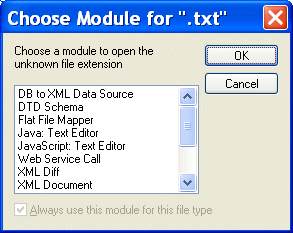
Home > Online Product Documentation > Table of Contents > Specifying Stylus Studio Options Specifying Stylus Studio OptionsStylus Studio allows you to set a variety of options that apply to your application, your Java implementation, and the Stylus Studio modules themselves. This section covers the following topics: Associating File Type Extensions with Stylus Studio ToolsWhen you try to open a file type that Stylus Studio does not recognize, Stylus Studio prompts you to specify the module or editor you want to use to open the file.
When you respond to this dialog box, you establish an association between all files with that extension and the Stylus Studio module you select. If you prefer, you can establish file type-Stylus Studio module associations in advance of opening files peculiar to your application. Adding an Association
To add an association:
1. From the Stylus Studio menu bar, select
Tools >
Options.
Stylus Studio displays the Options dialog box.
2. Under
Application Settings, click
File Types.
3. Stylus Studio displays
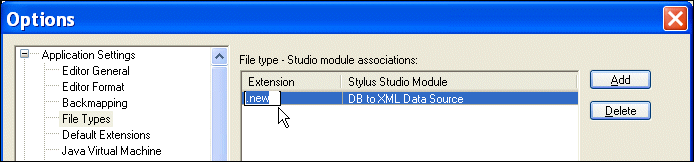
File type - Stylus Studio module associations. This dialog box allows you to indicate the module you want Stylus Studio to use when it opens a file with the extension you specify.
4. To add a new association, click the
Add button.
5. Type the new extension and press Enter.
Stylus Studio displays the list of Stylus Studio editors and modules.
6. Click the module that you want Stylus Studio to use to open files with the extension you specified and press Enter.
8. Click the
OK button.
Deleting AssociationsTo delete an association:
1. Click the association you want to delete.
2. Click the
Delete button.
When you have finished adding and deleting associations, click OK. Registering Stylus Studio as the Default ApplicationYou can register Stylus Studio as the default application to use to open files with certain extensions. To register Stylus Studio as the default application:
1. From the Stylus Studio menu bar, select
Tools
>
Options.
Stylus Studio displays the Options dialog box.
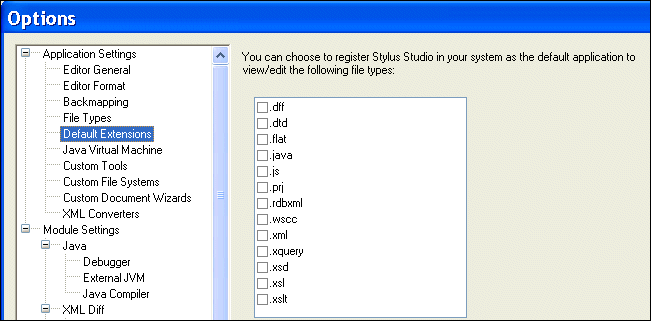
2. Under
Application Settings, click
Default Extensions.
Stylus Studio displays a list of file name extensions.
3. In the list, click the box next to the file name extension if you want Stylus Studio to be the default application for opening files with that file name extension. Stylus Studio displays a check next to each file name extension you register.
4. Click the
OK button.
UnregisteringYou can unregister Stylus Studio as the default application by returning to the Default Extensions page of the Options dialog box and clicking the check to remove it. When you unregister Stylus Studio, Stylus Studio restores the previous application's registration for that file type. Modifying Java OptionsStylus Studio allows you to modify settings for
If you do not make any changes to these settings, Stylus Studio looks in the registry to determine the locations of your Java components. This section covers the following topics: About Java Virtual Machine OptionsWhen Stylus Studio needs to execute Java code as part of the application of a stylesheet, it loads the Java Virtual Machine (JVM) that is in the run-time library specified in the Java Virtual Machine options page. To open this page, select Tools > Options from the Stylus Studio menu bar, and then click Application Settings > Java Virtual Machine. On the Java Virtual Machine page, you can modify the following options:
Resetting OptionsIf you modify the Stylus Studio Java Virtual Machine options and then decide you want to return to the default values, click Auto detect to reset the options. About Java Compiler OptionsWhen you use Stylus Studio to compile Java classes, you can specify a number of options on the Java Compiler page. To open this page, select Tools > Options from the Stylus Studio menu bar, and then click Module Settings > Java > Java Compiler. On the Java Compiler page, you can modify the following options:
About External JVM OptionsWhen Stylus Studio executes Java code as a standalone application, it uses the JVM that is specified in the External JVM options page. To open this page, select Tools > Options from the Stylus Studio menu bar, and then click Module Settings > Java > External JVM. On the External JVM page, you can modify the following options:
Resetting OptionsIf you modify the Stylus Studio External JVM options and then decide you want to return to the default values, click Auto detect to reset the options. How to Modify Java SettingsTo modify Java settings:
1. From the Stylus Studio menu bar, select
Tools
>
Options.
2. Click one of the following:
3. Make your changes and click
OK.
If the JVM is not already loaded, any changes you make take effect immediately. If the JVM is already loaded in Stylus Studio, you must restart Stylus Studio for the changes to take effect. Setting Module OptionsStylus Studio allows you to set a variety of options for the Stylus Studio modules. To change module options:
1. From the Stylus Studio menu bar, select
Tools
>
Options.
2. In the
Options dialog box that appears, expand
Module Settings to display a list of choices.
XML DiffYou use the Engine and Presentation pages to define settings used by the XML Diff tool. See Diffing Folders and XML Documents for more information. XML EditorClick XML Settings to specify the following: Click Custom Validation Engines to specify an alternate validation engine. See Custom XML Validation Engines for more information. XSLT EditorModule settings for the XSLT Editor let you specify external XSLT processors, settings used by the Mapper and WYSIWYG tabs, and general editor behavior. Click External XSLT to specify default values for external XSLT processors. Note that Stylus Studio's backmapping and debugging features are not supported for all XSLT processors. The XSLT processors that support backmapping and debugging are identified on the Processor tab of the Scenario Properties dialog box. In a scenario, you can specify that you want to use an external XSLT processor. If you use a particular XSLT processor frequently, specify default values here. Then, in the scenario properties, you just need to specify which external XSLT processor you want to use. If you specify default values and you then specify different values in a scenario's properties, the scenario properties override the defaults. You can specify the following external XSLT options:
Click
Mapper to specify how
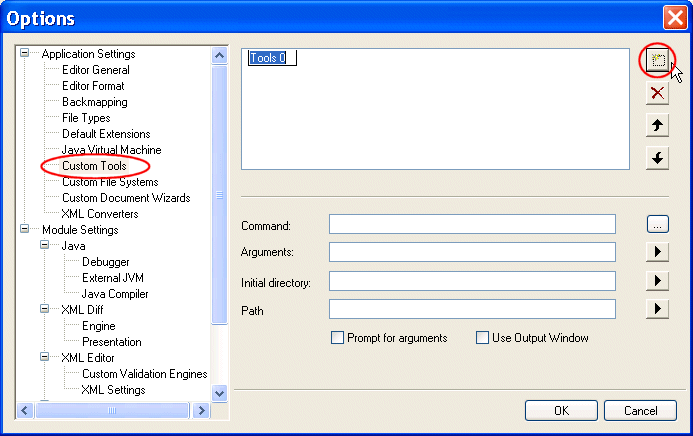
Click WYSIWYG to specify settings Stylus Studio uses to define tab stops and new lines in the HTML it generates. See Creating Stylesheets That Generate HTML for more information on using the XSLT WYSIWYG editor. Click XSLT Settings to specify the following: JavaTo modify Java settings, see Modifying Java Options. Defining Custom ToolsStylus Studio allows you to define custom tools to run alternative editors, processors, preprocessors, or postprocessors. For example, you can specify a custom tool that configures Internet Explorer to display the document you are working on. After you define a custom tool, Stylus Studio adds an entry to its Tools menu - select Tools and then your tool. The order in which the tool names appear in the Custom Tools options page is the order in which the tool names appear in the Stylus Studio Tools menu. To define a custom tool:
1. From the Stylus Studio menu bar, select
Tools
>
Options.
Stylus Studio displays the Options dialog box.
2. Expand
Application Settings and click
Custom Tools to display the
Custom Tools page.
3. In the
Custom Tools page, click
Define New Tool
 .
.
Stylus Studio displays an entry field for the tool name.
4. Enter the name as you want it to appear in the Stylus Studio
Tools menu.
5. In the
Command field, specify or select the absolute path for the command that runs your tool. This must be a
.exe,
.bat, or
.cmd file.
6. In the
Arguments field, specify any arguments your tool requires. You can click
 to display a drop-down list that includes
File Path,
File Dir,
File Name,
File Extension, and
Class Path.
to display a drop-down list that includes
File Path,
File Dir,
File Name,
File Extension, and
Class Path.
7. In the
Initial Directory field, type the absolute path for the directory that contains any files or directories needed by your custom tool.
8. In the
Path field, type any paths that need to be defined and that are not already defined in your
PATH environment variable.
9. If you want Stylus Studio to prompt for arguments before it runs your tool, click
Prompt for Arguments.
10. If you want Stylus Studio to display output from your custom tool in its
Output Window, select
Use Output Window.
11. Click the
OK button.
|

XML PRODUCTIVITY THROUGH INNOVATION ™
 .
.