Cart
Cart
|
Home > Online Product Documentation > Table of Contents > Defining Keyboard Shortcuts Defining Keyboard ShortcutsYou can define a keyboard shortcut for many of the tasks you perform with Stylus Studio. If you find that you repeatedly perform the same action, define a shortcut to speed your work. You can use a keyboard shortcut right after you define it. How to Define a Keyboard ShortcutTo define a keyboard shortcut for a Stylus Studio task:
1. From the Stylus Studio menu bar, select
Tools
>
Keyboard.
The Shortcut Keys dialog box appears.
2. In the
Select a macro: field, select the macro for which you want to define a shortcut.
3. Click
Create Shortcut.
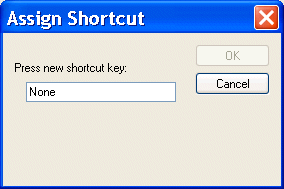
The Assign Shortcut dialog box appears.
4. Press the key or keys that you want to be the shortcut. For example, Ctrl+E, F7, Alt+P.
The Assign Shortcut dialog box displays a message indicating whether or not that key combination is currently in use.
5. If the shortcut key is not already in use, click the
OK button. Otherwise, try another shortcut key.
Stylus Studio closes the Assign Shortcut dialog box.
6. Click
OK in the
Shortcut Keys dialog box.
Deleting a Keyboard ShortcutTo delete a shortcut:
1. From the Stylus Studio menu bar, select
Tools
>
Keyboard. The
Shortcut Keys dialog box appears.
2. In the
Select a macro: field, select the macro you want to delete a shortcut for.
3. In the
Assigned shortcuts field, click the shortcut you want to remove.
4. Click
Remove.
5. Click
OK in the
Shortcut Keys dialog box.
|

XML PRODUCTIVITY THROUGH INNOVATION ™