Cart
Cart
|
Home > Online Product Documentation > Table of Contents > Stylesheets That Generate HTML - Getting Started Stylesheets That Generate HTML - Getting Started
You can use the WYSIWYG tab of the XSLT Editor to create stylesheets that generate HTML. Stylus Studio automatically generates the XSLT instructions that output the HTML you define on the WYSIWYG tab. This section helps you get started working with stylesheets that generate HTML. To get started with the features common to all stylesheets, see Working with Stylesheets - Getting Started. To focus on stylesheets that map XML to XML, see Using the XSLT Mapper - Getting Started. This section is organized as follows: Before you beginTo get started, you'll need to start Stylus Studio if you haven't already. See Starting Stylus Studio. Video Demonstrations of the XSLT WYSIWYG EditorStylus Studio provides several video demonstrations that show you how to use the XSLT WYSIWYG editor. You can watch these videos instead of (or in addition to) performing the tutorial procedures in this section. DescriptionsVideo demonstrations for using the XSLT WYSIWYG editor include the following:
The videos are available here: http://www.StylusStudio.com/xml_videos.html
System RequirementsThe system on which you play Stylus Studio video demonstrations must meet the following requirements: In addition, for best results set your Media Player options as follows: Getting Started with the XSLT WYSIWYG EditorThis section provides instructions for getting started with the XSLT WYSIWYG editor. It introduces the basic WYSIWYG editor features, and provides background information needed to edit simple stylesheets. You should perform the steps in each topic before you move on to the next topic. After the first topic, some steps in subsequent topics depend on actions you performed in a previous topic. This section is organized as follows: Creating Static HTMLTo create static HTML:
1. In the Stylus Studio menu bar, select
File >
New >
XSLT: WYSIWYG. Stylus Studio displays the
Scenario Properties dialog box.
2. In the
Scenario Properties dialog box, to the right of the
Source XML URL field, click
Browse
 .
.
3. Navigate to and select
examples\query\books.xml in the Stylus Studio installation directory, and click
Open.
4. In the
Scenario Properties dialog box, click
OK.
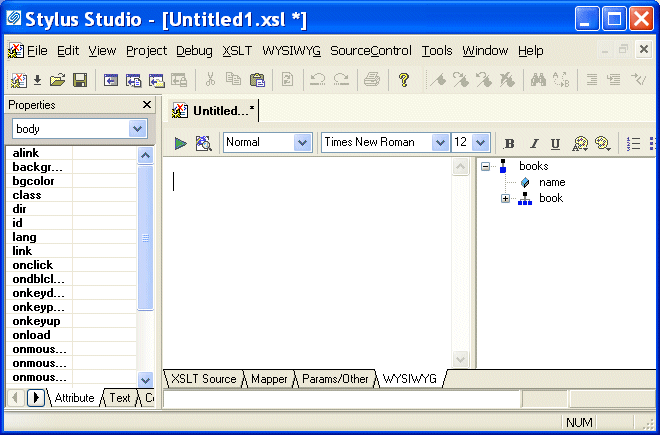
Stylus Studio displays the XSLT Editor open to the
WYSIWYG tab. The HTML canvas, the center pane on the
WYSIWYG tab, is empty. A tree that represents the XML source document,
5. Click the
XSLT Source tab. As you can see, the basic XSLT instructions that Stylus Studio inserts in every new stylesheet are there. Because you created the stylesheet by selecting the WYSIWYG editor, which is used to design HTML, Stylus Studio has set the output method to HTML (
<xsl:output method="html"/>).
6. Click the
WYSIWYG tab.
7. Click in the HTML canvas and type
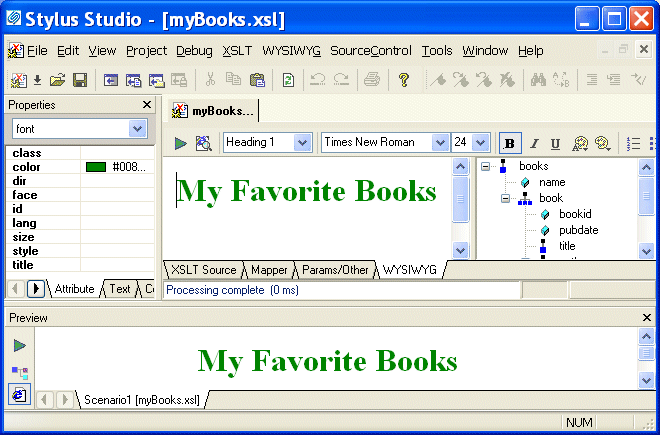
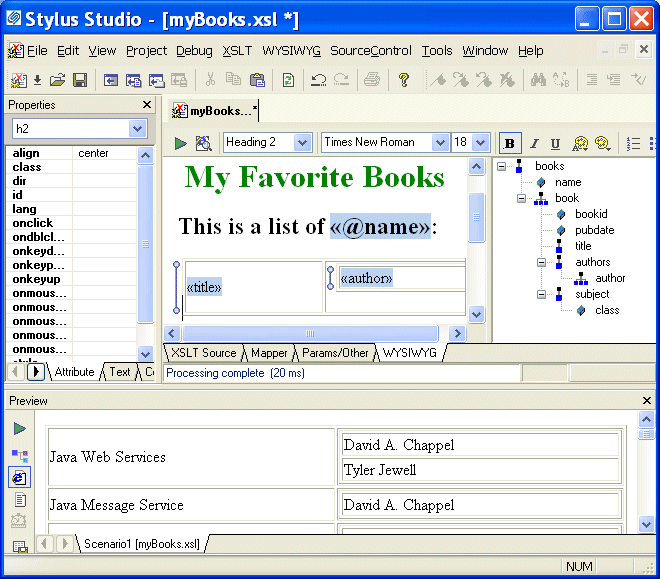
My Favorite Books.
8. In the
WYSIWYG tool bar, in the
HTML Element field, click the down arrow to display the element menu and click
Heading 1.
9. In the HTML canvas, select
My Favorite Books.
10. In the
WYSIWYG tool bar, click
Text Color
 and select a color, and then click
Center
and select a color, and then click
Center
 . You can enter and format text in the HTML canvas as you would in any other WYSIWYG editor. What you are creating is static HTML.
11. Click
Preview Result
 .
.
The Save As dialog box appears.
12. Type
myBooks.xsl in the
URL field and click the
Save button.
13. As you can see in the
Preview window, the contents of the HTML canvas and the contents of the result document are identical.
14. Click the
XSLT Source tab. Stylus Studio has captured the formatting and translated it into XSLT instructions. The stylesheet now contains these instructions in the template that matches the root node.
15. Click the
WYSIWYG tab before continuing.
Defining Dynamic ContentsThis topic is part of a sequence that starts with Creating Static HTML. To define dynamic contents:
1. In the source XML document tree, click
books and press the asterisk key (*) in the numeric keypad to expand all the elements.
2. In the HTML canvas, position the cursor at the end of
My Favorite Books and press Enter.
3. Type
This is a list of :.
4. In the XML source tree, drag the
name attribute to just before the colon (
:). Stylus Studio displays a pop-up menu.
5. Click
xsl:value-of. Stylus Studio adds
<<@name>> to the canvas; this statement is a placeholder for the value returned by
/books/@name.
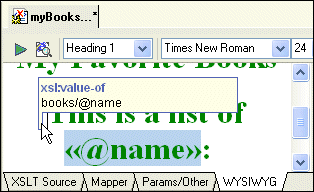
6. Move the pointer over this placeholder to display a yellow marker
 . This is the value-of marker.
7. Move the pointer over the value-of marker.
Stylus Studio displays the instruction that generates the contents for the placeholder.
In this example, it is
8. Select
This is a list of <<@name>>:.
9. In the WYSIWYG tool bar, click the down arrow in the
HTML Element field.
10. Click
Heading 2. As you can see, you can format a mixture of static and dynamic HTML.
11. Click
Preview Result
. The result document contains
This is a list of My books: where the HTML canvas contains
This is a list of <<@name>>:
12. Press the Enter key to move the cursor to the next line before continuing.
Adding a Table with Dynamic ContentsThis topic is part of a sequence that starts with Creating Static HTML. To add a table with dynamic contents:
1. In the XML source tree, notice the
 symbol; this symbol identifies repeating elements, such as
book and
author.
2. Drag the
book element from the XML source tree and drop it onto the HTML canvas.
Stylus Studio displays the pop-up menu with an additional option, Add Table.
3. Click
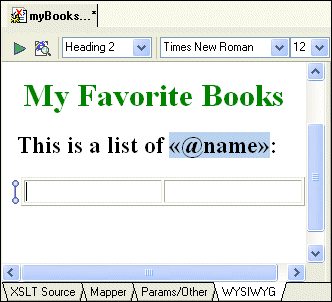
Add Table.
Stylus Studio inserts a two-column table with a marker to the left of the table. This marker indicates a looping element.
4. Move the pointer over the marker. Stylus Studio displays the instruction that generates the contents of the table,
xsl:for-each, and the context for the instruction,
books/book. Anything you enter in the table is in the context of
books/book.
5. Drag the
title element from the XML source tree and drop it into the first column of the table in the HTML canvas.
Stylus Studio displays a pop-up menu.
6. Click
xsl:value-of.
Stylus Studio displays the «title» placeholder in the first column. When you apply the stylesheet, the title of each book will appear in a row of the first column of the table.
7. Drag the
author element from the XML source tree and drop it into the second column of the table in the HTML canvas.
Stylus Studio displays the pop-up menu.
8. Click
Add table.
Stylus Studio displays a subtable in the second column of the table.
9. Right-click in the second column of the subtable to display a new pop-up menu.
10. Click
Delete Columns to delete the second column in the subtable.
11. Drag the
author element from the XML source tree and drop it into the subtable again.
12. In the pop-up menu that appears, click
xsl:value-of.
Stylus Studio displays the «author» placeholder in the second column.
13. Click
Preview XSLT
. The result document now contains a table that displays the title and authors for each book in
books.xml.
Using the Properties WindowThis topic is part of a sequence that starts with Creating Static HTML. To get started using the HTML editor to format a table with dynamic contents:
1. In the HTML canvas, click the
«author» placeholder, which represents an
xsl:value-of instruction.
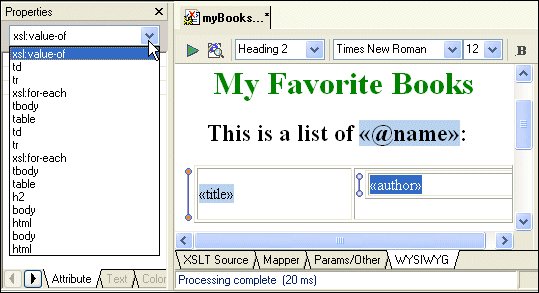
2. In the
Properties window, click the down arrow to display a list of elements.
Starting with the
3. Click the second
td element to specify properties for the table data. (If you click the first
td element, you specify properties for the subtable that is in the second column of the main table.)
Stylus Studio displays only the properties that can be specified for the element you clicked. For the
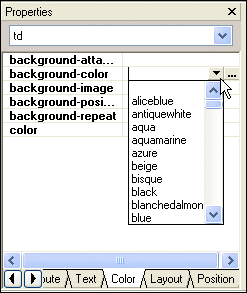
4. At the bottom of the
Properties window, click the
Color tab.
5. Double-click the
background-color field.
6. Click Browse
to display a drop-down color menu.
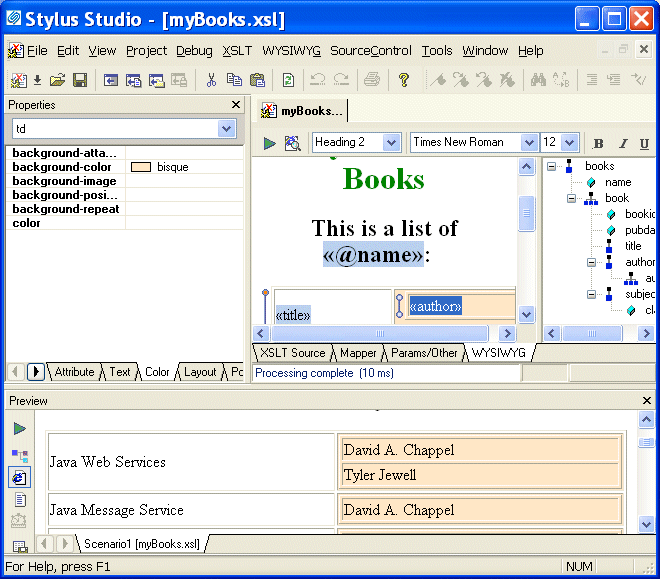
7. Click the color you want for the background of the table rows and click OK.
8. Click
Preview Result
.
The result document now displays the table rows with the background color you selected.
9. Click the
XSLT Source tab.
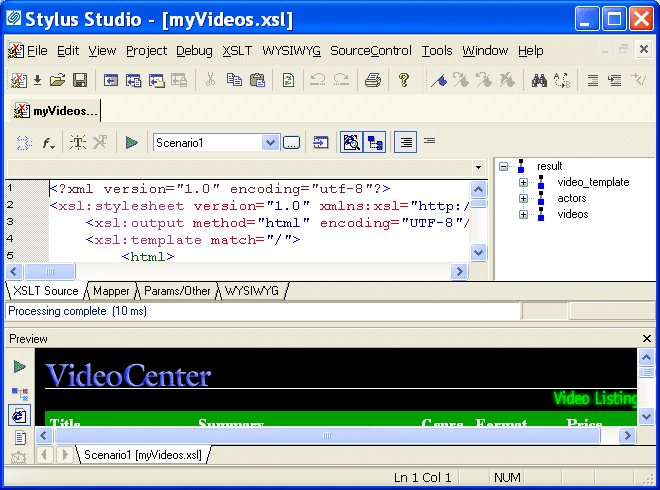
Stylus Studio has inserted the XSLT instructions that display the table in the color you specified. Making a Static Web Page Dynamic Using the WYSIWYG EditorIn Making a Static Web Page Dynamic by Editing XSLT, you learned how to use the XSLT Editor's XSLT Source tab to build a Web page that displays dynamic content. This section provides step-by-step instructions for using the Stylus Studio XSLT WYSIWYG editor to convert a static Web page that displays information about one video into a dynamic Web page that displays information about many videos. Before You BeginBefore starting this part of the tutorial, you must import an HTML file as described in Importing a Sample HTML File, with the following changes: When you are done, your copy of Stylus Studio should look something like this:
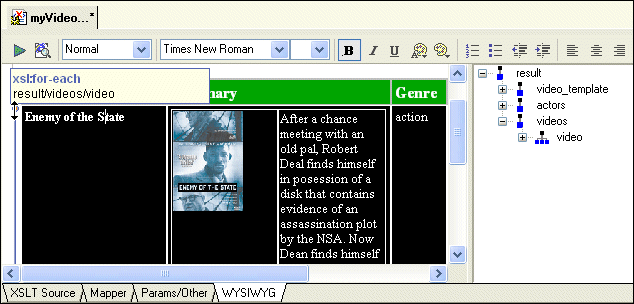
After you perform step 11 in that topic, return here, and start with Making Repeating Table Rows in the WYSIWYG Editor. Making Repeating Table Rows in the WYSIWYG EditorThis topic is part of a sequence that starts with Importing a Sample HTML File. In the Preview window, you can see that the information for one video appears in a row of a table. You want to make this a repeating row and have each row contain information for a different video. To create repeating rows in the HTML canvas:
1. Click the
WYSIWYG tab.
2. In the source tree pane, expand the
result and
videos nodes.
3. Drag the
video repeating element to the
Title table cell, which contains
Enemy of the State.
4. In the pop-up menu that appears, click
Make repeating.
Stylus Studio displays a looping marker to the left of the table row to indicate that it is a repeating row. If you move the cursor over the marker, Stylus Studio displays the information that the marker represents an
5. Click
Preview Result
. The result document now displays multiple rows. Each row contains information for the same movie: Enemy of the State.
Now that the XSLT describes a table with repeating rows, our next task is to make each of the rows' columns dynamic, that is, to ensure that each row displays information for a different movie. Making Contents Dynamic in the WYSIWYG EditorThis topic is part of a sequence that starts with Importing a Sample HTML File. To create dynamic contents in the HTML canvas:
1. In the HTML canvas, select the title
Enemy of the State.
2. In the source tree pane, expand the
video node and drag and drop the
title element on the selected text.
3. In the pop-up menu that appears, click
xsl:value-of.
Stylus Studio removes the text for Enemy of the State and replaces it with the <<title>> placeholder.
4. Move the cursor over the
<<title>> placeholder and then shift it slowly over the value-of marker (
) to the left.
Stylus Studio displays the information that the marker represents an
5. Click
Preview Result
.
The result document now displays a different video title in each row. If you want, you can select the title placeholder, apply some formatting and preview the results. Every title in the result document will have the formatting you specified.
7. Click
Preview Result
. Each row now contains information for a different video. However, the video image in each row is still the same.
Rendering Images as Dynamic Content in the WYSIWYG EditorThis topic is part of a sequence that starts with Importing a Sample HTML File. The image for each movie is still the same. For this part of the XSLT, you will use the XSLT Source tab:
1. Click the
XSLT Source tab.
2. In the
Preview window, click the video image to backmap to the instruction that generates it in the
XSLT Source tab.
Stylus Studio displays the XSLT Source tab, and flags the line that contains the instruction. As you can see, the stylesheet uses an image ID.
3. In the string
"images/video/id1244100.gif", select
id1244100.
4. Type
{@id} to replace the selected text. This specifies an attribute value template.
5. Click
Preview Result
.
Each row now contains the correct image for the video described in that row.
6. Click the
WYSIWYG tab.
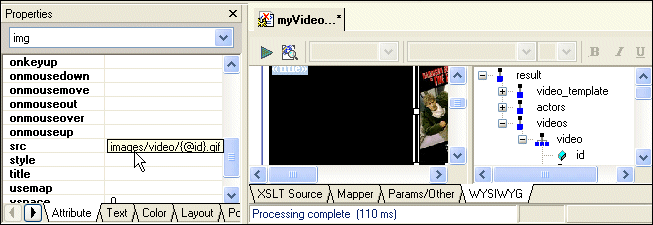
As you can see, there is now a placeholder where the original image was.
7. Click the image's placeholder.
In the Properties window, Stylus Studio displays the properties for the image. If you scroll down to the src property, you can see that the value is images/video/{@id}.gif.
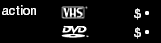
8. Scroll the result document towards the bottom and examine the VHS and DVD prices. As you can see, some of the prices are missing the decimal places.
9. In the result document, click on the price for a VHS video.
Stylus Studio backmaps to
10. Replace
"vhs" with
"format-number(vhs, '##.00')". This ensures that every VHS price is formatted with two decimal places.
11. In the
XSLT Source tab, scroll down about eight lines, and repeat the previous step for the DVD price. That is replace
select= "dvd" with
select="format-number(dvd, '##.00')".
12. Click
Preview Result
. Each price now includes two decimal places. However, small circles appear when no VHS tapes or DVDs are available for sale. The next topic describes how to use conditional processing to remove these circles.
13. Click the
WYSIWYG tab. Stylus Studio displays
<<format-number()>> as the placeholder for the VHS and DVD prices.
Using Conditional If Processing in the WYSIWYG EditorThis topic is part of a sequence that starts with Importing a Sample HTML File. In the current videos result document, there are small circles when no VHS tapes or DVDs are available.
These circles appear when the XSLT processor tries to process an empty string with
To remove these small circles:
1. In the
WYSIWYG tab, select the
<<format-number()>> that is the placeholder for the VHS price.
2. Right-click the selected placeholder.
3. In the pop-up menu, select
Conditional Processing >
Add If. Stylus Studio displays the
Input dialog box.
4. In the
Input dialog box, type
vhs in the
Test Condition field. This tests whether there are any
vhs elements.
5. Repeat
step 1 through
step 4, but this time select the DVD price placeholder, and specify
dvd as the test condition.
6. Click
Preview Result
. The small circles no longer appear. Instead, nothing appears when there are no VHS tapes or DVDs for a particular video.
|

XML PRODUCTIVITY THROUGH INNOVATION ™