Cart
Cart
|
Home > Online Product Documentation > Table of Contents > Starting Stylus Studio Starting Stylus StudioThroughout this chapter, you perform exercises that require you to first start Stylus Studio. To start Stylus Studio, select Start > Programs > Stylus Studio XML Professional Edition > Stylus Studio.
The path shown here assumes that you accepted the defaults when you installed Stylus Studio. If you did not, you must alter your selection path accordingly. You can also start Stylus Studio by double-clicking the desktop icon:
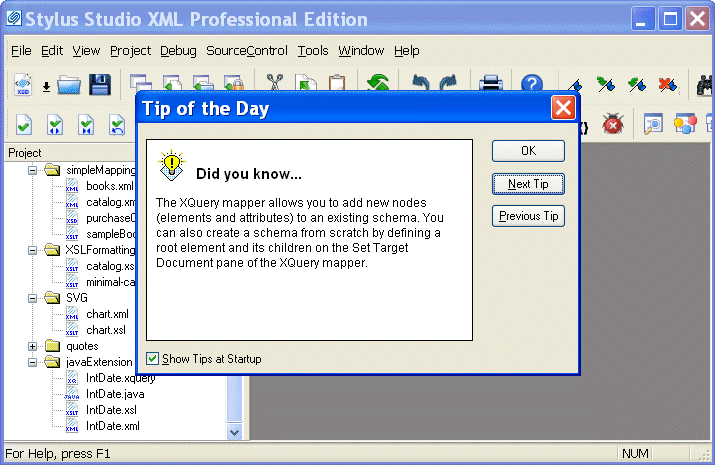
This icon is created by default during Stylus Studio installation. On startup, Stylus Studio displays the Tip of the Day dialog box, and the Project window.
Getting UpdatesBy default, Stylus Studio checks the Stylus Studio Web site for newer versions each time you start the application. You can review and modify this and other application settings by selecting Tools > Options from the menu bar and selecting the Application Settings page. If you want, you can perform this check manually by selecting Help > Check for latest version from the Stylus Studio menu. Getting HelpAs you use Stylus Studio, you can press F1 at any time to obtain context-sensitive help. If you want, you can open the online help manually (and independent of the Stylus Studio application) by selecting Start > Programs > Stylus Studio XML Professional Edition > Documentation. |

XML PRODUCTIVITY THROUGH INNOVATION ™