Cart
Cart
|
Home > Online Product Documentation > Table of Contents > Defining a DTD - Getting Started Defining a DTD - Getting StartedThis section provides a quick tour of the main features of the DTD Editor. It provides instructions that you can follow to actually define a simple DTD. For complete documentation about how to use the Stylus Studio DTD Editor, see Chapter 8Defining Document Type Definitions. Process OverviewWhen you use Stylus Studio to define a DTD, the main steps you perform are:
1. Create a new DTD schema file.
2. Define the elements that contain the raw data.
3. Define the elements that contain other elements.
4. In the container elements, specify the rules for the contained elements. That is, specify whether a contained element is optional or required, whether there can be more than one, and what order contained elements must be in.
This section provides step-by-step instructions for defining the
Before you beginTo get started, you'll need to start Stylus Studio if you haven't already. See Starting Stylus Studio. Creating a Sample DTDTo create a new DTD schema file:
1. From the Stylus Studio menu bar, select
File >
New >
DTD Schema.
2. Click
Save
 .
.
Stylus Studio displays the Save As dialog box.
3. Navigate to the Stylus Studio
examples directory.
4. In the
URL: field, type
bookstore.dtd.
5. Click the
Save button.
Defining Data Elements in a Sample DTDThis topic is part of a sequence that starts with Creating a Sample DTD.
In your DTD, suppose you want a
To accomplish this, perform the following steps:
1. At the bottom of the DTD editor, click the
Tree tab.
2. Click the
DTD node at the top of the tree if it is not already selected.
3. Click
New Element Definition
 , which is the top button in the tool bar on the left side of the DTD editor window.
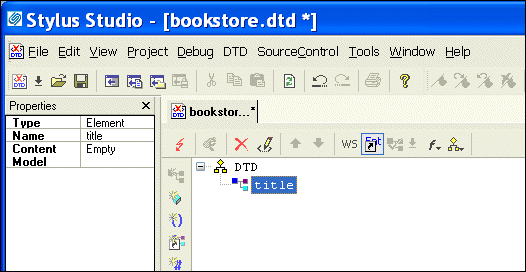
Stylus Studio displays an entry field for the element name.
4. Type
title and press Enter.
Stylus Studio displays the new element,
5. Click
New Modifier
 .
.
Stylus Studio displays an entry field for the element's modifier.
6. Double-click
Zero or More.
The new modifier is added to the element.
7. Click
Add #PCDATA
 .
.
8. To define the
author element, repeat
step 2 through
step 7. In
step 4, type
author instead of
title.
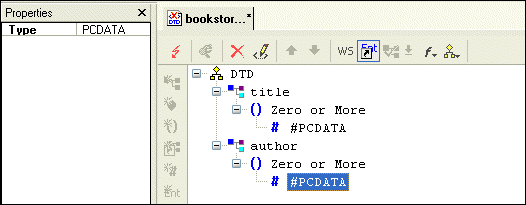
When you are done, the Stylus Studio desktop should resemble the following:
Defining the Container Element in a Sample DTDThis topic is part of a sequence that starts with Creating a Sample DTD. To define the book element:
1. Click the
DTD node at the top of the tree.
2. Click
New Element Definition
.
3. Type
book and press Enter.
Defining Structure Rules in a Sample DTDThis topic is part of a sequence that starts with Creating a Sample DTD. To specify the rules for the structure of the book element:
1. Click the
book node in the DTD tree if it is not already selected.
2. Click
New Modifier
.
3. In the drop-down list that appears, scroll down and double-click
Sequence. This indicates that the
book element can include one or more elements.
4. Click
New Reference to Element
 .
.
5. Type
title in the entry field and press Enter.
Because the reference to the
6. Click the
Sequence modifier.
7. Click
New Modifier
.
8. Double-click
One or More. (There can be one or more
author elements in each
book element.)
9. Click
New Reference to Element
.
10. Type
author in the entry field and press Enter.
At this point, the definition of the
However, you have not yet specified that you want the
You can define the bookstore element as follows:
1. Click the
DTD node at the top of the tree.
2. Click
New Element Definition
.
3. Type
bookstore in the entry field and press Enter.
4. Click
New Modifier
.
5. In the drop-down list that Stylus Studio displays, double-click
Optional.
6. Click
New Reference to Element
.
7. Type
book in the entry field and press Enter.
8. Click
Save
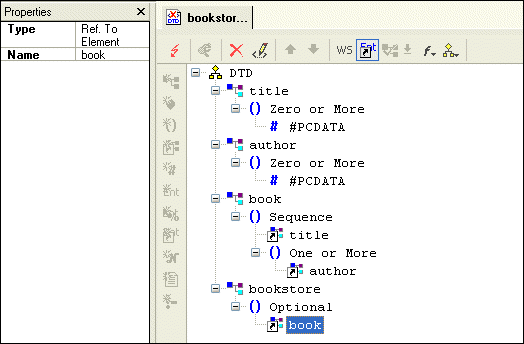
Examining the Tree of a Sample DTDThis topic is part of a sequence that starts with Creating a Sample DTD. Your DTD should now look like Figure 67.
To complete this DTD, you could define
|

XML PRODUCTIVITY THROUGH INNOVATION ™