Cart
Cart
|
Home > Online Product Documentation > Table of Contents > Working with Projects Working with Projects
A
project in Stylus Studio is a group of files related to a given XML application. A project might include XML, XML Schema, and XQuery files, as well as OASIS catalogs, for example. A project can contain subprojects, and subprojects can contain subprojects. The Stylus Studio project framework allows you to name projects (project files are saved with a
Projects are simply a convenience for organizing files - a file does not have to belong to a project in order for you to edit it in Stylus Studio. For example, Stylus Studio includes all sample application files in the
This section discusses the following topics: Displaying the Project Window
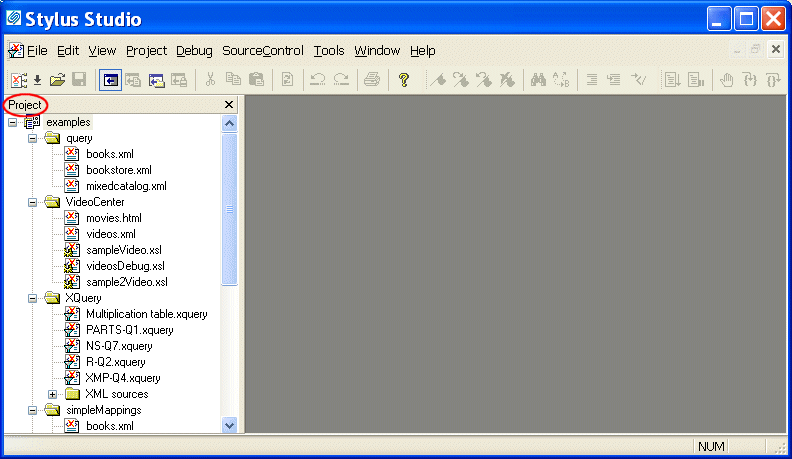
When you open Stylus Studio for the first time, Stylus Studio displays the
Project window with the
Displaying the Project WindowThere are several ways to toggle the display of the Project window. You might want to do this in order to gain more space in whatever editors you are working with. To toggle the Project window display:
To hide the Project window:Click the X in the upper right corner of the Project window.
Displaying Path NamesYou can control whether the Project window displays absolute or relative path names for files in projects. The default display is relative names. To toggle the way path names appear:
1. Display the
Project window.
2. In the
Project window, right-click to display the pop-up menu.
3. Click
Show Full URL Info.
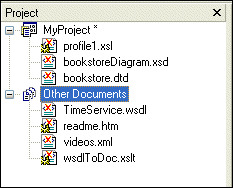
Other DocumentsStylus Studio displays documents that are not associated with a project in the Other Documents folder, which appears after the last folder or document in the currently displayed project. In addition, when you remove a file from a project, it is placed in the Other Documents folder.
You can add these documents to a project at any time. See Adding Files to Projects. Creating Projects and SubprojectsYou can create projects and organize any project into multiple levels of subprojects. You can add files to projects and save the project under a name you specify. To create a project, select Project > New Project from the menu.Stylus Studio displays the new project in the Project window. The Project window displays information for only one project at a time. To create a subproject:
1. Right-click the project name, and click
New Project Folder in the pop-up menu.
Stylus Studio displays a default subproject folder name (
2. Type a new subproject name.
3. Press Enter.
There are several ways to add files to your projects and subprojects. See Adding Files to Projects. Saving ProjectsTo save a project, select Project > Save Project.
The first time you save a project, Stylus Studio prompts you to specify a name for your project. Stylus Studio appends
When you save a project, references to the files part of the project are saved relative to the path of the project file. This allows you to move or share projects easily. Opening ProjectsYou can have only one project open at one time. If you have a project open and you open a second project, Stylus Studio closes the first project and then opens the second project. If the Project window is not visible when you open a project, Stylus Studio automatically displays the Project window. To open a project:
1. From the Stylus Studio menu bar, select
Project >
Open Project.
2. Navigate to and select your project file. For example, you can open
examples.prj in the
examples directory of your Stylus Studio installation directory. The
examples project contains the files for all Stylus Studio sample applications.
3. Click the
Open button.
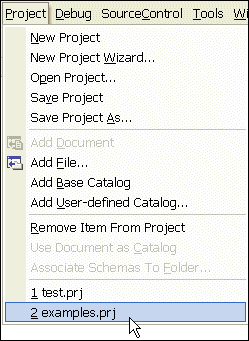
Recently Opened ProjectsProjects that were recently opened are displayed at the bottom of the Project drop-down menu. Click the project you want to open.
Associating .prj Files with Stylus Studio
You can create an association between Stylus Studio and project files, which always have the
To associate project files with Stylus Studio:
1. In the Stylus Studio menu bar, select
Tools >
Options.
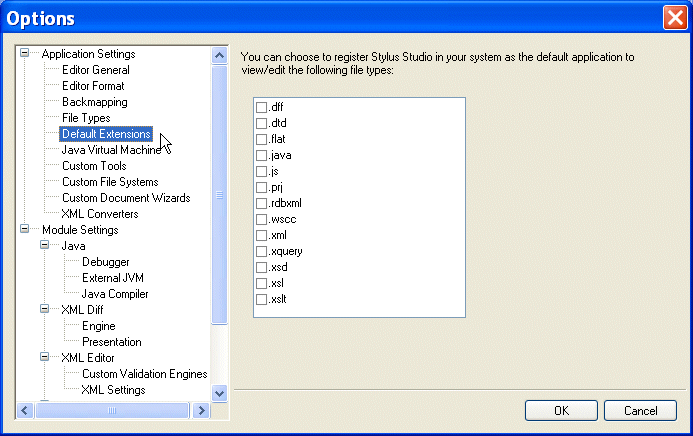
Stylus Studio opens the Options dialog box.
2. Click
Default Extensions.
3. Click the check box next to
.prj.
4. Click
OK.
Adding Files to ProjectsYou can add any type of file to a project, as long as the file extension is known to Stylus Studio. You can specify file extension-Stylus Studio editor associations on the File Types page of the Options dialog box ( Tools > Options). Procedures for adding a file to a project vary based on whether or not the file is already open in Stylus Studio. When Files are Open in Stylus StudioTo add an open file to a project:
1. Open the project to which you want to add the file.
2. Click the window (the Web Service Call Composer, for example) that contains the file you want to add.
3. In the Stylus Studio tool bar, click
Add Document to Project
 .
.
Alternative: Select Project > Add Document from the Stylus Studio menu bar. When Files are ClosedTo add a closed file to a project:
1. Open the project to which you want to add the file.
2. In the Stylus Studio tool bar, click
Add File to Project

 .
.
Alternative: Select Project > Add File from the Stylus Studio menu bar. The Open dialog box appears.
3. Navigate to the file you want to add and click the
Open button.
Adding Multiple FilesTo add multiple files to a project in one operation:
1. Open the project to which you want to add the files.
2. In Windows Explorer (or any other file browsing utility, such as Total Commander), select the files you want to add, or select a directory you want to add. If you select a directory, Stylus Studio recreates the directory structure.
3. Drag and drop the selected files or directories to the project name in the Stylus Studio
Project window.
Copying ProjectsTo copy a project:
1. Open the project you want to copy.
2. From the Stylus Studio menu bar, select
Project >
Save Project As.
The Save As dialog box appears.
3. Navigate to the location for the project copy.
4. In the
URL: field, type the name of the new project.
5. Click the
Save button.
Rearranging the Files in a ProjectThe order in which files are displayed in the Project window has no effect on the project. You might want to place related files near each other, or place more frequently used project files toward the top of the project tree. To rearrange files in a project:
1. If the
Project window is not visible, click
Toggle Project Window
 in the Stylus Studio tool bar.
2. In the
Project window, click the file you want to move.
3. Drag it to its new location.
Removing Files from ProjectsWhen you remove a file from a project, it is added to the Other Documents folder in the Project window. To remove a file from a project:
1. If the
Project window is not visible, click
Toggle Project Window
in the Stylus Studio tool bar.
2. In the
Project window, click the path for the file you want to remove.
3. From the Stylus Studio menu bar, select
Project > Remove File from Project.
Alternative: Press the Delete key. Closing and Deleting ProjectsClosingTo close a project, open another project or create a new project.
DeletingTo delete a project, remove its .prj file from the file system.Using Stylus Studio with Source Control ApplicationsStylus Studio supports the Microsoft Source Code Control Interface, allowing you to use Stylus Studio with any source code control system that supports the same interface used by Microsoft Visual Studio or Microsoft Visual Studio .NET. Stylus Studio's source control support allows you to In this sectionThis section covers the following topics: Tested Source Control ApplicationsIntegration with the following source control applications has been tested: PrerequisitesTo use Stylus Studio's source control features, you must have already installed the client software for your source control application, as shown in Table 3.
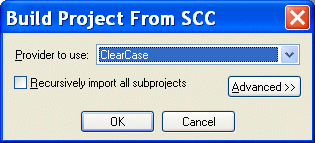
In addition, files must belong to a Stylus Studio project before you can use them with a source control application. Recursive SelectionWhen you build a project using files from a source control application, Stylus Studio gives you the option of recursively importing all projects that are subordinate to the project folder you select. This option, Recursively import all subprojects, appears on the Build Project from SCC dialog box, which appears when you start the New Project Wizard.
Selecting the
Recursively import all subprojects option has the effect of selecting all the siblings of the selected file or directory, as well as any descendants of the selected item and its siblings. Stylus Studio creates a project that contains all files that Stylus Studio can open (for example,
For example, suppose you check
Recursively import all subprojects, and you select
If you do not check Recursively import all subprojects, only the file you select is added to the new Stylus Studio project you create. You cannot select a directory if you do not select this option. Using Stylus Studio with ClearCaseTo use Stylus Studio to operate on files that are under ClearCase source control:
1. Use Attache to copy the files you want to work on from a ClearCase view to the local file system.
2. From the Stylus Studio menu bar, select
Project >
New Project Wizard.
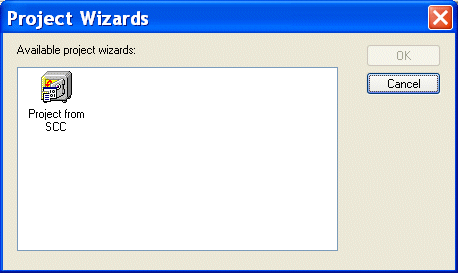
The Project Wizards dialog box appears.
3. Click
Project from SCC, and click the
OK button.
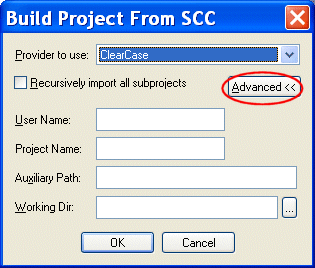
The Build Project From SCC dialog box appears.
4. Select
Clearcase from the
Provider to use drop-down list.
5. If you want to use Stylus Studio to access more than one file in a directory hierarchy, click the check box for
Recursively import all subprojects. See
Recursive Selection if you need help with this step.
Depending on your installation, you might need to specify other properties. See Specifying Advanced Source Control Properties.
6. Click the
OK button.
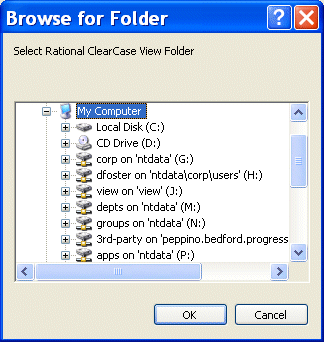
The Browse for Folder dialog box appears.
7. Navigate to and select the file or directory you want to operate on, or one of the files or directories in the topmost level of the directory hierarchy that you want to access, and click the
OK button.
Stylus Studio creates a new project that contains the file you selected, or all files that are editable by Stylus Studio and that were in the directory hierarchy of the file you selected. The default name of the project is
Adding Files After the Project is CreatedAfter you create the project, you can add additional ClearCase files to it. If the file is already in ClearCase, it must be a sibling of the original file you selected, or it must be a descendant of one of its siblings. If the file you want to add is not in the directory hierarchy of the original file, you must create a new Stylus Studio project and specify a directory in the source control hierarchy that contains all the files you want to be in your Stylus Studio project.
If you want to add a file that is not already in ClearCase, open the file in Stylus Studio and then click
Add To Source Control
Using Stylus Studio with Zeus CVSStylus Studio supports the latest version of the Zeus CVS Provider, and with some additional configuration needed in the SourceControl > Properties dialog box. To use Stylus Studio to operate on files that are under Zeus CVS source control:
1. From the Stylus Studio menu bar, select
Project >
New Project Wizard.
The Project Wizards dialog box appears.
2. Click
Project from SCC, and click the
OK button.
The Build Project From SCC dialog box appears.
3. Select
Zeus SCC-CVS from the
Provider to use drop-down list.
4. Click the check box for
Recursively import all subprojects.
5. Click
Advanced. Several new fields appear.
6. In the
User Name field, type the user name you want to use to log in to the CVS server.
7. In the
Project Name field, type the name of a module in the source control hierarchy. This should be the name of a directory that contains all files that you want to open in Stylus Studio.
8. In the
Auxiliary Path field, type the contents of the
CVSROOT environment variable that you use to access the CVS server.
For example, suppose you are required to enter the following commands in a DOS console or UNIX shell:
The value you should enter in the Auxiliary Path field would be:
9. In the
Working Dir field, type the name of a local directory.
10. Click the
OK button.
Stylus Studio downloads the selected files and places them in the directory you specified in the Working Dir field. If you move these files from this directory, you must specify the new directory that contains the files in the Local Project Path field of the Source Control Properties dialog box. To open this dialog box, select SourceControl > Source Control Properties from the Stylus Studio menu bar.
All files that can be opened in Stylus Studio are now in the new Stylus Studio project. The default name of the project is
Specifying Advanced Source Control PropertiesThe Advanced button in the Build Project From SCC dialog box displays several additional fields.
|

XML PRODUCTIVITY THROUGH INNOVATION ™
 in the Stylus Studio tool bar.