Cart
Cart
|
Home > Online Product Documentation > Table of Contents > Using the XSLT Mapper - Getting Started Using the XSLT Mapper - Getting Started
This section helps you get started using the XSLT Mapper to create stylesheets that aggregate data and transform XML. The sample files used in this section are in the Stylus Studio
How this section is organizedEach of the topics in this section contains instructions for working with sample XML documents that you can use to familiarize yourself with the XSLT Mapper. You should perform the steps in each topic before you move on to the next topic - after the first topic, some steps depend on actions you performed in a previous topic. This section covers the following topics: Other sources of informationIn addition to the topics described in this section, the Stylus Studio 6 User Guide contains other sources of information on XSLT:
Before you beginTo get started, you will need to start Stylus Studio if you haven't already. See Starting Stylus Studio if you need help with this step. Opening the XSLT MapperThis procedure describes how to open the XSLT Mapper and select the files you want to use for the drag-and-drop operations that will define your XSLT stylesheet. To open the XSLT Mapper:
1. From the Stylus Studio menu bar, select
File >
New >
XSLT: Mapper.
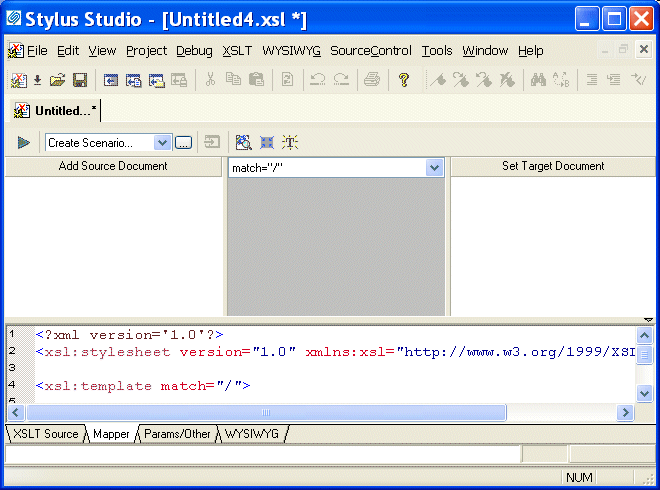
Stylus Studio displays XSLT editor with the Mapper tab selected. The source pane beneath the mapper panes appears by default, allowing you to see how the mappings of XML document elements are rendered as XSLT. The source pane is fully editable and synchronized with the XSLT Mapper. Of course, you can always click the XSLT Source tab for a full-screen view of your XSLT code.
2. Click the
Add Source Document button at the top of the mapper's left pane.
Stylus Studio displays the Open dialog box.
3. For this example, navigate to the
examples\simpleMappings directory in the Stylus Studio installation directory.
4. Double-click
books.xml.
5. Click the
Set Target Document button at the top of the Mapper's right pane.
Stylus Studio displays the Open dialog box.
6. For this example, navigate to the
examples\simpleMappings directory in the Stylus Studio installation directory.
7. Double-click
catalog.xml.
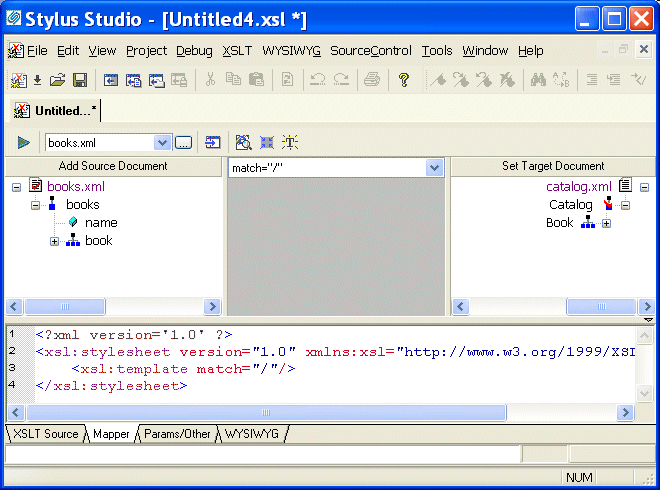
Stylus Studio displays tree diagrams of these XML documents. The default XSLT source code has not been altered at this point.
Mapping Nodes in Sample FilesThis topic is part of a sequence that starts with Opening the XSLT Mapper. To define links and examine the stylesheet Stylus Studio creates:
1. In the
Mapper tab, expand the tree for both
books.xml and
catalog.xml.
2. In
books.xml, place the pointer over the
book repeating element.
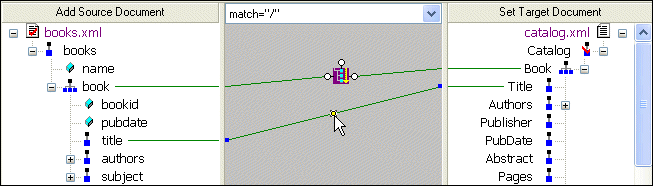
3. Press and hold the left mouse button, and drag from
book to the
Book repeating element in
catalog.xml.
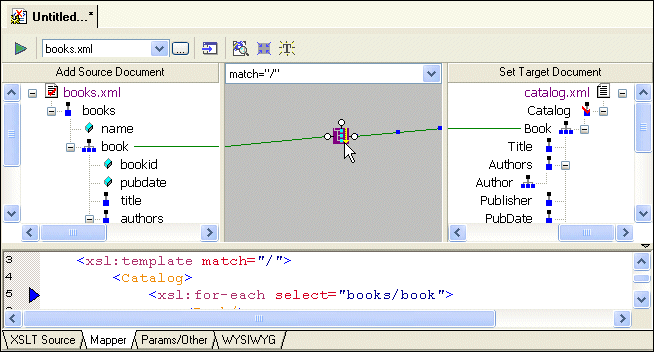
Stylus Studio draws a line as you drag.
4. Release the mouse button to create the link between
book and
Book.
Stylus Studio creates an
Also notice that the complete
The template contains an
5. Click the
Params/Other tab.
In the Output method: field, display the drop-down list and click xml. Note, however, that the output of a stylesheet generated by the XSLT Mapper is always XML - even if the setting for Output method is unspecified, Stylus Studio still generates XML.
6. Click the
Mapper tab.
The xsl:output instruction is added to the XSLT source:
7. Create another link from the
title element to the
Title element.
8. Click the
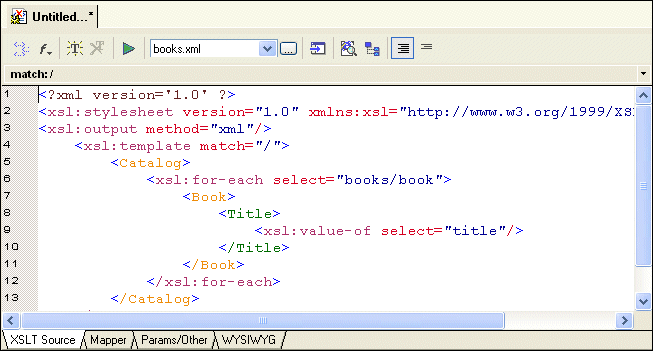
XSLT Source tab to see the new instructions in the template. (If you prefer, you can simply adjust the splitter between the XSLT source pane and the XSLT Mapper canvas.
For each link you define, Stylus Studio adds instructions to the template that matches the root node. In the XSLT you have composed so far, the XSLT inserts a
Why does the stylesheet extract the value of the
Saving the Stylesheet and Previewing the ResultThis topic is part of a sequence that starts with Opening the XSLT Mapper. To save the stylesheet and preview the result:
1. Click
Save
 . Stylus Studio displays the
Save As dialog box.
. Stylus Studio displays the
Save As dialog box.
2. In the
URL: field, type
BooksToCatalog.xsl.
3. Click the
Save button.
This saves the stylesheet that Stylus Studio has generated. It does not matter that you have not finished mapping all nodes.
4. In the upper left corner of the XSLT Mapper, click
Preview Result
 .
.
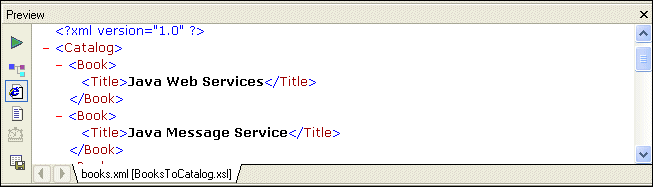
Stylus Studio displays the result of processing
The result document uses the same schema as the target document,
5. You can confirm that the result document is incomplete by viewing
books.xml. Click
Open XML From Scenario
 , which is at the top of the
Mapper tab.
, which is at the top of the
Mapper tab.
Stylus Studio displays the
6. Review the XML document, and then click the document tab for the
BooksToCatalog.xsl stylesheet to re-display the XSLT Editor.
Deleting Links in Sample FilesThis topic is part of a sequence that starts with Opening the XSLT Mapper. To delete links:
1. Click the
Mapper tab if it is not already selected.
2. Click the
title to
Title link to select it.
3. Press the Delete key, or
a. Right-click the selected link. This displays a shortcut menu.
b. Click
Delete to delete the selected link.
Defining Additional Processing in Sample FilesThe stylesheet that the XSLT Mapper creates is not limited to the instructions that Stylus Studio adds. You can edit the template as you would any template. Stylus Studio automatically incorporates any changes you make to the template and displays them in the Mapper tab, if it is appropriate to do so. In addition, you can perform external processing by, for example, defining Java functions and incorporating those functions in your XSLT stylesheet. Like standard supported XSLT functions, user-defined Java functions can be created graphically in the XSLT Mapper - just right click on the mapper canvas, select Java Functions from the shortcut menu, and select any registered Java function you want to use. |

XML PRODUCTIVITY THROUGH INNOVATION ™