Home >
Online Product Documentation >
Table of Contents >
Diffing Folders and XML Documents
Diffing Folders and XML Documents
|
|
|
XML differencning is available only in Stylus Studio XML Professional Edition.
|
During application development, it can be useful to be able to compare two or more XML documents, or to compare the contents of two folders, in order to identify the type and number of differences between them. The process of comparing one document (or folder) with another is referred to as
diffing. Stylus Studio provides utilities for diffing folders and documents.
Stylus Studio provides a video demonstration of Stylus Studio's XML Diff tool. Visit our Web site to view this and other Stylus Studio video demonstrations:
http://www.StylusStudio.com/xml_videos.html
This section covers the following topics:
Overview
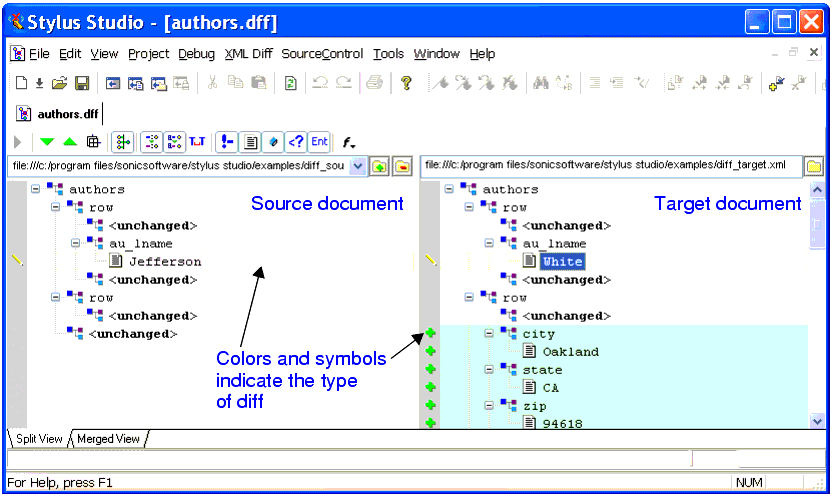
Stylus Studio's Diff tool lets you easily compare two or more versions of the same document in the XML Diff Viewer (as shown in
Figure 130), or the contents of two folders (as shown in
Figure 134).
|
|
Figure 130. Example of Diffed Documents in the XML Diff Viewer
Customizable color-coding lets you quickly determine how one document differs from another - green, for example, identifies objects (such as elements and attributes) that are present in the target document, but which do not exist in the source document. When you hover the pointer over symbols displayed in the side bars of the source and target document windows, Stylus Studio displays a tool tip that indicates the specific nature of the change.
This section covers the following topics:
Sources and Targets
When you use Stylus Studio to diff documents (or folders), you select a
source and a
target. Stylus Studio considers the source document or folder to be the baseline, or current standard; the target document or folder is assumed to be some other version (it might be older or newer, for example) of the source. The Stylus Studio Diff tool illustrates how this other version, the target, differs from the source (or sources) you have selected.
|
Tip
|
|
You can open source and target documents in the XML Editor from the XML Diff Viewer - right click on the XML Diff Viewer background and select the document you want to edit from the short-cut menu of source and target documents displayed by Stylus Studio. This feature is context-sensitive - if you right-click on a node that has been removed, the target document will not be listed, for example.
|
The Diff Configuration File
You can save the information associated with a given XML diff session in a
diff configuration file. Diff configuration files make it easy to perform a diff on the same set of XML documents over time. Examples of the information saved with the diff configuration file include the URLs of the source and target documents, and any settings made on the
XML Diff menu or toolbar. Diff configuration files are created with a
.dff extension.
Changes made to the source and target documents are detected by Stylus Studio the next time you open the diff configuration file, allowing you to diff the files at that time. (Whether or not the diff is run automatically when you open the diff configuration file depends on
Autorun Diff settings on the
Engine page of the
Options dialog box. See
When Does the Diff Run? for more information.)
What Diffs Are Calculated?
This section describes how Stylus Studio diffs XML documents and folders.
The Stylus Studio Diff engine compares source and target documents in their entirety. If you want, you can use the
Engine page of the
Options dialog box to exclude certain items from the diff calculation. These items include:
- Comments
- Text
- Entities
- Attributes
- Processing instructions
You can also specify whether or not you want Stylus Studio to:
- Use URIs to compare namespaces
- Expand entity references
- Ignore text formatting characters (new lines, carriage returns, and tabs)
See
Modifying Default Diff Settingsto learn how to set these and other diff options.
Options for diffing XML documents do not affect how Stylus Studio diffs folders. When diffing folders, Stylus Studio compares one folder's contents with another. See
Diffing Foldersfor more information on this topic.
Tuning the Diffing Algorithm
The purpose of any diffing tool is to identify the list of logical operations required to change the source document into the target document. Examples of logical operations include additions, revisions, and deletions. Even diffs between simple XML documents can yield a long list, sometimes with redundant operations. Ideally, the list of operations should be reduced to make it as economical as possible; that is, the list should be able to answer the question,
What are the fewest number of changes required to turn the source into the target?
Calculating such a list can be time-consuming and resource intensive, and these costs might not be worth the benefits to a given user. For this reason, Stylus Studio provides settings that let you tune the diffing algorithm used by the XML Diff engine. Tuning settings are displayed in the
Performance group box on the
Engine page of the
Options dialog box.
|
|
Figure 131. Performance Settings Let You Tune the Diffing Algorithm
You can
- Select a tuning that optimizes the algorithm to provide the most economical set of changes possible (
Optimize change description). As described earlier, this calculation, though it yields the best results, can be costly in terms of time and processing resources.
- Select a tuning that optimizes the algorithm to provide the set of changes in the shortest time possible (
Optimize calculation time).
- Let Stylus Studio decide (
Autodetect). By default, Stylus Studio tries to provide the most economical set of changes possible, but if it determines that processing resources are limited or that the calculation will take too much time, it reverts to the algorithm tuning that is optimized for speed.
Handling Large Documents
The
Optimize for large documents with few changes setting helps speed the diffing of large (greater than 1MB) documents. This setting can be used in conjunction with any of the algorithm tuning settings and is on by default.
When Does the Diff Run?
Stylus Studio runs the diff automatically, as soon as you specify the target document or folder. Whether or not subsequent changes cause Stylus Studio to automatically recalculate the diff is determined by the
Autorun Diff settings on the
Engine page of the
Options dialog box. Changes that can make a diff recalculation necessary include adding new source and target documents, changing the underlying source and target documents themselves, or to changes to certain
Engine settings.
Options That Affect When the Diff Runs
These settings, on the
Engine page of the
Options dialog box, determine when and whether Stylus Studio automatically recalculates the diff.
-
On changes - Certain types of changes to the diff configuration file require Stylus Studio to recalculate the diff. These changes include:
- Adding a new source document
- Changing the target document
- Changing the
Use URI to compare namespaces setting
- Changing the
Expand entity references setting
If the
On changes setting is on, Stylus Studio automatically runs the diff when any of these changes occurs.
-
If files modified - If you make and save changes to a source or target document, Stylus Studio automatically runs the diff if this setting is on.
|
Note
|
|
These settings do not affect the diffing of folders.
|
See
Modifying Default Diff Settingsto learn more about setting these and other Diff options.
Running the Diff Manually
You can run the diff manually by clicking the Calculate diff button (
 ). Stylus Studio activates this button when it detects the need to recalculate the diff, and the
On changes or
If files modified settings are off. These settings, as described in
When Does the Diff Run?, cause Stylus Studio to run the diff automatically.
). Stylus Studio activates this button when it detects the need to recalculate the diff, and the
On changes or
If files modified settings are off. These settings, as described in
When Does the Diff Run?, cause Stylus Studio to run the diff automatically.
You can also run the diff from the command line. See
Running the Diff Tool from the Command Line.
Symbols and Background Colors
Stylus Studio uses symbols and background colors to alert you to differences in diffed documents and folders. The following table summarizes the symbols and default background colors, and the types of changes they represent.
|
Symbol
|
Background Color
|
Identifies
|
|
|
Light green; symbol is a green plus sign
|
Added items; appears in the target document and identifies an item that is present in the target but absent from the source
|
|
|
Light red; symbol is a red minus sign
|
Removed items; appears in the source document and identifies an item that is present in the source but absent from the target.
|
|
|
Light yellow; symbol is a yellow pencil
|
Changed items; can appear in both source and target documents.
|
|
|
Light gray; symbol is a turquoise block
|
Collapsed item containing changes (such as an added, changed, or removed node).
|
Table 13. Default Colors Used for Diffing Files and Folders
You can change the background colors on the
Presentation page of the
Options dialog box.
Combined Symbols
As described in
Table 13, Default Colors Used for Diffing Files and Folders, Stylus Studio displays a turquoise block (
 ) when a node that you have collapsed contains changes. Sometimes, the node itself has changes. In this case, Stylus Studio combines two symbols - one indicating the change of a child within the collapsed node, and one to the node itself. Consider the following illustration:
|
|
Figure 132. Sample of a Collapsed Node with Changes
Here, the
city node displays a combined symbol - the turquoise box indicates that a change exists within the collapsed node; the minus sign indicates that the
city node is not present in the source document. Expanding the
city node makes the scope and nature of the changes explicit:
|
|
Figure 133. Expanded Node with Changes
|
Tip
|
|
Hover the mouse point over these symbols to display tool tips that describe the nature of the change.
|
Additional Symbols for Diffing Multiple Sources
Stylus Studio uses other symbols in the target document window when you diff multiple source documents. See
Symbols Used in the Target Document Window.
Diffing Folders
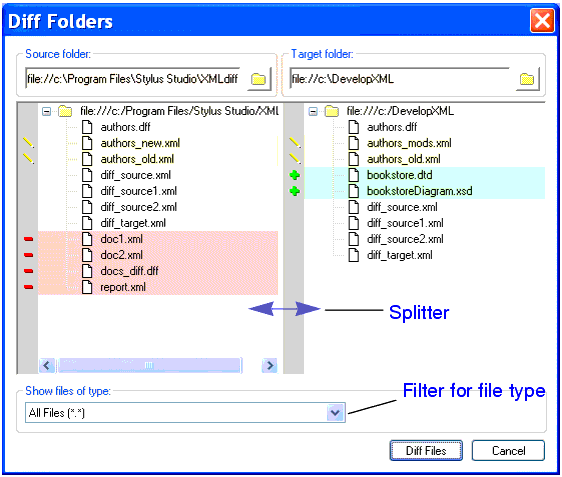
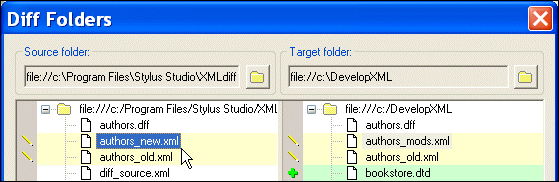
Stylus Studio allows you to diff two folders. As shown in
Figure 134, the
Diff Folders dialog box displays the contents of each folder; symbols and colors, described in
Symbols and Background Colors, identify the types of changes in the respective folders.
|
|
Figure 134. The Diff Folders Dialog Box After a Diff
This section covers the following topics:
Features
The
Diff Folders dialog box has several features that make it easy to diff folders and the XML documents they contain:
- A
splitter lets you change the width of the source and target folder windows. This can be especially useful if you are working with a folder that has nested directories.
- A
file type filter limits the display to files with a
.xml extension; if you choose, you can display (and diff) all file types, as shown in
Figure 134.
- An
Abort button, shown here, appears at the bottom of the
Diff Folders dialog box if the operation you are performing (loading or diffing a directory with a large number of files, for example) is taking more time than usual. Clicking the
Abort button cancels the operation.
|
|
Figure 135. Abort Button Lets You Cancel Long Load Operations
|
Tip
|
|
This feature is also part of the XML Diff Viewer.
|
How to Diff Folders
To diff folders:
1. Select
Tools > Show Differences In > Folders from the Stylus Studio menu.
The
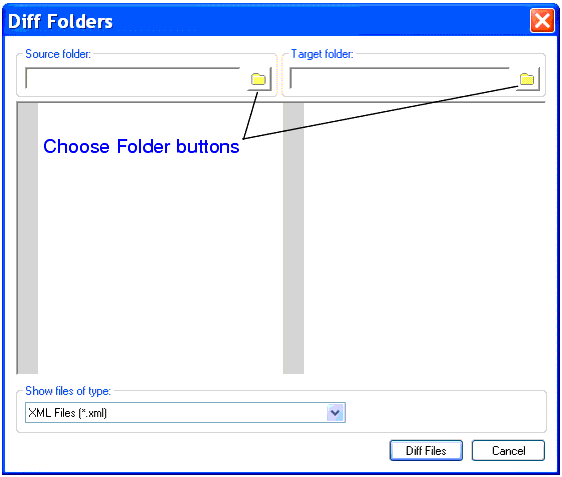
Diff Folders dialog box appears.
2. Click the
Choose Source Folder button (

).
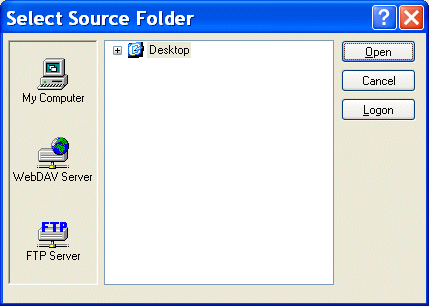
The
Select Source Folder dialog box appears.
3. Expand the
Desktop tree and navigate to the folder you want to use as the source folder for the diff.
4. Click
Open.
The folder is displayed in the
Source folder window of the
Diff Folders dialog box.
Stylus Studio performs the diff as soon as you select the target folder for comparison.
6. Optionally, use the
Show files of type drop-down list to filter the display to show only those files of the type you specify. (By default, Stylus Studio shows XML files - files with a
.xml extension.)
How to Diff Documents from the Diff Folders Dialog Box
You can diff XML documents in the source and target folders directly from the
Diff Folders dialog box.
To diff two files from the Diff Folders dialog box:
1. Click the file you want to diff.
The document is shown as selected in both the
Source folder and
Target folder windows. In this illustration, the document
authors_new.xml was selected.
|
Tip
|
|
Notice that, even though the file names are different, Stylus Studio is able to infer that
authors_new.xml and
authors_mods.xml are actually the same document.
|
If you select a document that cannot be diffed, you will not see the selection in the opposite window.
2. Click the
Diff Files button.
Stylus Studio displays the XML Diff Viewer window.
For more information on diffing documents, see
Diffing a Pair of XML Documents.
The XML Diff Viewer
This section describes the XML Diff Viewer and its features, including the XML Diff Viewer toolbar and tools for loading documents.
This section covers the following topics:
Overview
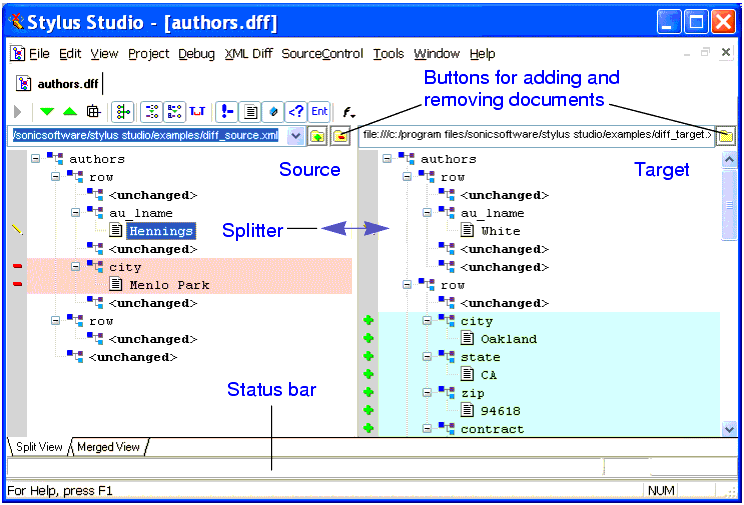
You use the XML Diff Viewer to compare two or more XML documents. By default, the XML Diff Viewer displays the diffed documents on the
Split View tab, which shows the documents side-by-side. The split view is shown in
Figure 136.
|
|
Figure 136. XML Diff Viewer - Split View
In the split view, source documents are displayed on the left, the target document on the right. A
splitter allows you to change the width of the source and target document panels. You can adjust the width of the source and target document panels by dragging the bar to the left and right.
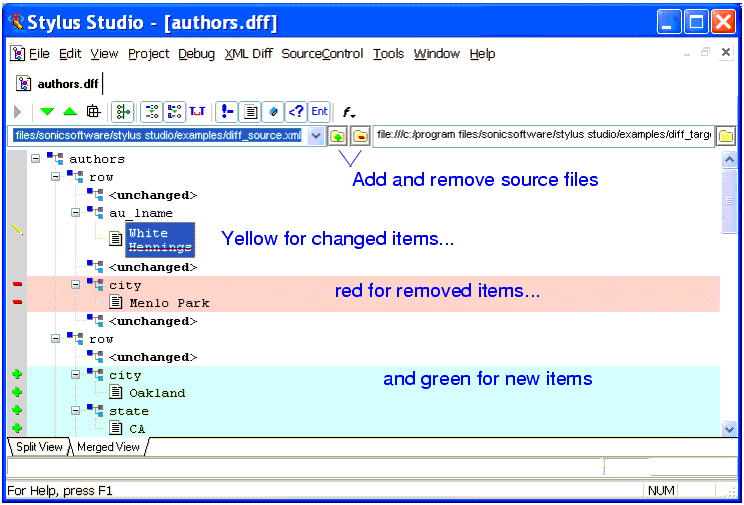
If you prefer, you can select the
Merged View tab, which folds the nodes from the source and target documents into a single window, as shown in
Figure 137
|
|
Figure 137. XML Diff Viewer - Merged View
.
Both views use the same symbols and color schemes to identify the types of changes detected by the Stylus Studio diff calculation - by default, green for added items, yellow for changed items, and red for removed items.
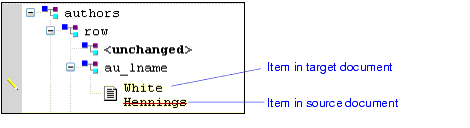
The merged view displays changed items in pairs - the item from the target document appears first, the item from the source document is shown second, as shown in
Figure 138.
|
|
Figure 138. Close-up of Merged View
In this example, the line through the
<au_lname> element in the source document,
Hennings, indicates that it has changed to
White in the target document.
See
Symbols and Background Colors for more information on this topic, and to learn how you can assign custom colors to the results of standard differencing operations.
The XML Diff Viewer Toolbar
The XML Diff Viewer toolbar, shown in
Figure 139, provides tools to help you
- Manually start the diff calculation
- Navigate source and target documents
- Change default display and diff settings
- Show or ignore differences in document items such as text nodes and attributes
|
|
Figure 139. The XML Diff Toolbar
The following table identifies the individual tools and tells you where to find more information.
|
Tool Button
|
Description
|
|
|
Calculates the differences in the documents you have selected. This button is active only when Stylus Studio detects the need to calculate differences. This button is disabled if you have selected
On changes and
If files modified settings. See
Engine Settings.
|
|
|
Skips to the next (previous) diff in the currently selected document. You must select a line in the document to enable these buttons.
|
|
|
By default, Stylus Studio displays collapsed documents when the diff is run. You can override this setting using the toolbar button, or you can change it permanently on the
Options. page. See
Engine Settings.
|
|
|
By default, Stylus Studio collapses any unchanged blocks to simplify the display. You can override this setting using the toolbar button, or you can change it permanently on the
Options. page. See
Engine Settings.
|
|
|
By default, Stylus Studio uses URIs to compare namespaces when diffing documents. You can override this setting using the toolbar button, or you can change it permanently on the
Options. page. See
Engine Settings.
Note that changing this setting requires documents to be diffed again.
|
|
|
By default, Stylus Studio expands entity references when diffing documents. You can override this setting using the toolbar button, or you can change it permanently on the
Options. page. See
Engine Settings.
Note that changing this setting requires documents to be diffed again.
|
|
|
By default, Stylus Studio considers text formatting characters (new lines, carriage returns, tabs) when diffing documents. You can override this setting using the toolbar button, or you can change it permanently on the
Options. page. See
Engine Settings.
|
|
|
By default Stylus Studio shows differences in comments. You can override this setting using the toolbar button, or you can change it permanently on the
Options. page. See
Engine Settings.
Note that this feature affects only the display, and not the calculation, of comment differences.
|
|
|
By default Stylus Studio shows differences in text blocks. You can override this setting using the toolbar button, or you can change it permanently on the
Options. page. See
Engine Settings.
Note that this feature affects only the display, and not the calculation, of text block differences.
|
|
|
By default Stylus Studio shows differences in attributes. You can override this setting using the toolbar button, or you can change it permanently on the
Options. page. See
Engine Settings.
Note that this feature affects only the display, and not the calculation, of attribute differences.
|
|
|
By default Stylus Studio shows differences in processing instructions. You can override this setting using the toolbar button, or you can change it permanently on the
Options. page. See
Engine Settings.
Note that this feature affects only the display, and not the calculation, of processing instruction differences.
|
|
|
By default Stylus Studio shows differences in entities. You can override this setting using the toolbar button, or you can change it permanently on the
Options. page. See
Engine Settings.
Note that this feature affects only the display, and not the calculation, of entity differences.
|
|
|
Allows you to change the font of documents displayed in the XML Diff Viewer.
|
Table 14. XML Diff Toolbar Buttons
Tools for Working with Documents
The XML Diff Viewer provides several tools for working with source and target documents:
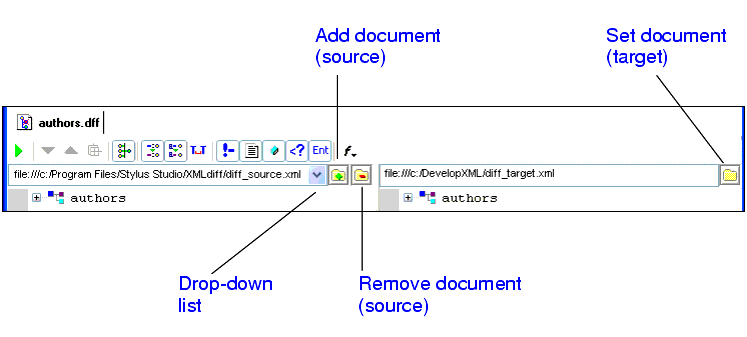
|
|
Figure 140. Buttons for Adding and Removing Documents
When you click the add or set document button, Stylus Studio displays the
Open dialog box. The add button for source documents displays a green plus sign on it (
 ) to alert you to the fact that you can add multiple source documents when diffing XML documents. You can specify only a single target document, however.
You use the remove button, the folder with the red minus sign on it (
 ), to remove the current source document from the XML diff calculation.
|
Tip
|
|
If Stylus Studio determines that the load or diff operation for a given XML document will take more than a moment, it displays a message and an
Abort button at the bottom of the XML Diff Viewer window. You can click the
Abort button to terminate the operation at any time. The message and the button are removed from the XML Diff Viewer window once the operation is complete or cancelled.
|
- Drop-down list. You use the drop-down list to change the current document in the XML Diff Viewer. When you change the current doc in a multi-document diff, the target document display - specifically, the symbols and colors used to identify documents - typically changes, as well. See
Symbols Used in the Target Document Window for more information.
Removing a Target Document
You cannot remove a target document. You can specify a
different target document by clicking the set target button (
 ) again. This replaces the current target document with the document you select.
Diffing a Pair of XML Documents
This section describes how to use Stylus Studio to diff a pair of XML documents.
Before reading this section, you should read
Overview, which describes basic information about the Stylus Studio Diff tool, and
The XML Diff Viewer, which describes features of the XML Diff Viewer and how to use them.
How to Diff a Pair of Documents
To diff a pair of documents:
1. Select
Tools > Options > Show Differences > Files from the Stylus Studio menu.
Stylus Studio displays the XML Diff Viewer.
2. In the source document window, click the add button (
) to add the source document.
Stylus Studio displays the
Open dialog box.
|
Tip
|
|
You can drag and drop a file into the entry field to load the document in the XML Diff Viewer.
|
3. Navigate to the document you want to load in the XML Diff Viewer.
4. Click
Open.
5. Repeat
step 2 through
step 4 for the target document, using the set button for the target document window (
).
By default, Stylus Studio runs the diff calculation automatically when you select the target document. If the default
On changes setting has changed, you need to run the diff calculation manually by clicking the
Calculate diff button (
).
Diffing Multiple Documents
This section describes how to use Stylus Studio to diff multiple XML documents.
Before reading this section, you should read
Overview, which describes basic information about the Stylus Studio Diff tool, and
The XML Diff Viewer, which describes features of the XML Diff Viewer and how to use them.
This section covers the following topics:
Document Focus
Diffing multiple XML documents is much the same as diffing a pair of documents - you specify the source documents (one at a time), a target document, and Stylus Studio calculates the diff.
|
Note
|
|
When you diff
multiple source documents against the target, Stylus Studio considers the target document to be the baseline, and the XML Diff Viewer shows how the source documents vary from the target.
|
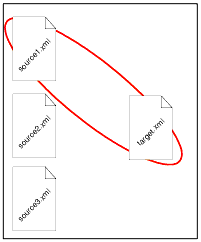
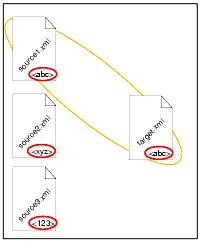
When you diff multiple documents, however, only one source document can have focus at a time. Consider the following illustration, which shows three source documents (
source1.xml,
source2.xml, and
source3.xml) and a target document (
target.xml).
|
|
Figure 141. Example of Document Focus
In this example, the
source1.xml document currently has focus. You set the focus on a given source document by selecting that document from the drop-down list at the top of the source document window.
When a source document has focus:
- Diffs are displayed for that document only, even if you have selected the
Merged View tab for display.
- Clicking the remove document button (
) removes that document from the XML diff calculation.
Symbols Used in the Target Document Window
When diffing multiple documents, Stylus Studio uses an additional set of symbols in the target document window. These symbols, which are displayed in the side bar of the XML Diff Viewer window alongside the standard set of symbols described in
Symbols and Background Colors, indicate the ways in which the change identified in the current source document differs from changes to the same node in other source documents.
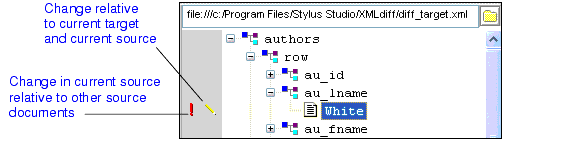
|
|
Figure 142. Example of Symbols Used When Diffing Multiple Documents
As shown in
Figure 142, symbols in the column closest to the document tree identify the changes relative to the currently selected source. Here, the edit symbol (
 ) indicates that the value in the target document,
White, differs from that in the currently selected source (which happens to be
Black in this example).
The first column of symbols characterize changes in the currently selected source relative to other source documents. Here, for example, the red exclamation point (
 ) indicates that there are conflicting modifications in other source documents - that is, other source documents contain a value other than
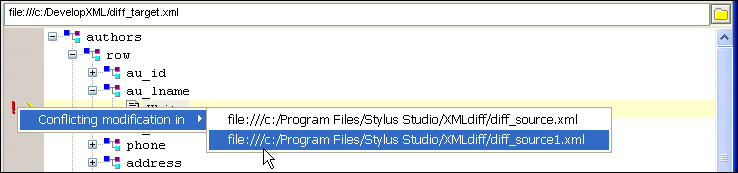
Black. As shown in
Figure 143, when you click on a symbol in the first column, Stylus Studio displays
- A message describing the precise nature of the change
- A menu that identifies the documents in which the change occurs.
|
|
Figure 143. Easily Navigate to Changed Nodes in Other Source Documents
Clicking on a document in this menu changes the current focus to that source document, allowing you to easily navigate to the same node in a different document.
The additional symbols used by Stylus Studio when diffing multiple documents are described in
Table 15.
|
Symbol
|
Description
|
Meaning
|
|
|
Yellow circle
|
Modified in other documents - The object in the target and the current source document are the same, but another source document is different.
|
|
|
Red exclamation point
|
Conflicting modification in other documents - The object in the current source differs from that in the target document. Other source documents differ from both the current source and target.
|
|
|
Yellow diamond
|
Same modification in other documents - The source documents all differ from the target document in the same way.
|
|
|
Yellow equal sign
|
Unchanged in other documents - The current source document differs from the target, but other source documents are the same as the target.
|
Table 15. Symbols Used to Specify Changes in Source Documents
Consider the example in
Figure 144, which illustrates diffing three documents. In this example, the node in question is circled in red.
|
|
Figure 144. Diffing Three Documents
Notice that:
-
source1.xml currently has focus.
-
source1.xml and the target document node have the same value (
<abc>)
- The node in question varies in both of the remaining source documents (it is
<abc> in one and
<abc> in the other).
Table 16 shows the symbols that might appear based on changing values to the node in question. The example illustrated in
Figure 144 is shown in the first row. As values in the source documents change, Stylus Studio changes the diff symbol accordingly.
|
Symbol
|
target.xml
|
source1.xml
|
source2.xml
|
source3.xml
|
|
|
<abc>
|
<abc>
|
<xyz>
|
<123>
|
|
|
<abc>
|
<xyz>
|
<jkl>
|
<mno>
|
|
|
<abc>
|
<xyz>
|
<xyz>
|
<xyz>
|
|
|
<abc>
|
<xyz>
|
<abc>
|
<abc>
|
Table 16. Symbols Used to Specify Changes in Source Documents
|
Note
|
|
Changing the target-source pairing, that is, changing the current source document, affects the symbols that are displayed.
|
How to Diff Multiple Documents
To diff multiple documents:
1. Select
Tools > Options > Show Differences > Files from the Stylus Studio menu.
Stylus Studio displays the XML Diff Viewer.
2. In the source document window, click the add button (
) to add the first source document.
Stylus Studio displays the
Open dialog box.
|
Tip
|
|
You can drag and drop a file into the entry field to load the document in the XML Diff Viewer.
|
3. Navigate to the document you want to load in the XML Diff Viewer.
4. Click
Open.
5. Repeat
step 2 through
step 4 for additional source documents.
6. Repeat
step 2 through
step 4 for the target document, using the set button for the target document window (
).
By default, Stylus Studio runs the diff calculation automatically when you select the target document. If the default
On changes setting has changed, you need to run the diff calculation manually by clicking the
Calculate diff button (
).
Modifying Default Diff Settings
Default settings for the behavior of the Diff engine and the appearance of diffed documents and folders are on the
Engine and
Presentation pages, respectively, of the
Options dialog box. The
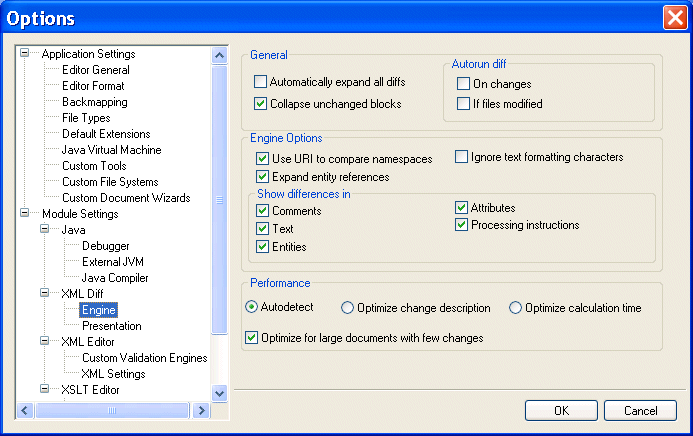
Engine page, shown here, has settings that determine the conditions under which Stylus Studio runs the diff automatically, which items in a document (comments and text, for example) you want the diff engine to ignore, and settings that allow you to choose diffing algorithm tunings optimized for change description or time, for example.
|
|
Figure 145. Engine Options Page for XML Diff
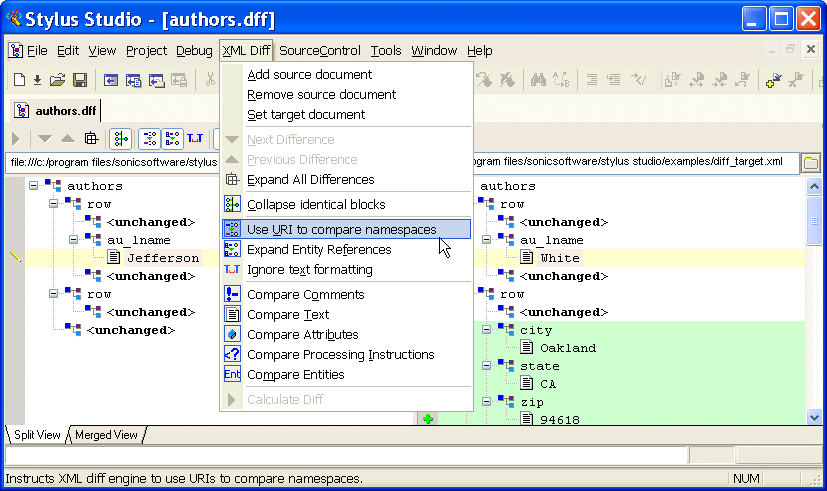
Settings on the
Engine page are reflected in the Diff editor tool bar, and in the
XML Diff menu, shown here.
|
|
Figure 146. XML Diff Menu
|
Tip
|
|
You can override
Engine page settings using the Diff editor tool bar or the
XML Diff menu. Overrides do not change the settings on the
Engine page.
|
This section covers the following topics:
Opening the Options Dialog Box
To open the Options dialog box:
1. Click
Tools > Options on the Stylus Studio menu.
The
Options dialog box appears.
2. If necessary, expand the tree for
Module Settings > XML Diff.
3. Click the page that contains the settings you want to modify.
4. To save a changed setting, click
OK. Click
Cancel to revert to close the dialog box and revert to the previous settings.
Engine Settings
This section describes the settings that affect the behavior and performance of the Diff engine.
General
The fields in the
General group box affect the initial display of diffed documents and the conditions, if any, under which Stylus Studio runs the diff automatically.
-
Automatically expand all diffs - By default, Stylus Studio collapses the display of the diffed documents. If you select this option, all nodes containing diffs are expanded when the diff is run.
-
Collapse unchanged blocks - By default, Stylus Studio collapses any block that does not contain any changes to save space in the XML Diff Viewer window. These blocks are displayed as <unchanged> in the document tree. You might prefer to have the entire document structure visible, to provide context for changed nodes, for example.
-
Autorun diff - By default, Stylus Studio runs the diff operation if you make a change to one of the settings on the
Engine page of the
Options dialog box. You can also specify that Stylus Studio run the diff operation when the source or target documents change. If you select
If files modified, Stylus Studio runs the diff operation when you save a source or target file. If neither of these options is selected, you must run the diff manually. See
When Does the Diff Run? for more information on this topic.
Engine Options
The fields in the
Engine Options group box affect how Stylus Studio diffs source and target documents.
-
Use URI to compare namespaces - Controls whether or not URIs are used to compare namespaces in source and target documents.
-
Expand entity references - Controls whether or not entity references, which in some cases can include files external to the source or target document, are expanded by the Stylus Studio diff engine for purposes of comparing one block with another.
-
Ignore text formatting characters - Controls whether or not text formatting characters (new line, carriage return, and tab) are ignored when comparing source and target documents. This option is off by default.
-
Show differences in - Provides granular control of what items in XML documents are diffed. There are separate settings for comments, text, entities, attributes, and processing instructions.
Performance
Diffing large, numerous, or complex documents can be time-consuming. Stylus Studio provides controls that let you choose algorithm tunings that have been optimized for change description or calculation time.
-
Autodetect - Stylus Studio determines which algorithm tuning to use based on the number, content, complexity, and size of the source and target documents. Stylus Studio first tries to use the tuning that is optimized for change description; if it determines that processing resources are limited, it reverts to the algorithm tuning optimized for speed. This setting is on by default.
-
Optimize change description - Provides the most economical set of changes possible. This calculation, though it yields the best results, can be costly in terms of time and processing resources.
-
Optimize calculation time - Provides the set of changes in the shortest time possible.
-
Optimize for large documents with few changes - Helps speed the diffing of large (greater than 1MB) documents by folding similar blocks before comparing nodes. This setting can be used in conjunction with any of the algorithm tuning settings and is on by default.
|
Tip
|
|
The default setting,
Autodetect and
Optimize for large documents
with few changes, yields the best results when time and processing resources are not considerations.
|
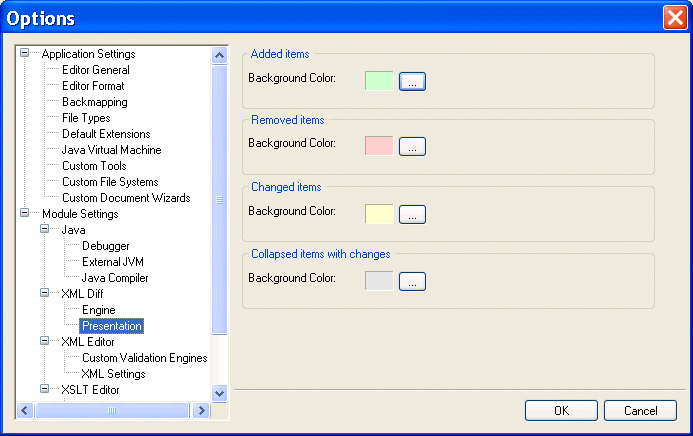
Presentation Options
Presentation options allow you to modify the settings for the background colors Stylus Studio uses to identify the types of changes detected in diffed documents and folders
|
|
Figure 147. You Can Change Colors Used to Identify Document Changes
You can change the background colors for the following:
- Added items
- Removed items (that is, items that are present in the target, but are not present in the source, for example)
- Changed items (the same element or attribute, but a different name, for example)
- Collapsed items with changes
Running the Diff Tool from the Command Line
In addition to using the Diff tool from the Stylus Studio user interface, Stylus Studio also provides a commandl line utility,
StylusDiff.exe. This command line utility allows you to perform many of the same functions, and to use many of the same options, as the graphical Diff tool.
Restrictions
The following restrictions exist for using
StylusDiff.exe:
- You cannot use
StylusDiff.exe to diff folders
-
StylusDiff.exe can diff only one pair of documents at a time
Usage
The
StylusDiff.exe utility has the following usage:
Table 17 describes the usage for the
StylusDiff command. For a complete description of these and other options that affect the XML Diff engine, see
Engine Settings.
|
Parameter
|
Description
|
|
-source <sourceURI>
|
The path of the XML document you want to use as the source document in the diff. Required.
|
|
-target <targetURI>
|
The path of the XML document you want to use as the target document in the diff. Required.
|
|
-output <outputURI>
|
Saves the differences between the source and target files, if any, to the file you specify. Output files are saved with a .dff extension. Optional.
|
|
-expandPrefixes
-collapsePrefixes
|
Whether you want the XML Diff engine to use the URI
(-expandPrefixes) or ignore the URI (-collapsePrefixes) when comparing namespaces. The default is
-collapsePrefixes.
|
|
-expandERs
-collapseERs
|
Whether you want the XML Diff engine to compare entity references (-collapseERs) or values referenced by entity references (-expandERs). The default is -expandERs.
|
|
-comments
-noComments
|
Whether you want the XML Diff engine to compare comments (-commments) or to ignore comments (-noComments). The default is -comments.
|
|
-attributes
-noAttributes
|
Whether you want the XML Diff engine to compare attributes (-attributes) or to ignore attributes (-noAttributes). The default is -attributes.
|
|
-text
-noText
|
Whether you want the XML Diff engine to compare text
(-text) or to ignore text (-noText). The default is -text.
|
|
-pi
-noPI
|
Whether you want the XML Diff engine to compare processing instructions (-pi) or to ignore processing instructions (-noPI). The default is -pi.
|
|
-er
-noER
|
Whether you want the XML Diff engine to compare entity references (-er) or to ignore entity references (-noER). The default is -er.
|
|
-entities
-noEntities
|
Whether you want the XML Diff engine to compare entities
(-entities) or to ignore entities (-noEntities). The default is -entities.
|
|
-formatting
-noFormatting
|
Whether you want the XML Diff engine to compare formatting characters (-formatting) or to ignore formatting characters
(-noFormatting) when comparing text nodes. The default is
-formatting.
|
|
-fold
-noFold
|
Whether you want the XML Diff engine to fold similar blocks before diffing (-foldUnchangedBlocks) or to expand and diff nodes (-diffUnchangedBlocks). The default is
-foldUnchangedBlocks.
|
|
-auto
-best
-fast
|
Controls that let you choose between diffing algorithm tunings that have been optimized for time (-fast) and thoroughness (-best). A third choice, -auto, lets Stylus Studio determine which tuning to use. The default is -auto.
|
Table 17. StylusXql Command Line Parameters
 Cart
Cart