Cart
Cart|
Home > Online Product Documentation > Table of Contents > Mapping Source and Target Document Nodes Mapping Source and Target Document NodesYou map a source document node to a target structure node using drag and drop to create a link between the two nodes. Stylus Studio composes XSLT based on these maps. This section covers the following topics:
Preserving Mapper LayoutAs you add function blocks to the XSLT mapper, Stylus Studio places them in the center of the mapper canvas. You can change the default placement of function blocks by dragging and drag and dropping them where you like. Stylus Studio preserves the placement you select within and across sessions (as you toggle between the mapper and the XSLT Source tab, for example).
As you use the splitter in the XSLT mapper to widen the source and target document panes, the size of the mapper canvas is reduced. The
Fit in Mapper Canvas button (
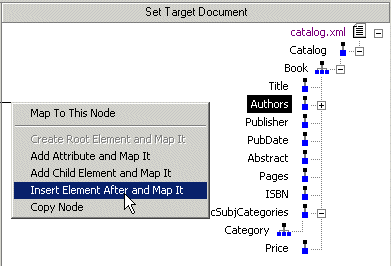
Left and Right Mouse Buttons ExplainedYou can use either the left or the right mouse button to perform the drag and drop operation used to create source-target mappings in the XSLT mapper. If you use the left mouse button to perform the drag operation, the link always maps the source node to the target node without making any changes to the target structure. If you use the right mouse button, Stylus Studio displays a shortcut menu that provides you with alternatives for modifying the target structure.
Using this menu, you can
How to Map NodesTo map nodes:
1. Using either the left or right mouse button, drag the source document element or attribute to the appropriate node on the target structure.
2. When the pointer is on the appropriate target element, release the mouse button to complete the link.
Stylus Studio draws a link between the source and target nodes you chose is
step 1. If you linked two repeating elements, Stylus Studio displays a symbol representing the
Removing Source-Target MapsTo remove a map from a source document node to a target element node:
1. Select the line that represents the map you want to delete.
2. Press the
Delete key.
Alternative: Select Delete from the line shortcut menu (right click on the line to display the shortcut menu). |

XML PRODUCTIVITY THROUGH INNOVATION ™
 ), located at the top of the XSLT mapper, redraws the diagram in whatever space is currently available to the mapper canvas. This feature is also available from the mapper short-cut menu (right-click anywhere on the mapper canvas to display the short-cut menu).