Working with XSLT Instructions in XSLT Mapper

As described in Graphical Support for Common XSLT Instructions and Expressions, you can create and work with XSLT instructions in the XSLT mapper using symbols called blocks. Each supported instruction is represented by a different block (symbols distinguish one block from another), and you complete the instruction's definition graphically, using drag and drop.

This section identifies the XSLT instructions supported by the mapper, their features, and how to use them. It covers the following topics:

What XSLT Instructions Are Represented Graphically

The XSLT mapper represents the following XSLT instructions:

XSLT Instruction
Representation in the XSLT Mapper
xsl:value-of
 
xsl:for-each
 
xsl:if
 
xsl:choose
 
xsl:apply-templates
 
xsl:call-template
 
Table 34. XSLT Instruction Blocks in XSLT Mapper

Note


You can create any XSLT instruction in the XSLT source, but only the instructions in Table 34 are represented graphically in the XSLT mapper. XSLT instructions that are not supported by the mapper have no graphical representation.

Instruction Block Ports

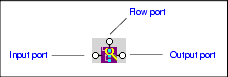
All XSLT instruction blocks have at least three connectors, called ports. Look at the xsl:value-of instruction block shown in Figure 222.

Figure 222. Example of an XSLT xsl:value-of Instruction Block

You use these ports to link source and target nodes, to perform processing on source document nodes, and to provide flow control as the result of a xsl:choose or xsl:if.

Ports are also part of XPath and Java function blocks, logical operator blocks, and text blocks. (See Processing Source Nodes for information on working with these types of blocks.)

Specifying Values for Ports

After you have added an instruction block to the XSLT mapper, you need to complete its definition. You do this by linking the instruction block's input, output, and, optionally, flow ports to nodes and other blocks in the mapper.

The way you specify values for ports varies slightly between input ports and flow and output ports, but, generally speaking, you can either

  • Dragging a link from the port to a target document node or to the flow port on another instruction block.
  • Double-click the port and typing a value (a string or an XPath expression, for example) in the Value dialog box.

Tip


To see the XSLT that is being generated based on the XSLT instruction you are creating, right click the instruction and select Go To Source from the shortcut menu.

Understanding Input Ports

Stylus Studio interprets input ports differently for different XSLT instructions, as shown in Table 35:

XSLT Instruction
Meaning of Input Port
xsl:value-of
 
Used to define the value of the select attribute. For example:
<xsl:value-of select="'Owen'">
xsl:for-each
 
Used to define the XPath expression for the select attribute. For example:
<xsl:for-each select="books/book">
xsl:if
 
Used to define the value of the test attribute. For example:
<xsl:if test="authors/author= 'Henry'">
See xsl:if and xsl:choose to learn more about when to use this instruction.
xsl:choose
 
Used to define the value of the test attribute of the nested xsl:when element. For example:
<xsl:when test="contains(authors/author,'Marchese')">
See xsl:if and xsl:choose to learn more about when to use this instruction.
xsl:apply-templates
 
Used to define the value of the select attribute. For example:
<xsl:apply-templates select="subject"/>
xsl:call-template
 
Used to define the value of the name attribute. For example:
<xsl:call-template name="newAuthorsTemplate"/>
Table 35. XSLT Instruction Blocks in XSLT Mapper

Specifying Values for Input Ports

You can specify values for input ports by:

  • Dragging a link from a source document node or from the output port of another block (like that of an XPath function or If block, for example).
  • Double-clicking the port and typing a value (a string or an XPath expression, for example) in the Value dialog box.

Tip


When you mouse over an input port, Stylus Studio displays the value associated with that port.

Red Input Ports

If an xsl: instruction's attribute takes a literal or string value (such as xsl:value-of select="'Recommended'"/, for example) and a value has been provided for the attribute, Stylus Studio fills the input port associated with that attribute with a deep red to indicate that a value has been specified.

The Flow Port

Output ports for any of the following xsl: instructions can be linked to the flow port of an instruction block:

  • xsl:if
  • The xsl:when element of xsl:choose
  • xsl:for-each

You might decide you want a particular xsl:for-each instruction executed only after performing a certain function, for example.

Adding an Instruction Block to the XSLT Mapper

Tip


If you enter an XSLT instruction in the XSLT source and that instruction can be graphically represented in the mapper, the instruction, including appropriate links to source and target nodes, appears in the Mapper tab the next time you display it.

To add an instruction block to the XSLT mapper
1. Right click on the mapper canvas.

The shortcut menu appears.

2. Select XSLT Instructions from the shortcut menu.

The XSLT Instructions submenu appears.

3. Select the instruction you want to add to your XSLT.

The block for the instruction you selected appears in the mapper canvas.

4. Provide a value for the input port(s). See Specifying Values for Ports if you need help with this step.
5. Link the output port(s).
6. Optionally, link the flow port.

Notes About Creating Instruction Blocks

Be aware of the following when working with XSLT instruction blocks in the XSLT mapper:

  • To simplify the mapper's appearance, Stylus Studio sometimes removes blocks from the mapper canvas and replaces them with a simple link. For example, imagine creating an xsl:value-of instruction block and linking source and target document nodes. Stylus Studio displays the instruction block, but if you leave the Mapper and later return to it, the block symbol for the xsl:value-of instruction is replaced by a link with a small circle at its center, link the one shown in Figure 223.

    Figure 223. xsl:value-of in XSLT Mapper
  • If you mouse over the circle, Stylus Studio displays the XSLT represented by the link ( xsl:value-of select="/books/book/@pubdate"/, for example).

    This behavior also exists for text blocks created in the mapper that are not also linked to other blocks in the mapper. See Setting a Text Value.

  • If you type an XSLT instruction in the XSLT source that is not represented by the XSLT mapper, no representation of that XSLT instruction is displayed on the Mapper tab. The code remains as part of the XSLT source, however.
  • If you start creating an XSLT instruction in the mapper but do not completely define it (say you specify only the input port for an xsl:for-each instruction, for example), it is not represented in the XSLT source, and it is removed from the XSLT mapper if you leave the Mapper tab and then return to it.

Editing xsl: Instruction Properties

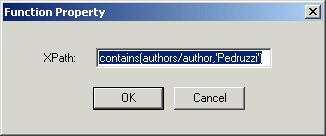
You can change or specify the properties associated with an xsl: instruction by editing the instructions properties. Each xsl: instruction block (and blocks for XPath functions) is associated with a dialog box that allows you to edit its basic properties, like this Function Property dialog box for the contains function.

Figure 224. Properties Dialog Box for an XPath Function

To edit xsl: instruction properties:
1. Right click on the instruction block whose properties you want to edit.
2. Select Properties from the shortcut menu.

Stylus Studio displays the properties dialog box for the XSLT instruction or XPath function you selected from the mapper.

3. Edit the XPath expression as required.
4. Click OK.

Note


The properties dialog box for xsl:choose has additional features. See Editing xsl:choose Instruction Properties.

xsl:if and xsl:choose

The xsl:if instruction cannot express an else condition. It has a single input port, and a single output port, as shown in Figure 225.

Figure 225. xsl:if Instruction Block

Once fully defined, the xsl:if block generates code like the following:

<Review>
               
	<xsl:if test="authors/author= 'Minollo'">
               
		<xsl:value-of select="'Recommended'"/>
               
	</xsl:if>
               
	<xsl:if test="contains(authors/author,'Pedruzzi')">
               
		<xsl:value-of select="'A best buy'"/>
               
	</xsl:if>
               
</Review>


If you need to express an else condition, use the xsl:choose instruction block. This instruction block has two output ports by default, one for the xsl:when test= attribute, and one for the one xsl:otherwise element.

Figure 226. xsl:choose Instruction Block

The xsl:choose instruction block generates code like the following:

<Review>
               
	<xsl:choose>
               
		<xsl:when test="authors/author= 'Minollo'">
               
			<xsl:value-of select="'Recommended'"/>
               
		</xsl:when>
               
		<xsl:when test="contains(authors/author,'Pedruzzi')">
               
			<xsl:value-of select="'authors best buy'"/>
               
		</xsl:when>
               
		<xsl:otherwise>
               
			<xsl:value-of select="'bah...'"/>
               
		</xsl:otherwise>
               
	</xsl:choose>
               
</Review>


If you need to define more than one xsl:when test= attribute, use the xsl:choose properties dialog box for the xsl:choose instruction block.

Note


Stylus Studio generates the xsl:otherwise element by default for all xsl:choose instructions. You can change this setting on the xsl:choose properties dialog box.

Editing xsl:choose Instruction Properties

Use this procedure to

  • Add, edit, or remove test= attributes from xsl:choose instructions.
  • Edit the setting that generates the xsl:otherwise element.
To edit xsl:choose properties:
1. Right click on the xsl:choose instruction block.
2. Select Properties from the shortcut menu.

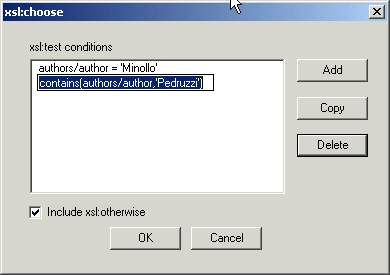
The xsl:choose properties dialog box appears. Any attributes already defined for the xsl:choose instruction you are editing are displayed in the xsl:test conditions list box

Figure 227. Properties Dialog Box for xsl:choose

3. To add a new attribute, click the Add button.

A new entry field appears.

4. Replace the default value ( newCondition) with the XPath expression you want to use to define the test= attribute and press Enter.
Tip


Use the Copy button to create a new test= attribute and its nested content that is similar to an existing test= attribute. This feature is especially useful for attributes that are long or complex.

5. To delete an existing attribute, select it and then click the Delete button.
6. If you do not want the xsl:choose instruction to include the xsl:otherwise element, click the Include xsl:otherwise check box to deselect it.
7. When you have finished editing the xsl:choose properties, click OK.

 
Free Stylus Studio XML Training: