Cart
Cart|
Home > Online Product Documentation > Table of Contents > Target Structures Target StructuresThere are two ways to specify an XSLT target structure:
This section covers the following topics: Using an Existing DocumentTo use an existing document to provide the XSLT target structure:
1. Click the
Mapper tab if necessary.
2. Click the
Set Target Document button at the top left of the
Mapper tab.
The Open dialog box appears.
3. Select the document you want to use to provide the target structure for defining the mapping (XML, XSD, or DTD).
4. Click
Open.
The structure of the document you select appears in the target document pane of the Mapper tab. Building a Target StructureTo build a target structure from scratch, you first create a root element, and then define child elements and attributes as needed. How to create a root elementTo create a root element:
1. Click the
Mapper tab if necessary.
2. Right click the area underneath the
Set Target Document button.
The target document shortcut menu appears.
3. Select
Create Root Element.
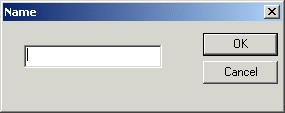
The Name dialog box appears.
4. Type a name for the root element and click
OK.
The root element you specified appears in the target document pane of the Mapper tab. How to create elements and attributesYou can create elements and attributes in a new or existing target structure. To create elements and attributes:
1. Click the
Mapper tab if necessary.
2. Select the attribute or element to which you want to add a child element or attribute. If you have just created a root element, select the root element.
3. Right click the area underneath the
Set Target Document button.
The target document shortcut menu appears.
4. Choose one of the following:
5. Type a name for the node and click
OK.
The node you specified is added to the target structure in the Mapper tab. Modifying the Target StructureThis section describes the techniques you can use to modify the structure and content of an XSLT mapper target structure. It covers the following topics: Adding a NodeSee How to create elements and attributes. Removing a Node
To remove a node from the target structure:
1. Remove any links to the node you want to remove from the target structure. See
Removing Source-Target Maps if you need help with this step.
2. Select the node and press the Delete key.
Alternative: Right-click the node and select Remove Node from the shortcut menu. |

XML PRODUCTIVITY THROUGH INNOVATION ™