Cart
Cart|
Home > Online Product Documentation > Table of Contents > Overview of the XSLT Mapper Overview of the XSLT MapperThe XSLT mapper helps you compose XSLT that aggregates data from one or more source documents, regardless of their origin or XML. For example, an inventory application might use information from multiple vendors, each of whom organizes invoices in a different way. You can use the XSLT mapper to identify source documents, map the relevant nodes from each to a target document, and in doing that define any required XSLT instructions, XPath or Java functions, and logical operators graphically. To use the XSLT mapper to create an XSLT stylesheet, you start by specifying one or more source documents and one target document.
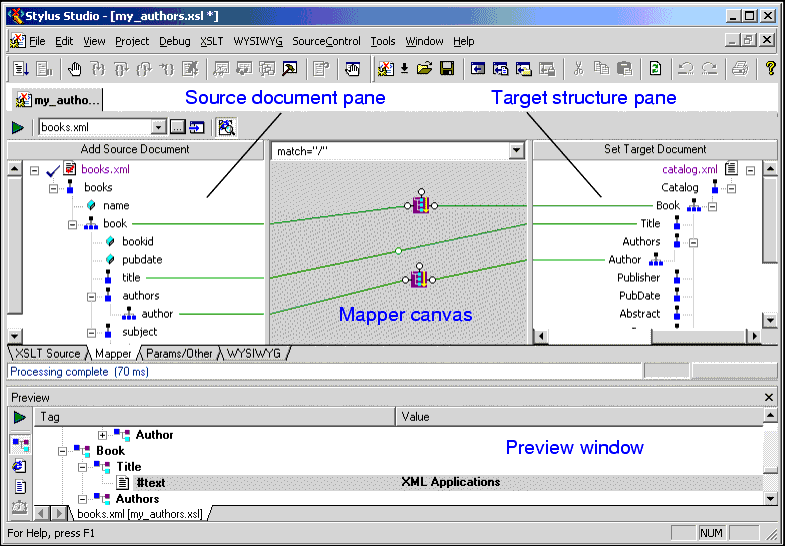
The Mapper tab consists of these areas:
As you link elements and define XSLT instruction and function blocks in the mapper, Stylus Studio composes XSLT for you, which is visible (and editable) any time you click the XSLT editor's XSLT Source tab. When you have finished mapping, you can apply the stylesheet to XML documents that have the same schema as the source document. The result document also has the same schema as the destination document.
As with the
XSLT Source tab, you can preview XSLT results from the
Mapper tab by clicking the
Preview Result button (
This section covers the following topics: Example
Suppose you open the XML mapper and select
Now suppose you want to apply a stylesheet to
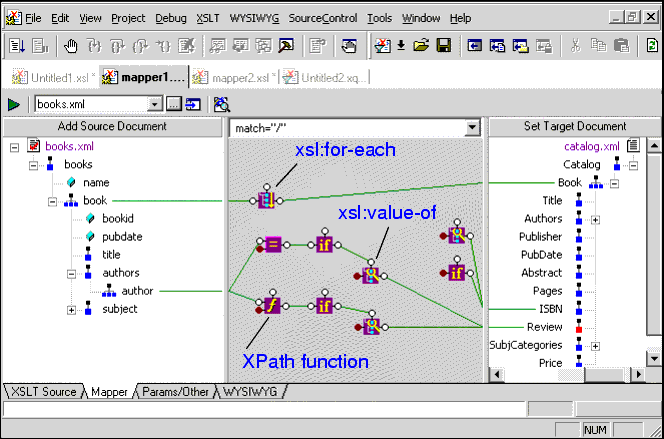
Graphical Support for Common XSLT Instructions and ExpressionsThe XSLT mapper has graphical support for Using special symbols, called blocks, you can quickly and easily create complex XSLT without writing any code, as shown in Figure 215:
Blocks can be created
See Working with XSLT Instructions in XSLT Mapper and Processing Source Nodes to learn more about working with blocks in the XSLT mapper. Setting Options for the XSLT MapperThere are a few options you can set that affect the XSLT stylesheets generated by the XSLT mapper. To display the Options dialog box, in the Stylus Studio tool bar, select Tools > Options. Under Module Settings > XSLT Editor, click Mapper. The mapper has an option that determines whether Stylus Studio creates empty elements for unlinked nodes when the associated schema specifies that the elements are required. You might want to select this option to help ensure that your XSLT generates valid XML by ensuring that all required elements are accounted for. Among other options under the XSLT Editor heading, consider clicking XSLT Settings and specifying whether or not you want Stylus Studio to save scenario metainformation in the stylesheet. Scenario metainformation includes anything specified in the Scenario Properties dialog box - source and output URLs, parameter values, post-processing options, and so on.
If you choose not to save scenario metainformation in the stylesheet, and if the stylesheet belongs to a project, Stylus Studio saves mapper metainformation in the project. If the stylesheet does not belong to a project, and you choose not to save metainformation in the stylesheet, mapping metainformation is not saved. Ensuring That Stylesheets Output Valid XMLStylus Studio cannot automatically generate a stylesheet that will always generate a valid XML document. As defined by the W3C, an XML document is considered to be valid if it conforms to the DTD with which it is associated. For example, consider a stylesheet that has required attributes. In order to specify meaningful values for them, you need to have insight as to the semantics of the operation the stylesheet is performing, and it is difficult for any application to infer this type of information. Always check to see that the stylesheets you create using the XSLT mapper generate valid input. Steps for Mapping XML to XMLTo create an XSLT stylesheet using the XSLT mapper:
1. From the Stylus Studio menu bar, select
File >
New >
XSLT: Mapper.
Stylus Studio displays the XSLT editor with the Mapper tab selected.
2. Select one or more source documents and a target document.
3. In both the source and the target panes, click the root element and then press the asterisk key (
*) in the numeric key pad to expand the schema tree.
4. Map nodes in the source documents to nodes in the target document, define XSLT instructions and functions, and create named and matched templates using the mapper's graphical tools.
5. Check the
XSLT Source view from time to time. This allows you to confirm that the stylesheet is doing what you expect it to do (and it is also a good way to teach yourself XSLT). Changes you make directly to the source are reflected on the
Mapper tab, and vice versa.
Each of these steps is described in greater detail in the following sections. |

XML PRODUCTIVITY THROUGH INNOVATION ™
 ). Debugging, however, can be performed from the
XSLT Source tab only.
). Debugging, however, can be performed from the
XSLT Source tab only.