Cart
Cart
|
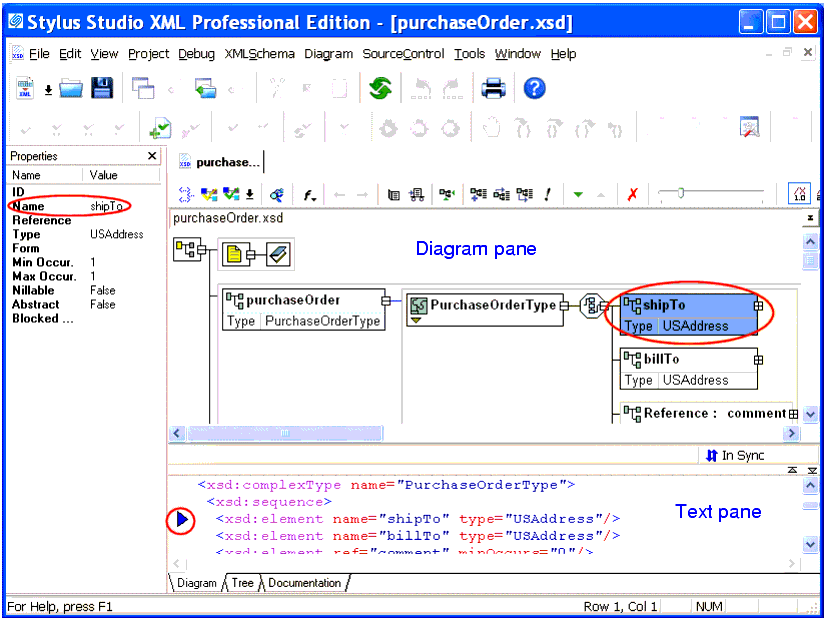
Home > Online Product Documentation > Table of Contents > Working with XML Schema in Stylus Studio Working with XML Schema in Stylus StudioYou use the XML Schema Editor to view, define, and validate XML Schema using one or more of three tabs, or views. The Diagram tab, whicih is the default for the XML Schema Editor, is shown in Figure 242.
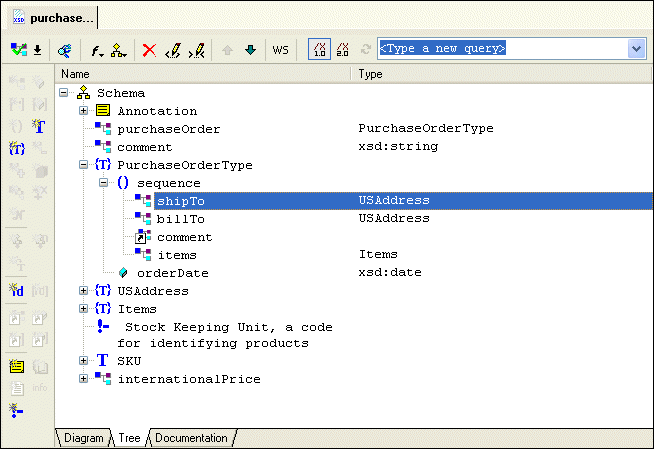
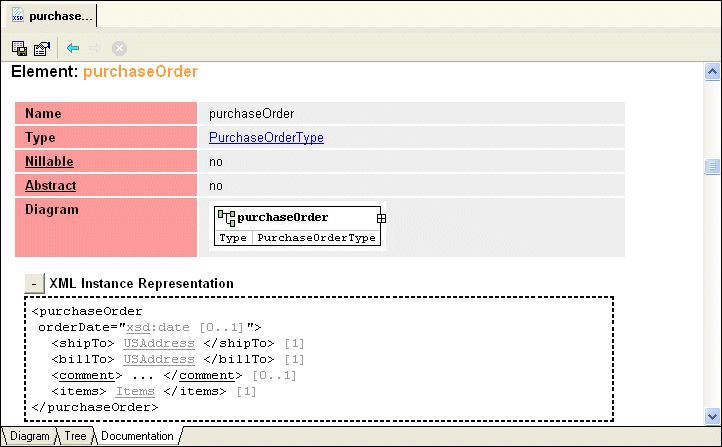
Each tab displays the schema from a unique perspective, as summarized here:
In addition to the diagram pane, the Diagram tab includes a text pane. The text pane displays the raw XML text used to define the XML Schema, and lets you see how the changes you make in the diagram affect the XML Schema text. You can make changes in either pane - to a node in the diagram, or directly to the text - Stylus Studio keeps both views synchronized. The Diagram tab has a full complement of editing tools, including checkers for well-formedness and validation, as well as a query functionality that lets you evaluate your query using either XPath 1.0 or XPath 2.0. XML Schema query is also supported in the Tree tab. See Printing to learn how to print information in the Diagram tab.
Stylus Studio the information in all tabs synchronized automatically. Generally speaking, if you are just getting started with XML Schema you should consider using the Diagram tab to work with XML Schema in Stylus Studio. Its graphical user interface makes defining XML Schema easy and error-free, and the built-in text pane, which lets you see how new nodes are rendered in XML, can be a useful learning tool. To get started using the Diagram view to define an XML Schema, see Defining an XML Schema Using the Diagram Tab - Getting Started. Procedures for working with the Diagram tab are also covered throughout this chapter. Validating XML Schema
Stylus Studio can analyze your XML Schema document to determine if it is valid. At any time, click
Validate Document
Updating XML Schema Associated with a DocumentStylus Studio can associate an XML Schema with an XML document, and it can validate an XML document against its associated XML Schema. If you update an XML Schema in Stylus Studio and that schema is associated with an XML document that is open in Stylus Studio, Stylus Studio refreshes the XML Schema information for the XML document. Using XML Schema in XQuery and XSLT MapperYou can use an XML Schema as the source document or target document for Stylus Studio's XQuery and XSLT Mappers. See Building an XQuery Using the Mapper and Chapter 5Creating XSLT Using the XSLT Mapper for more information on these topics. OpeningTo open an XML Schema document, select File > Open from Stylus Studio menu bar, and navigate to the XML Schema file you want to open. See Opening Files in Stylus Studio.
Alternatives: Click
Open
PrintingStylus Studio allows you to print either the graphic in the diagram pane, or the raw XML in the text pane. If one pane is collapsed, Stylus Studio prints the visible pane. If the panes are both visible, Stylus Studio prints the pane that currently has focus.
To print XML Schema:
1. Select the pane of the
Diagram tab you want to print.
2. Click
Print
 .
.
Alternative: Select File > Print from the Stylus Studio menu. Schemas That Have Schemas
An XML Schema is an XML document. Consequently, you can associate it with a schema if you want to. The associated schema can be either an XML Schema or a DTD. If you are editing an XML Schema that is associated with a schema, you can click
Open Schema
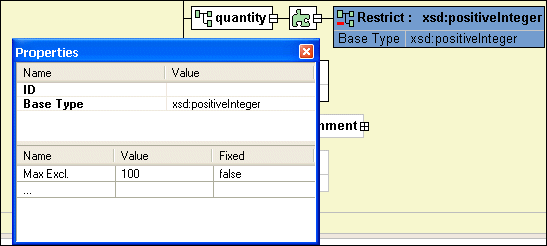
Node PropertiesThe Properties window is available when you are using the Diagram or Tree tab of the XML Schema Editor. When the Properties window is open, it displays the properties of the node you click. If you have selected a restricted node from a redefined XML Schema, Stylus Studio displays a separate section in the lower half of the Properties window for you to specify the facets, as shown in Figure 245.
If the Properties window is not visible, select View > Properties from the Stylus Studio menu.
To change the value of a property, click the property field and enter the new value. If only certain values are allowed, Stylus Studio displays a drop-down list of the valid choices. Each type of node has its own set of properties. For a description of each property, see About XML Schema Properties. Working with Properties in the DiagramYou can also display and edit properties within the nodes in the diagram. See Displaying Properties for more information on this feature. |

XML PRODUCTIVITY THROUGH INNOVATION ™
 in the Stylus Studio tool bar to ensure that your schema is valid. If it is not, Stylus Studio displays a message that indicates the cause and location of the error. You can use any number of XML Schema validation engines to parse your XML Schema, including
 , or press Ctrl+O.
 to display the associated schema.