Cart
Cart
|
Home > Online Product Documentation > Table of Contents > Creating an XML Schema in Stylus Studio Creating an XML Schema in Stylus StudioThere are several ways to create an XML Schema in Stylus Studio, including building your own XML Schema from scratch, and creating an XML Schema based on an existing DTD or from an XML document. This section covers the following topics: Creating Your Own XML SchemaTo create an XML Schema, select File > New > XML Schema from the menu bar.Stylus Studio displays a new XML document in the XML Schema Editor Diagram tab; the text pane displays the following contents:
When you create an XML Schema in Stylus Studio, the default namespace is specified as
Creating XML Schema from a DTDStylus Studio has a document wizard that you can use to create an XML Schema from a DTD. To use the DTD to XML Schema wizard:
1. From the Stylus Studio menu bar, select
File >
Document Wizards.
2. In the
Document Wizards dialog box that appears, in the
XML Editor tab, click
DTD to XML Schema, and click
OK.
3. In the
Convert DTD to XML Schema dialog box that appears, in the
DTD URL field, type or select the absolute path for the DTD for which you want to create an XML Schema. The DTD must be encoded in UTF-8.
4. If you want, select
Use a Target Namespace, and type a target namespace.
5. Click
OK. Stylus Studio displays the new XML Schema in the XML Schema Editor.
Creating XML Schema from an XML DocumentUse this procedure when you want to create an XML Schema based on the content of an existing XML document. To create an XML Schema from an XML document:
1. Open the XML document from which you wish to create an XML Schema.
2. Select
XML > Create Schema from XML Content from the Stylus Studio menu.
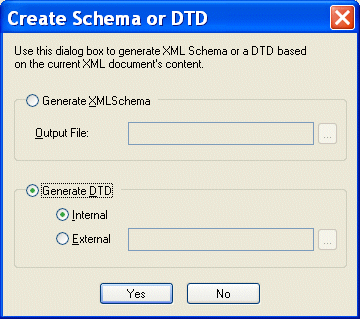
The Create Schema or DTD dialog box appears.
3. Click
Generate XML Schema.
The Output File field becomes active.
4. Type a name for the XML Schema you want to create, or use the browse button (
 ) to search for an existing file.
5. Click the
Yes button.
The XML Schema is created. If you do not specify a complete URL, the schema is written to the same location as the XML document from which it was created. Displaying the New XML SchemaTo display the new XML Schema:
1. Click
XML > Open Associated Schema.
2. Select the XML Schema from the drop-down menu.
The XML Schema appears in the XML Schema Editor. |

XML PRODUCTIVITY THROUGH INNOVATION ™