Cart
Cart
|
Home > Online Product Documentation > Table of Contents > Defining complexTypes in XML Schemas Defining complexTypes in XML SchemasIn an XML Schema, an element that contains only data is a simpleType. Elements with any other contents are complexTypes. (Attributes are always simpleTypes.) The XML Schema Recommendation does not include any built-in complexTypes. You must define each complexType you need.
In the
Diagram view, when you define a complexType as a top-level definition, it is a global declaration. You can specify that any element in the schema is of this complexType. Similarly, in the
Tree view, it is a global declaration when you define a complexType as a child of the
You can also define a complexType in the definition of an element. See Defining Elements That Contain Subelements in XML Schemas.
Stylus Studio takes care of most of the details for you. But as you define a complexType, it is helpful to keep in mind that a
This section discusses the following topics: Defining complexTypes That Contain Elements and Attributes - Diagram ViewTo define a complex type in the Diagram view:
1. Right-click the
schema node
 .
.
2. In the shortcut menu, select
Add >
ComplexType.
Alternatives: This operation is also available from the
XMLSchema >
Diagram >
Add > ComplexType menu and from the
Add button
The new complexType is added to the XML Schema. It is displayed in the diagram and in the text pane (if you have it open). The properties for the new complexType are displayed in the Properties window. Adding Nodes to a complexTypeOnce you have created a complexType, you can further define it by adding sequences, elements, and other nodes. The basic procedure for adding nodes to a complexType is to:
1. Select the node.
2. Use the menus or tool bar to add the node.
3. Fully describe the complexType and its nodes by editing values in the
Properties window.
You can use this procedure to add the following nodes to a complexType: Next steps vary according to the constraints on the elements in the complexType. The following instructions show how to achieve some typical constraints. Choosing an Element
Suppose you want to define a complexType that contains exactly one element, and that element can be one of several different elements. In XML Schema, you do this by defining
To define xsd:choice in the Diagram tab:
1. Right-click the icon that represents your new complexType.
2. In the shortcut menu that appears, select
Add >
Choice.
Alternatives: This operation is also available from the
XMLSchema >
Diagram >
Add > Choice menu and from the
Add button
Stylus Studio displays the
3. Right-click the
choice icon and select
Add >
Element, or use the
Add button
 .
.
A element is added to the
4. Make sure the new element is selected. In the
Properties window, click the
Type field.
5. Enter or select the type of the element.
Including All Elements
Suppose you want to define a complexType that contains a number of elements, the elements can be in any order, and there must be zero or one of each element. In XML Schema, you do this by defining
To define xsd:all in the Diagram tab:
1. Right-click the icon that represents your new complexType.
2. In the shortcut menu that appears, select
Add >
All.
Alternatives: This operation is also available from the
XMLSchema >
Diagram >
Add > All menu and from the
Add button
Stylus Studio displays the
3. Right-click the
choice icon and select
Add >
Element, or use the
Add button
.
A element is added to the
4. Make sure the new element is selected. In the
Properties window, click the
Type field.
5. Enter or select the type of the element.
6. If the element is required, go to
step 7. If the element is optional, click the
Min Occur. field in the
Properties window, and type a zero (0).
7. If there must always be exactly one of this element, go to
step 8. If there can be more than one of this element, click the
Max Occur. field in the
Properties window, and enter the maximum number allowed or click
unbounded in the drop-down list.
Specifying the Sequence of Elements
Suppose you want to define a complexType that contains a number of elements in a particular order. The default is that each element must appear exactly once. However, some elements are optional, and some elements can appear more than once. In XML Schema, you do this by defining
To define xsd:sequence in the Diagram tab:
1. Right-click the icon that represents your new complexType.
2. In the shortcut menu that appears, select
Add >
Sequence.
Alternatives: This operation is also available from the
XMLSchema >
Diagram >
Add > Sequence menu and from the
Add button
Stylus Studio displays the
3. Right-click the
sequence icon and select
Add >
Element, or use the
Add button
.
A element is added to the
4. Make sure the new element is selected. In the
Properties window, click the
Type field.
5. Enter or select the type of the element.
6. If the element is required, go to
step 7. If the element is optional, click the
Min Occur. field in the
Properties window, and type a zero (0).
7. If there must always be exactly one of this element, go to
step 8. If there can be more than one of this element, click the
Max Occur. field in the
Properties window, and enter the maximum number allowed or click
unbounded in the drop-down list.
Reordering Nodes
If you make a mistake in the order in which you specify nodes in your XML Schema (when specifying elements in a
To reorder nodes in the diagram view:
1. Click the node you want to move.
2. Click the
Move Up
 or
Move Down
or
Move Down
 from the Stylus Studio tool bar until the node is positioned where you want it.
Alternative: This operation is also available from the XMLSchema menu and from the node's shortcut menu. Combining the Sequence and Choice Modifiers
Suppose you want to define a complexType that contains a number of elements in a particular order, but some of them are optional, and you want to ensure that only one element from a particular group of elements is present. In other words, you need to combine the use of the
Defining complexTypes That Contain Elements and Attributes - Tree View
The
In the Tree view, to define a complex type with a similar structure:
1. Click the
Schema node.
2. In the left tool bar, click
New complexType
 . In the
Tree view, Stylus Studio displays a field for the new complexType.
. In the
Tree view, Stylus Studio displays a field for the new complexType.
3. Type a name for this new complexType and press Enter.
4. In the left tool bar, click
New Model Group
 . Stylus Studio displays a pop-up menu that lists the group modifiers.
5. Double-click the modifier you want. For a description of each modifier, see
Model Group Properties in XML Schemas.
You can specify any number of modifiers in a complexType. Each modifier controls the occurrence of its child nodes. You can specify the same modifier more than once. For example, you might want to specify the
6. For each element that you want to define in this complexType with the selected modifier, perform the following steps:
a. Click the modifier name in the
Tree view.
b. In the left tool bar, click
New Element Definition
 . In the
Tree view, Stylus Studio displays a field for the new element definition.
. In the
Tree view, Stylus Studio displays a field for the new element definition.
c. Type a name for the new element and press Enter. Stylus Studio displays a pop-up menu that lists the built-in simpleTypes and simpleTypes you defined.
d. Double-click the type for the new element.
e. In the
Properties window, you can double-click the field for any property to set the value for that property.
For example, you can specify
7. For each element or group that you want to refer to in this complexType with the selected modifier, perform the following steps:
a. Click the modifier name in the
Tree view.
b. In the left tool bar, click
New Reference to Element
 or
New Reference to Group
or
New Reference to Group
 . Stylus Studio displays a pop-up menu that lists the elements or groups defined in the schema.
c. Double-click the element or group you want to reference.
8. To define an attribute in this complexType:
a. Click the name of the complexType in the
Tree view.
b. In the left tool bar, click
New Attribute
 . In the
Tree view, Stylus Studio displays a field for the new attribute.
. In the
Tree view, Stylus Studio displays a field for the new attribute.
c. Type a name for the new attribute and press Enter. Stylus Studio displays a pop-up menu that lists the built-in simpleTypes and the simpleTypes you defined in this schema.
d. Double-click the type of the new attribute.
9. To reference an attribute or attributeGroup in this complexType:
a. Click the name of the complexType in the
Tree view.
b. In the left tool bar, click
New Reference to Attribute
 or
New Reference to Attribute Group
or
New Reference to Attribute Group
 . Stylus Studio displays a pop-up menu that lists the attributes or attributeGroups defined in the schema.
c. Double-click the attribute or attributeGroup you want to reference.
Defining complexTypes That Mix Data and ElementsSuppose you want to define a complexType that mixes elements and data. For example, you have an XML document with contents such as the following:
The
This section describes how to achieve this using both the Diagram and Tree views. Diagram ViewTo define a complex type that mixes data and elements:
1. Create a complexType as described in
Defining complexTypes That Contain Elements and Attributes - Diagram View.
2. In the
Properties window, click the
Mixed field.
3. In the drop-down menu that appears, click
true.
Tree ViewIn the Tree view, to define a complex type that mixes data and elements:
1. Click the
Schema node.
2. In the left tool bar, click
New complexType
. In the
Tree view, Stylus Studio displays a field for the new complexType.
3. Type a name for this new complexType and press Enter.
4. In the
Properties window, double-click the
Mixed field.
5. Double-click
true.
6. In the left tool bar, click
New Model Group
. Stylus Studio displays a pop-up menu that lists the group modifiers.
7. Double-click the modifier you want. For a description of the modifiers, see
Model Group Properties in XML Schemas. For the rest of this procedure, assume that you double-click the
sequence modifier. By default, the elements that are children of this node each appear exactly once. If you want an element to be optional, or if you want an element to appear more than once, specify appropriate values for the properties for minimum occurrence and maximum occurrence.
8. For each element that you want this complexType to contain:
a. In the left tool bar, click
New Element Definition
. In the
Tree view, Stylus Studio displays a field for the new element definition.
b. Type a name for the new element and press Enter. Stylus Studio displays a pop-up menu that lists the built-in simpleTypes and any types already defined in the schema.
c. Double-click the type for the new element.
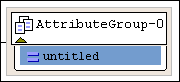
Defining complexTypes That Contain Only AttributesAn XML Schema allows you to create groups of attributes. This makes it easy to create a complexType that contains only attributes. The first step is to create an attributeGroup. You can then create a complexType and add a reference to the attributeGroup to the complexType. Diagram ViewTo define a complex type that contains only attributes:
1. Right-click the
schema node
.
2. In the shortcut menu, select
Add >
AttributeGroup.
Alternatives: This operation is also available from the
XMLSchema >
Diagram >
Add > AttributeGroup menu and from the
Add button
The new attributeGroup is added to the XML Schema. It is displayed in the diagram and in the text pane (if you have it open). The properties for the new attributeGroup are displayed in the Properties window.
3. Right-click the new attributeGroup.
4. In the shortcut menu that appears, select
Add >
Attribute.
The new attribute is added to the attributeGroup.
5. Make sure the new attribute is selected. In the
Properties window, click the
Data Type field.
6. Enter or select the type of the attribute.
8. Create a complexType as described in
Defining complexTypes That Contain Elements and Attributes - Diagram View.
9. Drag the attributeGroup to the complexType.
Tree ViewTo define a complex type that contains only attributes:
1. Click the
Schema node.
2. In the left tool bar, click
New Attribute Group
 . In the
Tree view, Stylus Studio displays a field for new attributeGroup.
. In the
Tree view, Stylus Studio displays a field for new attributeGroup.
3. Enter a name for the attributeGroup.
4. In the left tool bar, click
New Attribute Definition
. In the
Tree view, Stylus Studio displays a field for the new attribute definition.
5. Enter a name for the new attribute. Stylus Studio displays a scrollable, pop-up menu that lists the built-in simpleTypes and any previously defined simpleTypes.
6. Double-click the type of the new attribute.
7. For each additional attribute you want to add to the group, click the name of the attributeGroup in the
Tree view, and repeat
step 4 through
step 6.
8. Click the Schema node.
9. In the left tool bar, click
New complexType
. In the
Tree view, Stylus Studio displays a field for the new complexType.
10. Type a name for the new complexType and press Enter.
11. In the left tool bar, click
New Reference to Attribute Group
. Stylus Studio displays a pop-up menu that contains a list of attributeGroups.
12. Double-click the attributeGroup that you want this complexType to contain.
|

XML PRODUCTIVITY THROUGH INNOVATION ™
 alongside the

 alongside the
 alongside the