Cart
Cart
|
Home > Online Product Documentation > Table of Contents > Referencing External XML Schemas Referencing External XML Schemas
If you want, you can reference definitions from other XML Schemas in your XML Schema document. You might want to do this if you want to simply reuse existing definitions as-is, or if you wan to use an existing definition as the base for a type that you want to modify in your XML Schema. This section covers the following topics: Ways to Reference XML SchemasThere are three ways to reference XML Schema: This section describes each of these techniques and how they can be used. In these descriptions, we use the term referenced XML Schema to indicate the XML Schema that is being included, imported, or redefined; and base XML Schema to indicate the XML Schema in which the referenced schema is being included, imported, or redefined. Including an XML Schema
When reference an XML Schema by
including it, the included XML Schema augments the base XML Schema. Both documents are effectively combined, and they both define the same XML Schema. complexTypes defined in the included XML Schema can be used as the base for new types - you might use a
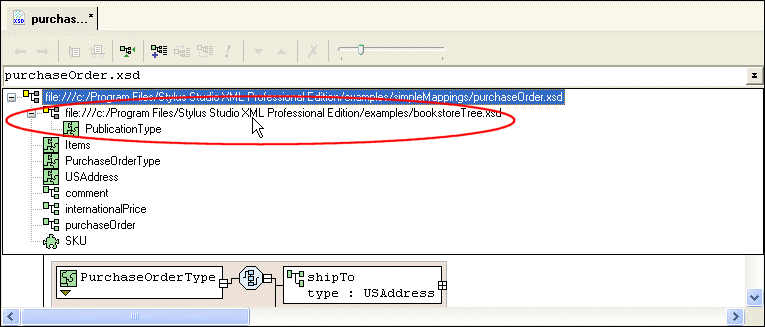
Importing an XML SchemaWhen you reference an XML Schema by importing it, the base XML Schema and the imported XML Schema must have difference namespaces. The base XML Schema can the reference parts of the imported XML schema using a prefix whose namespace is defined in the imported XML Schema, for example. You can import multiple XML Schemas in a base XML Schema. Redefining an XML SchemaReferencing an XML Schema by redefining it is similar to including it, with one important difference: when you redefine an XML Schema in the base XML Schema, you can redefine the definitions of the referenced XML Schema's complexTypes, simpleTypes, groups, and attributeGroups. For example, suppose you release version 1 of an XML Schema. When you need to release version 2 of the XML Schema, you can reference version 1 by redefining it in version 2, which allows you to change the definition of a given node to include a new attribute. The original complexTypes, simpleTypes, groups, and attributeGroups in the redefined XML Schema are completely masked. They are redefined using extensions and restrictions. An extension extends the base type - declaring a new element, for example. A restriction constrains the base type. Where You Can Reference XML SchemasYou can reference external XML Schemas in the Tree or Diagram tabs. In the text pane of the Diagram tab and the Tree tab, Stylus Studio displays the referenced XML Schema, but they do not display its contents. For example, in the Tree view, you cannot expand the node for an included XML Schema. In the Diagram tab, Stylus Studio displays complete information for any definitions in referenced XML Schema. You can toggle between diagram views of the base and referenced XML Schemas using the definition browser.
If you select a referenced schema from the definition browser, as shown in Figure 258, Stylus Studio changes the diagram view to display the referenced schema's structure. If you selected a redefined XML Schema, for example, you could modify its complexType definitions there. What to Do NextIf you redefine an XML Schema (as opposed to including or importing one), you can redefine nodes after referencing the XML Schema. See Redefining Nodes for more information. Referencing XML Schemas in the Diagram ViewTo reference an XML Schema in the Diagram view:
1. Right-click the
schema node
 .
.
2. Click
Referenced Schemas on the shortcut menu.
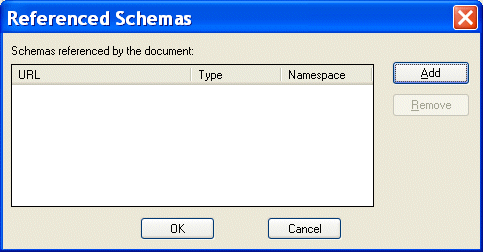
The Referenced Schemas dialog box appears.
3. Click the
Add button.
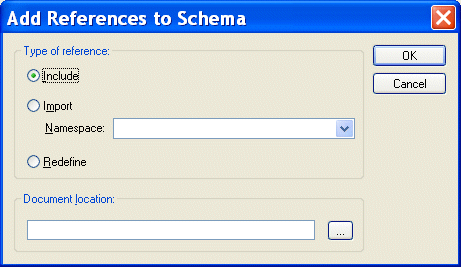
The Add References to Schema dialog box appears.
4. Specify the type of reference you want to make. If you are redefining an XML Schema, specify the namespace in the
Namespace field.
5. Specify the URL of the XML Schema you want to reference. For example:
6. Click
OK.
You are returned to the Referenced Schemas dialog box.
7. Click
OK to add the referenced XML Schema to your XML Schema.
Referencing XML Schemas in the Tree ViewTo reference an XML Schema in the Tree view:
1. Click the
Schema node.
2. In the XML Schema left-side tool bar, click one of the following:
3. In the field that Stylus Studio displays, enter the location. This is a URL that identifies the location of the file that contains the XML Schema. For example, it can be like any one of the following:
4. If you defined an
Import node, in the
Properties window, double-click the
Target Namespace field and enter the target namespace. The target namespace must be different from the target namespace of the importing file.
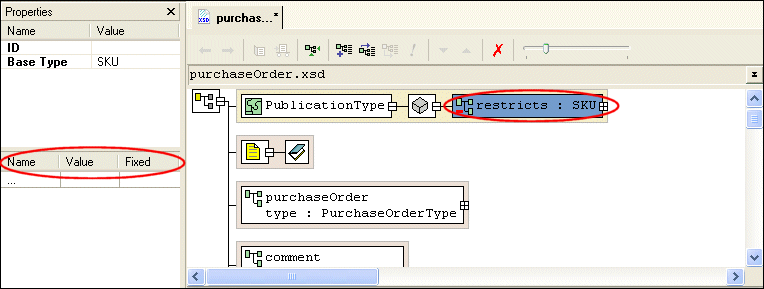
Redefining NodesOnce you reference an XML Schema by redefining it, you are able to redefine that XML Schema's complexTypes, simpleTypes, groups, and attributeGroups. This section describes how to redefine nodes using the Diagram tab. Extensions and RestrictionsThere are two ways to redefine a node: by extension and restriction. An extension extends the base type - adding an element or an attribute definition, for example. A restriction constrains the base type - limiting a type to a certain range of values, for example. Specifying Restriction FacetsIf you define a restriction using a simpleType, the Properties window displays a section that allows you to define the facets that restrict that type, as shown in Figure 261.
Restriction facets include
See About Facet Types for simpleTypes for more information on facets. How to Redefine a NodeTo redefine a node in the Diagram view:
1. Right-click the
schema node
.
2. Select
Redefine from the shortcut menu.
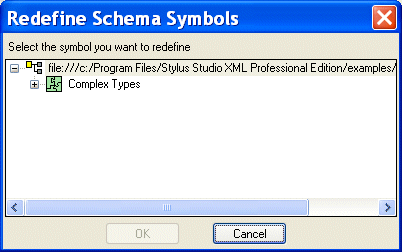
The Redefine Schema Symbols dialog box appears.
3. Select the node from the redefined XML Schema you want to redefine and click
OK.
The redefined node is added to the diagram, and the text for the redefined node appears in the text pane. For example,
4. Right-click the redefined node.
5. From the shortcut menu, select
Quick Edit > and then either
Derive by extension or
Derive by restriction.
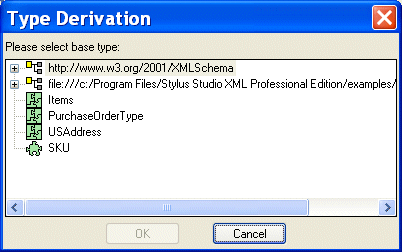
The Type Derivation dialog box appears.
6. Select the base type from which you want to derive the definition of the node you are redefining. and click
OK.
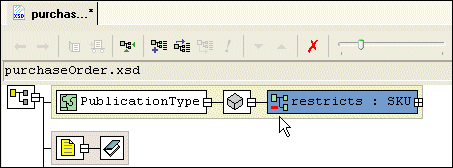
The node you added in Figure 3 is modified in the diagram to display the restriction or extension you are using to redefine it, as shown in Figure 264.
The code displayed in the text pane is also modified. For example:
7. If you specified a restriction of a simpleType, specify the restriction facets in the
Properties window. See
Specifying Restriction Facets if you need help with this step.
|

XML PRODUCTIVITY THROUGH INNOVATION ™