Home >
Online Product Documentation >
Table of Contents >
Generating Documentation for XML Schemas
Generating Documentation for XML Schemas
|
|
|
The
Documentation tab is available only in Stylus Studio XML Professional Edition.
|
The
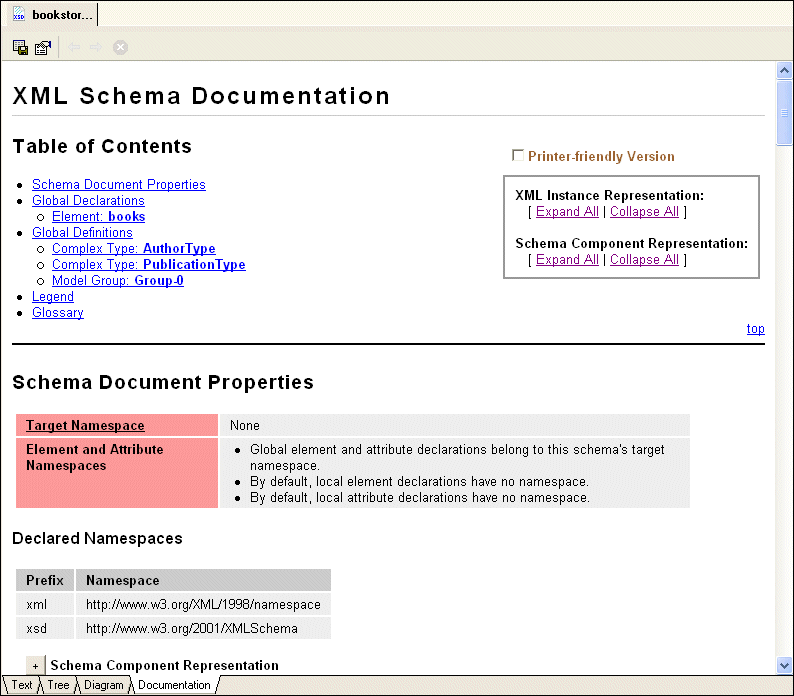
Documentation tab of the XML Schema Editor displays HTML documentation that describes the currently active XML Schema.
|
|
Figure 265. Sample XML Schema Documentation Report
The XML Schema documentation contains
- A title, which you can customize (the default title is
XML Schema Documentation).
- A table of contents with hypertext links to sections in the documentation.
- Information about the XML Schema's properties, such as its target namespace and any declared namespaces.
- Global declarations and global definitions, if any.
- A
legend that describes the graphical conventions used in the XML Schema documentation.
- A
glossary that defines terminology used in the XML Schema documentation.
|
Tip
|
|
You can hide the legend and the glossary for display and printing purposes by clicking the
Printer-friendly Version check box at the top of the page.
|
To display XML Schema documentation, open an XML Schema document and click the Documentation tab.
To save the report, click
Save Documentation
 in the XML Schema window. The report is an HTML file that you can edit and add to as you would any other HTML file.
This section covers the following topics:
Schema Documentation Features
XML Schema documentation displayed on the
Documentation tab of the XML Schema Editor has several features that affect its display and printing. You can
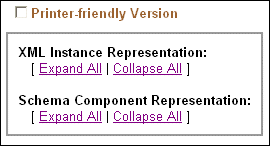
- Create a printer-friendly version of the documentation by clicking the
Printer-friendly Version check box.
|
|
Figure 266. Features of XML Schema Documentation
When you click this check box, Stylus Studio
- Hides the documentation's Legend and Glossary sections
- Automatically expands all XML instance and schema component representations
- Removes the expand/collapse controls from the page
- Expand and collapse XML instance and schema component representations. You can do this for every type of representation (XML instance or schema component) by clicking the
Expand All and
Collapse All buttons associated with these representations, or individually, as shown in
Figure 267.
|
|
Figure 267. Representations Can be Collapsed/Expanded Individually
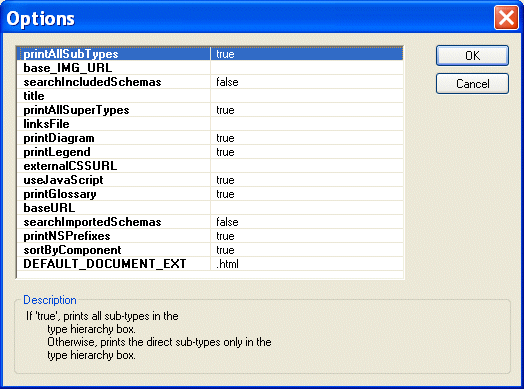
- Customize and modify the documentation. For example, you can choose to include all super-types, you can change the default report name, and you can specify the sort order. Settings for these and other properties that affect the content and appearance of the report are displayed in the
Options dialog box. See
Options for XML Schema Documentation for more information.
Options for XML Schema Documentation
You use the
Options dialog box to specify the contents of the XML Schema documentation. To display the
Options dialog box, click
Options
 on the
Documentation tab tool bar.
on the
Documentation tab tool bar.
|
|
Figure 268. Options for the XML Schema Documentation Report
Edit the settings based on the desired output:
- To specify the title you want to appear in the report itself, modify the contents in the
Title field.
-
Sort by Component displays information in alphabetical order by type name. When you turn this property off, information appears in document order.
-
Use JavaScript makes it easy for you to add instructions such to display pop-up windows and hide information in the generated HTML document.
- Inclusion in the report of
- Supertypes
- Subtypes
- Glossary
- Legend
-
xsd namespace prefix
- Schema diagrams
Viewing Sample XML Schema Documentation
To view documentation for a sample XML Schema:
1. Open
simpleMappings\purchaseOrder.xsd in the
examples directory of the Stylus Studio installation directory.
Alternative: If the Stylus Studio
examples project is open, you can access this file from the
Project window. To open the
examples project, open
examples.prj in the Stylus Studio
examples directory.
2. Click the
Documentation tab.
Modifying the Stylesheet That Generates XML Schema Documentation
To customize the XML Schema documentation that Stylus Studio generates, you can directly modify the stylesheet that Stylus Studio uses to generate the documentation. This stylesheet is in the following directory in the Stylus Studio installation directory:
The name of the file is
xs3p.xsl. You might want to make a copy of this file before you modify it. After you modify this file, Stylus Studio uses your modified version.
 Cart
Cart