Cart
Cart
|
Home > Online Product Documentation > Table of Contents > Defining Groups of Elements and Attributes in XML Schemas Defining Groups of Elements and Attributes in XML Schemas
The
XML Schema Recommendation allows you to specify groups of elements and groups of attributes. Here is an example of an element group,
Specification of a group makes it easier to update the schema. You only need to update the group definition. There is no need to change the references to the group.
Here is an example of an attributeGroup,
This section discusses the following topics: Defining Groups of Elements in XML Schemas - Diagram ViewTo define a group of elements:
1. Define the elements that you want to be in the group. See
Defining Elements and Attributes in XML Schemas.
2. Right-click the
schema node
 .
.
3. In the shortcut menu, select
Add >
Group.
Alternatives: This operation is also available from the
XMLSchema >
Diagram >
Add > Group menu and from the
Add button
The new group is added to the XML Schema. It is displayed in the diagram and in the text pane (if you have it open). The properties for the new group are displayed in the Properties window.
4. Specify the group name in the
Name property in the
Properties window.
5. Right-click the new group.
6. In the shortcut menu, select
Add > and then select the modifier for the group of elements -
All,
Choice, or
Sequence. In the
Properties window, click the fields for the
Min Occur. and
Max Occur. properties to specify their values. These properties determine how often the group of the elements with the selected modifier can appear.
7. Drag the elements defined in
step 1 and drop them on the
all,
choice, or
sequence modifier created in
step 6.
AlternativeIf you prefer, you can create the element group first, define the modifier for the group elements, and then add new elements to the group by right-clicking on the modifier and selecting Add > Element. If you do this, you must then define each of the elements you added to the group. Defining Groups of Elements in XML Schemas - Tree ViewTo define a group of elements:
1. Define the elements that you want to be in the group. See
Defining Elements and Attributes in XML Schemas.
2. Click the
Schema node.
3. In the left tool bar, click
New Group
 . In the
Tree view, Stylus Studio displays a field for the new group.
. In the
Tree view, Stylus Studio displays a field for the new group.
4. Type a name for the group of elements and press Enter.
5. In the left tool bar, click
New Model Group
 . Stylus Studio displays a pop-up menu that lists the model group modifiers. See
Model Group Properties in XML Schemas.
. Stylus Studio displays a pop-up menu that lists the model group modifiers. See
Model Group Properties in XML Schemas.
6. Double-click a modifier that applies to at least one element that will be in the group.
7. In the
Properties window, double-click the fields for the
Min Occur. and
Max Occur. properties to specify their values. These properties determine how often the subgroup of the elements with the selected modifier can appear.
8. For each element that you want to apply the selected modifier to, perform these steps:
a. Click
New Reference to Element
 . Stylus Studio displays a pop-up menu that lists the elements defined in the schema.
b. Double-click the element you want to add to the group.
c. Click the modifier to add another element reference.
9. To add more elements to the group and specify a different modifier for them, click the name of the group in the
Tree view, and repeat
step 5 through
step 8.
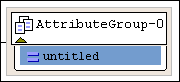
In any location where you can add a model group, you can also add a reference to a model group definition. Defining attributeGroups in XML Schemas - Diagram ViewYou define attributeGroups in much the same way that you define element groups - by creating the attributes you want to add to the attributeGroup, creating the attributeGroup, and then dragging-and-dropping the attributes in the attributeGroup. As with element groups, you can define the attributeGroup first and then add new attributes to it, if you prefer. The following procedure describes how to create an attributeGroup by creating the attributes at the same time you create the attributeGroup. To define an attributeGroup:
1. Right-click the
schema node
.
2. In the shortcut menu, select
Add >
AttributeGroup.
Alternatives: This operation is also available from the
XMLSchema >
Diagram >
Add > AttributeGroup menu and from the
Add button
The new attributeGroup is added to the XML Schema. It is displayed in the diagram and in the text pane (if you have it open). The properties for the new attributeGroup are displayed in the Properties window.
3. Right-click the new attributeGroup.
4. In the shortcut menu that appears, select
Add >
Attribute.
The new attribute is added to the attributeGroup.
5. Make sure the new attribute is selected. In the
Properties window, click the
Data Type field.
6. Enter or select the type of the attribute.
Defining attributeGroups in XML Schemas - Tree ViewTo define an attributeGroup:
1. Click the
Schema node.
2. In the left tool bar, click
New Attribute Group
 . In the
Tree view, Stylus Studio displays a field for the new attributeGroup.
. In the
Tree view, Stylus Studio displays a field for the new attributeGroup.
3. Type a name for the attributeGroup and press Enter.
4. In the left tool bar, click
New Attribute Definition
 . In the
Tree view, Stylus Studio displays a field for the new attribute definition.
. In the
Tree view, Stylus Studio displays a field for the new attribute definition.
5. Type a name for the new attribute and press Enter. Stylus Studio displays a scrollable, pop-up menu that lists the built-in simpleTypes and any previously defined simpleTypes.
6. Double-click the type of the new attribute.
|

XML PRODUCTIVITY THROUGH INNOVATION ™
 .
.