Home >
Online Product Documentation >
Table of Contents >
Invoking an Adapter Programmatically
Invoking an Adapter Programmatically
You can use the Stylus Studio File System Java API to invoke an adapter programmatically. This section provides background information on using adapter URLs in Stylus Studio and in your applications, and it describes
demo.bat, a simple Java program installed with Stylus Studio.
This section covers the following topics:
Adapter URLs
Stylus Studio uses URLs extensively to reach a variety of data sources. For example, if you use the built-in CSV converter to open the
three.txt file in the
\examples\Adapters directory as an XML document, Stylus Studio builds the following URL:
The instructions to the adapter engine from this instance of the adapter URL are described in
Table 20.
|
Instruction
|
Adapter URL String
|
|
Use the Comma-Separated Values adapter
|
adapter:csv
|
|
The line separator in the source file is a carriage return/line feed
|
newline=crlf
|
|
The column separator in the source file is a comma
|
sep=,
|
|
The values in the first row of the source file should be used to supply field names
|
first=yes
|
|
The escape character in the source file is a slash \
|
escape=\
|
|
The quote characters in the source file are " and
'
|
quotes="
'
|
|
The source file is three.txt
|
file:///c:/Program Files/Stylus Studio XML Professional Edition/examples/Adapters/three.txt
|
Table 20. Parts of an Adapter URL
While the basic format of the adapter URL is the same from one adapter to another, there are differences. For example:
- Built-in adapters have different properties. You should always use Stylus Studio to build your adapter URLs to be sure that it uses valid properties and values. See
Constructing Your Own Adapter URL for more information.
- The
adapter scheme can also be used to reference a user-defined converter (a
.conv file). In this case, the adapter URL specifies only the location of the
.conv file; the converter file itself contains information about its property settings. An adapter URL that references a user-defined converter might look like this:
This converter uses
myConverter.conv to convert the file
inventory.txt to some format (specified in the converter file when you built it).
- Property names in adapter URLs use an internal (generally, abbreviated) format, different from what is displayed in properties list in the
Select XML Converter dialog box. Again, to avoid errors in your applications, use Stylus Studio to build your adapter URLs.
Where Adapter URLs are Displayed in Stylus Studio
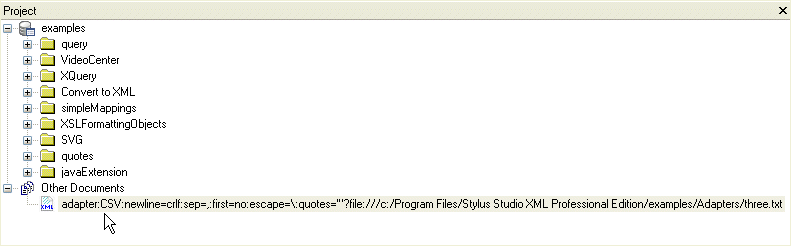
Adapter URLs are displayed
|
|
Figure 186. Adapter URL Displayed in Project WIndow
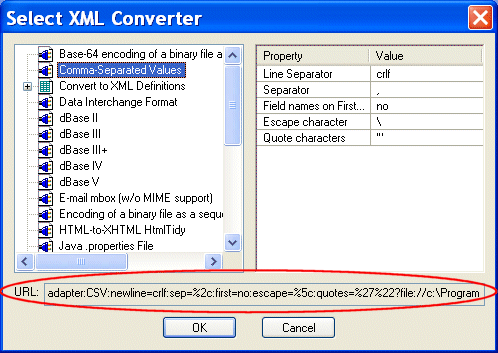
- In the
URL field of the
Select XML Converter dialog box, as shown in
Figure 187.
|
|
Figure 187. Adapter URL Displayed in the Select XML Converter Dialog Box
|
Note
|
|
Adapter URLs in the
URL field of the
Select XML Converter dialog box are displayed using escape characters.
|
You can use either as sources for the adapter URL strings you use in your Java applications. See
Constructing Your Own Adapter URL for more information.
The StylusFile Object
In Java, we write the following to retrieve the content of a file,
myfile.txt, that resides on an FTP server:
The content of
myfile.txt is placed in an instance of
java.net.URL called
myUrl.
The
StylusFile object in the Stylus Studio File System Java API is similar to
java.net.URL. In Stylus Studio, you use the
createStylusFile() method in the
StylusFileFactory class to create an instance of a
StylusFile object, the contents of which is specified by an adapter URL. Consider the following simple Java application, which uses the URL composed by Stylus Studio that was introduced in
Adapter URLs.
In this example, the
InputStream object holds the conversion result supplied by the adapter URL (that is, the conversion of
three.txt using the CSV adapter).
See
Example - demo.bat for a description of the sample Java application installed with Stylus Studio, which illustrates different uses of the adapter URL.
Constructing Your Own Adapter URL
Generally speaking, you should use Stylus Studio to construct adapter URLs, which you can then copy, as strings, into a Java application. Adapter URLs can be complex - properties and their values vary from one adapter to another, for example - so using Stylus Studio to construct them helps reduce errors in your applications.
|
Tip
|
|
Adapter URLs in the
Select XML Converter dialog box are already escaped and can be used as-is. Adapter URLs taken from the
Project window must be escaped manually when you paste then into your application.
|
Using the URL in the Select XML Converter Dialog Box
To construct an adapter URL using the URL in the Select XML Converter dialog box:
2. Before clicking
OK to complete the conversion, copy the adapter URL in the URL field.
3. Click
OK to complete the conversion.
4. Paste the adapter URL into your Java program.
Using the URL in the Properties Window
To construct an adapter URL using the URL in the Properties window:
2. Open a new document in any Stylus Studio text editor (for example,
File > New > Java: Text Editor).
|
Tip
|
|
New documents are placed in the
Other Documents folder in the
Project window by default.
|
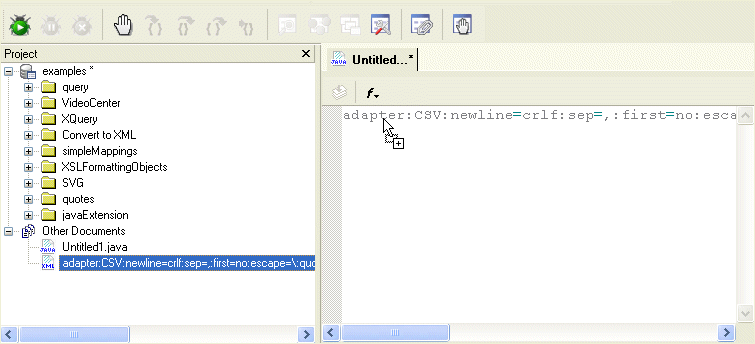
3. Drag the document from the
Project window into your new document.
|
Tip
|
|
You can optionally display a file's full URL in the
Project window by selecting
Show Full URL from the
Project window's shortcut menu.
|
The complete URL appears in the text editor.
|
|
Figure 188. Copying a URL to a Text Editor
4. Copy the complete adapter URL.
5. Paste the adapter URL into your Java program.
6. Escape characters as required for strings in Java programs. For example,
escape=\:quotes='" becomes
escape=\\:quotes='\" (the single quote does not need to be escaped).
Example - demo.bat
The following example shows an implementation of a simple application built using the Stylus Studio File System Java API. The application,
demo.bat, shows three uses of the invoking adapter URLs to convert files using built-in and user-defined converters.
Demonstration Files
The files required to run this demonstration are installed in the
\examples\Adapters directory where you installed Stylus Studio. They are summarized in
Table 21.
|
Class
|
Description
|
|
demo.bat
|
The demonstration driver batch file.
|
|
demo.class
|
The compiled class file.
|
|
demo.java
|
The source for the demonstration; this file contains the usage comments.
|
|
one.csv
|
The input file for the first demonstration run by
demo.bat.
|
|
two.xml
|
The input file for the second demonstration run by
demo.bat.
|
|
three.conv
|
The adapter definition for the third demonstration run by
demo.bat. (This file should have also been installed in your Stylus Studio
\Adapter directory.)
|
|
three.txt
|
The input file for the third demonstration run by
demo.bat.
|
|
adaptermap.
properties
|
Normally, Stylus Studio builds a map of all of the internally-supplied adapters and user-added adapters, and it places this map in a file called adaptermap.properties. For this demonstration, a small copy of the
adaptermap.properties file is included in the
\examples\Adapters directory.
|
Table 21. File System Java API Demonstration Files
demo.java
Here is the
demo.java file called by
demo.bat.
Required classes
The file starts with the Java and Stylus Studio File System Java API classes and interfaces required by
demo.java. The
StylusFile interface is used to define an abstract representation of a file in a custom file system; the
StylusFileFactory class enables the
demo.bat application to read and write files.
Setting the installation directory
User-defined converters (
.conv files) are saved to the XML Converters file system. If your application uses user-defined converters, such as the
three.conv file used by the
demo.bat, you need to identify the Stylus Studio installation directory so set the converter can be located. You can do this using
System.setProperty, as shown in the following lines of code.
These lines are commented out in
demo.java because you can also specify the Stylus Studio installation directory using the
-D argument at the command line, as shown in
demo.bat:
"-Dcom.stylusstudio.rootdir=%STYLUS%").
Creating an instance of StylusFile
Next, the
StylusFileFactory class is called to create a new instance of the
StylusFile, object, named
sff in this demonstration.
The copy () method
The
copy() method is used to create new files by saving the file specified in the
InputStream (
is) to the file specified in the
OutputStream (
os).
The
copy() method is defined in
demo.java as follows:
Whether your files are saved as XML or non-XML depends on how the
InputStream and the
OutputStream in your applications are defined. You can define either stream using an adapter URL. When the
-
InputStream is specified using the adapter URL, you convert a non-XML file to XML using the built-in or user-defined converter specified in the adapter URL.
-
OutputStream is specified using the adapter URL, you are convert a non-XML file to XML, again, using the built-in or user-defined converter specified in the adapter URL.
Converting a file to XML
Once the new instance of
StylusFile has been created, the
demo.bat application can execute its first exception block. The adapter URL specified in this exception block uses the built-in Comma-Separated Values converter (
adapter:///CSV:) to convert a CSV file named
one.csv into an XML document named
one.xml.
In this block of code, the adapter URL is used to specify the
InputStream.
Converting an XML document to another format
This exception block specifies the
OutputStream using the adapter URL to convert an XML document named
two.xml to a CSV file named
two.txt.
Using an adapter URL with a user-defined converter
The final exception block uses a user-defined converter built using the Convert to XML module (
three.conv) to convert a fixed-width file name
three.txt to and XML document named
three.xml.
As with the first exception block, this block uses the adapter URL to specify the
InputStream.
More About the Stylus Studio File System Java API
You can learn about other uses for the Stylus Studio File System Java API in
Stylus Studio File System Java API, located in
Chapter 13Extending Stylus Studio.
Javadoc
Javadoc for the Stylus Studio File System Java API is installed with Stylus Studio. It is available in the Stylus Studio /doc/Javadoc directory. Open index.html to get started. The Javadoc is also available on the Stylus Studio Web site,
www.stylusstudio.com.
 Cart
Cart