Cart
Cart|
Home > Online Product Documentation > Table of Contents > Using Converters in Stylus Studio Using Converters in Stylus Studio
You can use converters to open any file as XML anywhere in Stylus Studio. For example, you might want to use a text file (
You can also use the Stylus Studio File System Java API to invoke an adapter programmatically to convert any file using the converter you specify. See Invoking an Adapter Programmatically for more information on this topic. Types of Converters
In addition to the converters you create using the Convert to XML module (
The process for using user-defined and built-in converters is essentially the same. How to Open a File Using a ConverterUse the following procedure to open a file using a converter in Stylus Studio.
To open a file using a converter:
1. Display the
Open dialog box (select
File > Open from the Stylus Studio menu, for example).
2. Navigate to the directory that contains the file you want to open using the converter and select the file.
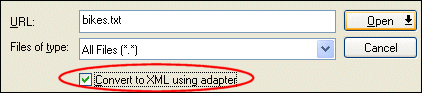
3. Check the
Convert to XML using adapter check box and click the
Open button.
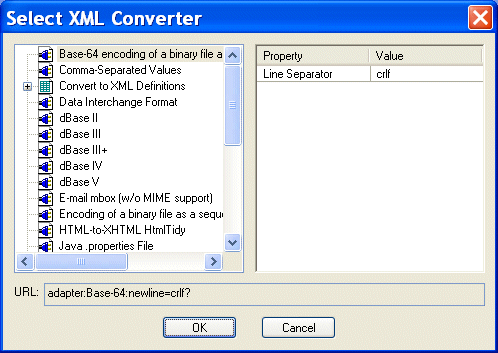
Stylus Studio displays the Select XML Converter dialog box.
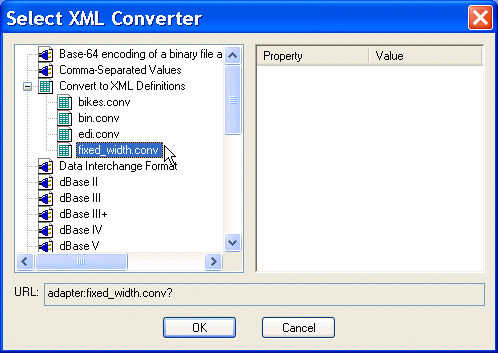
4. If you are using a user-defined converter, expand the
Convert to XML Definitions tree and select the converter you want to use to convert the file you selected in
step 2 to XML and go to
step 6.
If you are using a built-in converter, select the converter you want to use and go to step 5.
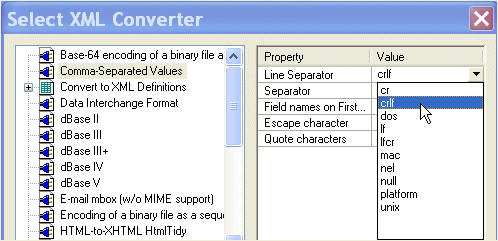
5. Specify the values you want to use for translation purposes. Many fields have a drop-down list that displays valid values, like the
Line Separator property for the Comman-Separated Values converter shown here:
6. Click
OK.
The file is converted to XML and appears in the editor from which you displayed the Open dialog box in step 1. |

XML PRODUCTIVITY THROUGH INNOVATION ™