Cart
Cart|
Home > Online Product Documentation > Table of Contents > Creating a Convert to XML Converter Creating a Convert to XML Converter
This procedure describes how to create and save a Convert to XML converter (
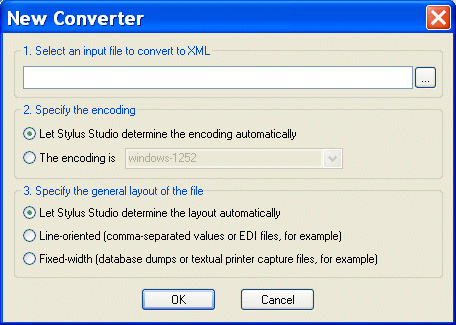
Specifying File SettingsWhen you create a new converter, Stylus Studio prompts you to specify the file you want to convert. It also allows you to specify the file's Unless you are certain of the file's encoding and layout, consider leaving the default settings as they are - Stylus Studio will determine encoding and layout properties when it reads the file. How to Create a ConverterTo create a Convert to XML converter (.conv file):
1. Select
File > New > Convert to XML from the Stylus Studio menu.
The New Converter dialog box appears.
2. Click the browse button (
 ) and select the file you want to use to configure the conversion settings.
The
Open dialog box appears. By default, the
Files of Type field filter is set to display
3. Click the
Open button.
Stylus Studio displays the file URL in the first field of the New Converter dialog box.
4. Optionally, change the default file encoding and layout settings.
5. Click
OK.
Stylus Studio displays the file you selected in the Convert to XML Editor.
6. Examine the file and its properties as it was read into the Convert to XML Editor by Stylus Studio.
7. Modify the file layout, its regions, and its fields as needed. See
Working with Regions and
Working with Fields if you need help with this step.
8. Modify the properties that govern XML output as needed. See
Controlling XML Output if you need help with this step.
9. Click the
Preview Results button (
 ).
).
Stylus Studio displays the Save As dialog box.
10. Enter a name for the converter and click
Save.
|

XML PRODUCTIVITY THROUGH INNOVATION ™