Controlling XML Output

Convert to XML provides several ways for you to control the XML output created by the Convert to XML converter. Most XML output is specified using properties displayed in the Properties window. Some XML output, such as the number of regions or the number of fields in a row, are specified using the Convert to XML Editor.

This section describes the properties used to control some of the most common output operations. See Properties Reference for detailed information on all properties.

This section covers the following topics:

Specifying Element Names

You can specify names for the following in an XML document output by the converter:

  • Root element - The default for the <root> element is root. You can change the default using the Root Element Name property.
  • Region element - The default for the <region> element is region. You can change the default using the Region Element Name property. Different regions can have different names.
  • Namespace - You can specify names for both the namespace prefix and the namespace using the Namespace and Namespace Prefix properties, respectively. The namespace prefix you specify is added to every element name.
  • Row element - The default for the <row> element is row. You can change the default using the Row Element Name property. Rows in different regions can have different names.
  • Field element - The default for the <field> element is field. You can change the default using the Field Name property. Each field can have its own name. If your input file defines subelements. you can use the Component Element Name and Component Element Name properties to provide a name for the containing element.

Specifying Format

There are several ways to exercise control over the format of the XML document output by the converter.

  • Indenting - By default, Stylus Studio indents the XML generated by the converter. You can remove indenting by changing the value of the Indent XML? property to False.
  • Whitespace - The Normalize Whitespace property converts tabs, carriage returns, and line-feeds to spaces. Leading and trailing whitespaces are then removed, and any two or more consecutive whitespaces are collapsed to a single space.
  • XML Schema - The XML Schema Document property allows you to specify the XML Schema you want to associate with the XML output. There are also fields that allow you to specify System and Public DTDs.

Omitting Regions and Fields, and Rows

Stylus Studio allows you to omit specific regions and fields from an input file when it is converted to XML.

  • Omitting regions - The Omit from Output property lets you omit an entire region from XML output. (Regions with a Region Type of Unknown are always omitted from XML output.)
  • Omitting fields - The Omit from Output property lets you omit a field from XML output. You can omit a field
    • Only when it is empty. This is the default.
    • When it is empty or evaluates to a zero value.
    • Always, regardless of its value
    • Never, regardless of its value
  • Comments - You can filter rows using the Comment String property - if the beginning of a row matches the string you enter for this property, Stylus Studio ignores the row when converting the input file to XML. You can also specify patterns that rows must match in order for them to be converted to XML. See Pattern Matching for more information.

Pattern Matching

You can use regular expressions to specify match patterns for the rows in the input file. Only those rows in the input file that match the pattern you specify are output to XML when the file is converted. The simplest way to define a match pattern is to use the Match Pattern property in the Row Element Name section of the Properties window.

Example

Consider the following input file:

Make,Model,Year,Mileage
               
BMW,R1150RS,2004,14274  
               
Kawasaki,GPz1100,1996,60234  
               
Ducati,ST2,1997,24000  
               
Moto Guzzi,LeMans,2001,12393  
               
BMW,R1150R,2002,17439  
               
Ducati,Monster,2000,15682  
               
Aprilia,Futura,2001,17320 


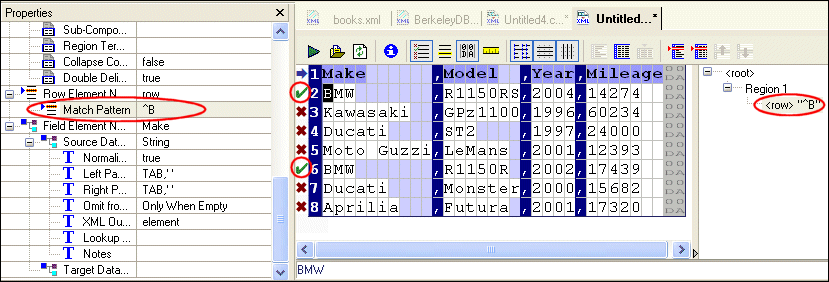
If you specify a simple regular expression, say, ^B, for the Match Pattern property, Stylus Studio displays the input file in the Convert to XML Editor as shown in Figure 176 - green check marks identify the rows that match the pattern, and red X's identify the rows that do not. (You can also display matching rows in a contrasting color by clicking the Highlight Matching Rows button. See Document Grid Display Features for more information about this feature.)

Figure 176. Match Pattern - Definition and Display

Note that the match pattern also appears as a new node in the schema pane. This new node, the only one defined for this converter at this point, uses the default row element name ( row) and the value of the expression.

Since the match pattern selects only those rows that begin with the letter B, the converter creates the following XML document when it is run against the input file:

<?xml version="1.0" encoding="utf-8"?>
               
<root>
               
	<row>
               
		<Make>BMW</Make>
               
		<Model>R1150RS</Model>
               
		<Year>2004</Year>
               
		<Mileage>14274</Mileage>
               
	</row>
               
	<row>
               
		<Make>BMW</Make>
               
		<Model>R1150R</Model>
               
		<Year>2002</Year>
               
		<Mileage>17439</Mileage>
               
	</row>


See Working with Nodes to learn about adding the row element name/match pattern pairs that define them.

Sample Regular Expressions

The following table identifies some commonly used regular expressions.

Expression
Matches
^ABC
Match all lines starting with "ABC"
^[Aa][Bb][Cc]
Match all lines starting "ABC", "abc" or any mix of upper and lowercase ("Abc", for example)
AAA
Match all lines containing "AAA"
^(DEF | GHI)
Match all lines starting with "DEF" or "GHI"
XYZ$
Match all lines ending with "XYZ"
XYZ\$
Match all lines containing "XYZ"

To learn more about regular expression syntax, visit http://www.boost.org/libs/regex/doc/syntax.html .

Specifying Multiple Match Patterns

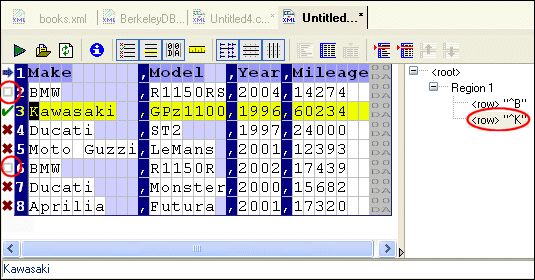
You can specify multiple match patterns for a single file. If we define a new match pattern, ^K, this results in a new node ( <row> "^K") in the schema pane, which now displays both nodes (see Figure 177). When an input file is converted, Stylus Studio matches the patterns in the order in which the nodes that represent them are defined in the schema. Blank patterns are always matched last.

When you define multiple match patterns, the document grid displays a gray square alongside rows that match a pattern other than the one, if any, associated with the currently selected row. In Figure 177, for example, row 3 is the currently selected row; it matches the pattern ^K we have defined. Because row 3 is the active row, Stylus Studio displays gray squares in rows 2 and 6 (which match the pattern B defined previously).

Figure 177. Gray Squares Identify Rows That Match Other Patterns

Working with Nodes

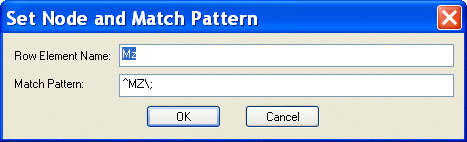
In addition to defining nodes using the Match Pattern field of the Properties window, you can also use the Set Row Name and Match Pattern dialog box, shown here:

Figure 178. Set Row Name and Match Pattern Dialog Box

This dialog box allows you to

  • Define a new node - even one that does not match a row in the current input file. For example, we could define a match pattern for Triumph motorcycles ( <row> "^T") even though there are no Triumph motorcycles in the input file.
  • Clone an existing node - this allows you to copy an existing node and modify its match pattern to create a new node.
  • Edit an existing node. (You can also do this in the Properties window, of course.)

When you open the dialog box, the Row Element Name and Match Pattern fields contain default values that reflect the currently selected row in the document grid or node in the schema pane.

Defining a New Node
To define a new node:
1. Select a row in the document grid or a node in the schema pane.
2. Select ConvertToXML > Add Node and Pattern from the Stylus Studio menu.

Alternative: Select Add Node and Pattern from the document grid or schema pane shortcut menu.

The Set Node and Pattern dialog box appears.

3. Change the default values in the Row Element Name and Match Pattern fields.
4. Click OK.
Cloning a Node
To clone a node:
1. Select the node in the schema pane that you want to clone.

Alternative: Select the row in the document grid that is represented by a row element name/match pattern pair you want to clone.

2. Select ConvertToXML > Clone Node and Pattern from the Stylus Studio menu.

Alternative: Select Clone Node and Pattern from the document grid or schema pane shortcut menu.

The Set Node and Pattern dialog box appears.

3. Change the default values in the Row Element Name and Match Pattern fields as needed.
4. Click OK.
Editing a Node
To edit a node:
1. Select the node in the schema pane that you want to edit.

Alternative: Select the row in the document grid that is represented by a row element name/match pattern pair you want to edit.

2. Select ConvertToXML > Edit Node and Pattern from the Stylus Studio menu.

Alternative: Select Edit Node and Pattern from the document grid or schema pane shortcut menu.

Alternative: Double-click the node.

The Set Node and Pattern dialog box appears.

3. Change the default values in the Row Element Name and Match Pattern fields as needed.
4. Click OK.
Removing a Node

When you remove a node, you are deleting the row element name/match pattern pair from the converter you are defining.

To remove a node:
1. Select the node in the schema pane that you want to remove.

Alternative: Select the row in the document grid that is represented by a row element name/match pattern pair you want to remove.

2. Select ConvertToXML > Remove Node and Pattern from the Stylus Studio menu.

Alternative: Select Remove Node and Pattern from the document grid or schema pane shortcut menu.

Alternative: Press the Delete key.

A warning message appears.

3. Click Yes to remove the node, otherwise click No.

Using Lookup Lists

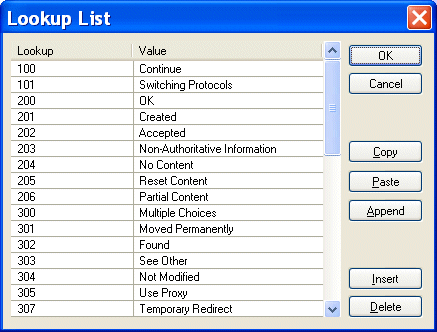
You can define lookup lists for individual fields. When Stylus Studio converts the input file, it replaces the string in the input file (the lookup) with the value you have defined for it in the Lookup List dialog box. Figure 179 shows an example of a lookup list that has been defined for a Status field:

Figure 179. Sample Lookup List

For any Status fields in the input document with a value of, say, 100, Stylus Studio would convert that value to Continue in the XML document it outputs; values of 202 would be converted to Accepted; and so on.

Input file values that do not match a lookup are emitted in the XML document as-is, allowing exceptional values to be decoded. For example, you might have a temperature lookup list with these values for a <Temperature> field:

32 | Freeze

212 | Boil

All other temperatures would be emitted as-is.

Defining Lookup Lists

Lookups are case-sensitive, so, for example, a lookup of bmw would not match any of the Make fields in the following sample file:

Make,Model,Year,Mileage
               
BMW,R1150RS,2004,14274  
               
Kawasaki,GPz1100,1996,60234  
               
Ducati,ST2,1997,24000  
               
Moto Guzzi,LeMans,2001,12393  
               
BMW,R1150R,2002,17439  
               
Ducati,Monster,2000,15682  
               
Aprilia,Futura,2001,17320 


You can define lookup lists only for fields in rows for which a match pattern (even a blank match pattern, as is the default) exists. Finally, you can paste comma- and tab-delimited text directly into the lookup list. This allows you to easily reuse existing lookup tables without having to re-enter text.

To define a lookup list:
1. Select a row for which a match pattern exists.
2. Click the Lookup List entry field in the Properties window.

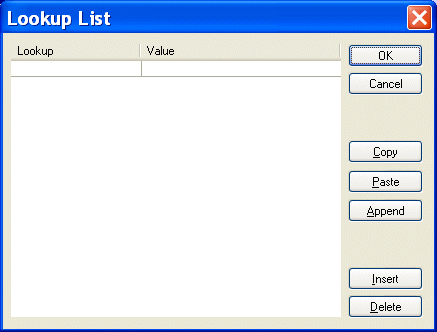
The Lookup List dialog box appears.

Figure 180. Lookup List Dialog Box

3. Enter lookup/value pairs in the corresponding entry fields.
4. When you are done, click OK.

Working with Lookup Lists

The following table summarizes the functions of the Lookup List dialog box, which allow you to work with new and existing lookup lists.

Button
Function
OK
Commits the lookup list to the converter.
Cancel
Closes the Lookup List dialog box without committing any changes.
Copy
Copies the lookup list.
Paste
Pastes comma- and tab-separated text into the lookup list. Replaces existing content, regardless of which row you have selected
Append
Adds comma- and tab-separated text to the end of the lookup list. Existing lookup list content is preserved.
Insert
Adds a new row to the lookup list.
Delete
Removes the selected row from the lookup list.
Table 19. Lookup List Dialog Box Buttons

Note


Copy, Paste, and Append use the system clipboard and insert at the current cursor location. Any blank rows are discarded when you save the lookup list.

Using Key=Value Characters

The Key=Value Character Region property allows you to set the separator for key=value pairs as seen in the input file. When Stylus Studio converts an input file to XML, it uses the value on the left side of the key=value character for the element name, and the value on the right for the element value. Consider the following input file:

Triumph Inventory,Year and Quantity
               
Yr2003=24
               
Yr2004=12
               
Yr2005=15


If you set the Key=Value Character property to =, Stylus Studio creates the following XML document when you preview the converter:

<?xml version="1.0" encoding="utf-8"?>
               
<root>
               
	<row>
               
		<field>Triumph Inventory</field>
               
		<field>Year and Quantity</field>
               
	</row>
               
	<row>
               
		<Yr2003>24</Yr2003>
               
	</row>
               
	<row>
               
		<Yr2004>12</Yr2004>
               
	</row>
               
	<row>
               
		<Yr2005>15</Yr2005>
               
	</row>
               
</root>


Free Stylus Studio XML Training: