 Cart
Cart|
|
Home > Online Product Documentation > Table of Contents > Stylus Studio File System Java API Stylus Studio File System Java API
The Stylus Studio File System Java API is a set of interfaces that allows you to This section provides an overview of the Stylus Studio File System Java API and describes how to create and register a custom file system. It assumes knowledge of Java programming principles and procedures. In this sectionThis section covers the following topics: For more informationTo learn how to use the Stylus Studio File System Java API to programmatically call an adapter, see Invoking an Adapter Programmatically. OverviewThe Stylus Studio File System Java API consists of the following classes, summarized in Table 74.
These files are packaged in
Javadoc for the Stylus Studio File System Java APIJavadoc for the Stylus Studio File System Java API is installed with Stylus Studio. It is available in the Stylus Studio /doc/Javadoc directory. Open index.html to get started. The Javadoc is also available on the Stylus Studio Web site, www.stylusstudio.com. Custom File SystemsA file system is view that represents information as a series of files in at least one folder or directory. An individual file within that file system - such as an XML document, an XQuery program, or a DTD - can contain any text or binary information.
A
custom
file system is a way to extend the file/folder metaphor beyond traditional disk-based files (accessed with the
These file systems are referred to as "custom" because, although some are packaged with Stylus Studio, you can create your own. For example, you could create an LDAP custom file system to query an LDAP directory as if it were a file system. There is a Java API that allows you to access the custom file interface in Stylus Studio.
Creating a Custom File SystemThe process of creating a custom file system in Stylus Studio involves two main steps:
1. Use the Stylus Studio File System Java API, create the Java wrapper class for your data source. See
File System Interfaces for more information on this step.
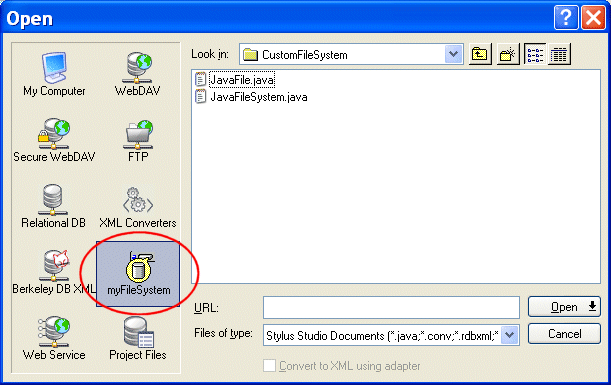
2. Register the finished custom file system with Stylus Studio, to make it available through the Stylus Studio
Open,
Save, and
Save As dialog boxes, as shown in
Figure 332. See
Registering a Custom File System for more information on this step.
File System Interfaces
The Stylus Studio file system interfaces are packaged in
Once you have implemented the interfaces, compile them into your own
Examples
Implementation examples of the
Registering a Custom File SystemBefore you begin
This section assumes you have already implemented the custom file system interfaces, compiled, and created a
In this sectionThis section covers the following topics: The Custom File Systems PageYou use the Custom File Systems page of the Options dialog box to register a custom file system.
How to DisplayTo display the Custom File Systems page:
1. In the Stylus Studio menu bar, select
Tools > Options.
The Options dialog box appears.
2. If necessary, expand
Application Settings and click
Custom File Systems.
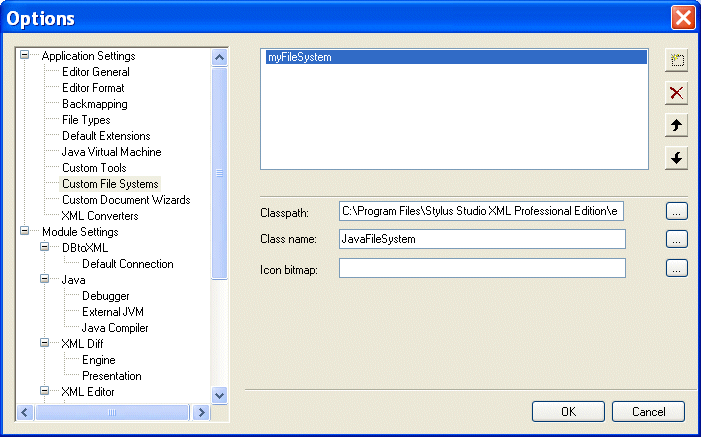
The Custom File Systems page appears. FieldsThe Custom File Systems page of the Options dialog box has the following fields which you need to specify values for in order to register your custom file system. Name
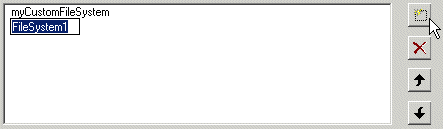
When you click the
New button (
You should replace the default name ( FileSystem1, for example) with the name you want to associate with the custom file system. The name you enter is displayed in Stylus Studio Open, Save, and Save As dialog boxes. ClasspathYou use the Classpath field to specify the required classpath for the custom file system. Class name
You use the
Class name field to specify the name of the custom file system class created using the Stylus Studio custom file system Java API. If you use the
Browse button, Stylus Studio filters the files displayed in the
Java Class Browser dialog box to show only those classes that implement the
Icon bitmap
You use the
Icon bitmap field to specify the icon to associate with the custom file system. This icon appears in the
Open,
Save, and
Save As dialog boxes. If the
Icon bitmap field is left empty, Stylus Studio uses a default icon (
How to Register a Custom File SystemTo register a custom file system:
1. Display the
Custom File Systems page of the
Options dialog box. See
How to Display if you need help with this step.
2. Click the
New button and enter a name for the custom file system. Remember that this value appears in the
Open,
Save, and
Save As dialog boxes along with the icon you select.
3. Specify the classpath and class name.
4. Optionally, specify the icon you want to use to represent the custom file system.
5. Click
OK.
|

XML PRODUCTIVITY THROUGH INNOVATION ™

 ) to create a new custom file system, Stylus Studio displays an entry field for the name.
 ).
).


