Cart
Cart|
|
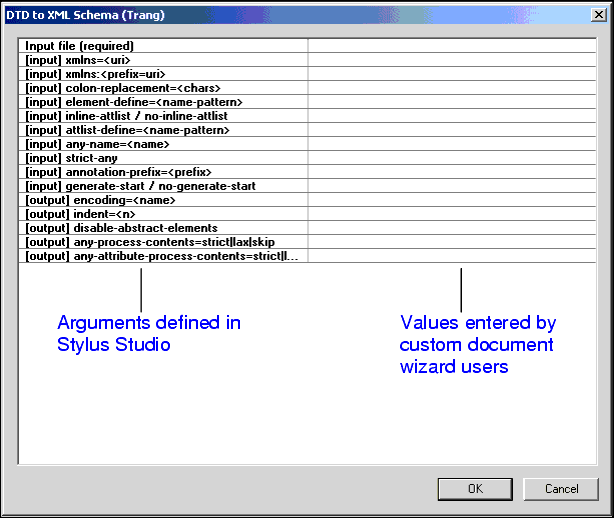
Home > Online Product Documentation > Table of Contents > Custom Document Wizards Custom Document WizardsStylus Studio's custom document wizard feature allows you to create and configure document wizards that invoke third-party file conversion and document generation tools, such as Thai Open Source's Trang. When run, a custom document wizard passes argument values provided by the user (the name of the file to be converted, for example) to the command line that invokes the third-party tool. The third-party tool generates an output file as specified in the custom document wizard's command line, and the file is then opened by Stylus Studio in the appropriate editor. ExampleAn example of a custom document wizard is the DTD to XML Schema (Trang) document wizard shipped with Stylus Studio.
This document wizard was created using the custom document wizard feature. Registering a Custom Document WizardThe process of registering a custom document wizard in Stylus Studio involves the following steps:
1. Make the necessary third-party software available to Stylus Studio. For example, any
.jar or
.exe files associated with the document conversion or generation tool must be accessible from the Stylus Studio installation.
2. Configure the custom document wizard on the
Custom Document Wizards page of the
Options dialog box. This step involves
a. Providing a name and, optionally, an icon, for the custom document wizard.
b. Setting the document type.
c. Specifying a command line template.
d. Defining any arguments required by the command line.
e. Optionally setting a trace feature that displays processing provided by the third-party tool.
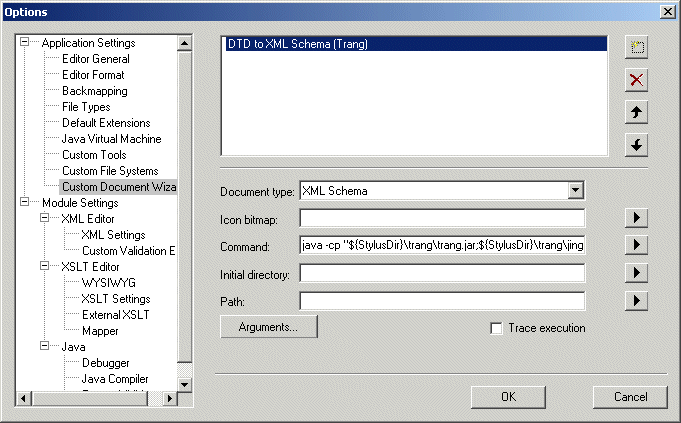
More information for each of these steps is provided in the following section, Configuring a Custom Document Wizard. Configuring a Custom Document WizardThis section provides information and procedures for configuring a custom document wizard. It covers the following topics: The Custom Document Wizards PageYou use the Custom Document Wizards page of the Options dialog box to work with custom document wizards in Stylus Studio.
This section describes how to display the Custom Document Wizards page and information about its fields. How to displayTo display the Custom Document Wizards page:
1. In the Stylus Studio menu bar, select
Tools > Options.
The Options dialog box appears.
2. If necessary, expand
Application Settings and click
Custom Document Wizards.
The Custom Document Wizards page appears. About macros
Stylus Studio provides macros for some fields to help speed creation of custom document wizards. Available macros vary based on the field for which they are being used. To display macros available for a given field, click
Predefined macros include
In addition, Stylus Studio creates argument variable macros for any arguments you define and displays them with other Command field macros. Name
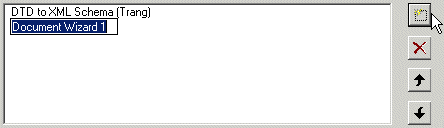
When you click the
New button (
You should replace the default name (
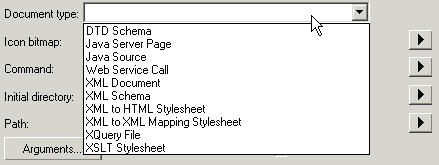
Document typeThe Document type field displays a drop-down list of available document types when you click it:
The document type is the type of output generated by the custom document wizard (XML Schema, XQuery, and so on). The value you select determines Icon bitmap
You use the
Icon bitmap field to specify the path for the icon you want to represent the custom document wizard. This icon, along with the name you give the custom document wizard, is displayed in the
Document Wizards dialog box. Click
If you leave the
Icon bitmap field blank, Stylus Studio uses the following default icon for the custom document wizard:
Command line
You use the
Command line field to specify a command line template. Stylus Studio uses this template to compose the command line that invokes the custom document wizard. Variables, such as
Consider the following example:
This command line template allows Stylus Studio to start the specified Java class with a command line that includes the
Argument variables can appear anywhere in the command. They must be in the form
You must specify the
As with the
Icon bitmap field, you can click
Initial directory
You use the
Initial directory field to specify the directory you want Stylus Studio to use as the current directory when the custom document wizard is run. Click
Path
You use the
Path field to define paths to any files required by the custom document wizard. You do not have to define any paths that are already defined in your
Click
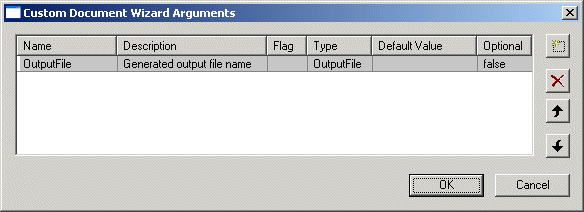
Trace executionIf the custom document wizard you are configuring outputs processing information (error messages, stack traces, and so on), you can use the Trace execution feature to display this information in the Output Window of the Stylus Studio editor used to display the custom document wizard's generated document. Defining ArgumentsYou must define any arguments required by the custom document wizard using the Custom Document Wizard Arguments dialog box.
Stylus Studio uses the arguments you define here to
How to displayThere are two ways to display the Custom Document Wizard Arguments dialog box:
OutputFIle argument
Stylus Studio creates an
Argument orderBy default, the arguments you define in the Custom Document Wizard Arguments dialog box are displayed to users in the order in which they are created. Arguments are displayed in a simple two-column grid, with the argument description in the first column, and an entry field for the argument value in the other. (See Example for an illustration of a custom document wizard dialog box.)
Also by default, the
You can change the argument order by
1. Selecting the argument whose order you want to change.
2. Clicking the up or down arrow to the right of the argument list box as needed.
Argument attributesYou can specify the following attributes for each argument you define:
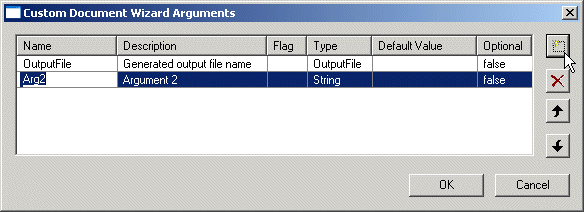
How to define an argumentTo define an argument:
1. Display the
Custom Document Wizard Arguments dialog box. See
How to display if you need help with this step.
2. Click the
New button (
 ).
).
A new argument is displayed in the Custom Document Wizard Arguments dialog box, with a default name and other default values.
3. Complete the argument attributes as described in earlier in this section. Remember that
Description values appear in the custom document wizard dialog box when the user runs the wizard.
4. To define another argument, click the
New button again.
5. If necessary, use the
Up and
Down arrows to change the argument order. Remember that the order in which arguments are displayed here is the order in which they appear in the custom document wizard dialog box when the user runs the wizard.
6. Click
OK.
How to Configure a Custom Document WizardBefore you beginBefore performing this procedure, you should be familiar with the information in The Custom Document Wizards Page and Defining Arguments. To configure a custom document wizard:
1. Display the
Custom Document Wizards page of the
Options dialog box. See
How to display if you need help with this step.
2. Click the
New button and enter a name for the custom document wizard. Remember that this value is used as the title for the dialog box displayed to the user when they run the wizard, as well as for the label associated with the custom document wizard icon displayed in the
Document Wizards dialog box.
3. Click the
Arguments button and define the wizard's arguments on the
Custom Document Wizard Arguments dialog box. See
Defining Arguments if you need help with this step.
4. Select the custom document wizard's document type.
5. Specify the command line template. See
Command line if you need help with this step.
6. Optionally, specify an initial directory and path.
7. Click
Trace execution if you want to display processing information generated by the custom document wizard in the
Output Window of the Stylus Studio editor window associated with the custom document wizard's
Document type.
8. Click
OK.
|

XML PRODUCTIVITY THROUGH INNOVATION ™
 .
.
 to browse for the file you want to specify or to insert the