 Cart
Cart
|
Home > Online Product Documentation > Table of Contents > Working with Stylesheets Working with StylesheetsThis section provides instructions for performing the various tasks involving stylesheets. See also Working with Templates. This section covers the following topics: Also, Stylus Studio provides a number of tools that help you debug stylesheets. See Chapter 6Debugging Stylesheets. Opening StylesheetsTo open a stylesheet:
1. In the Stylus Studio tool bar, click
Open
 . Stylus Studio displays the
Open dialog box.
. Stylus Studio displays the
Open dialog box.
Alternatives: Select File > Open or press Ctrl+O.
2. If the stylesheet is not stored on a WebDAV or FTP server, navigate to the stylesheet and select it. Otherwise, click the button on the left that represents the location of the stylesheet you want to open. Now navigate to the file and select it.
3. Click
Open.
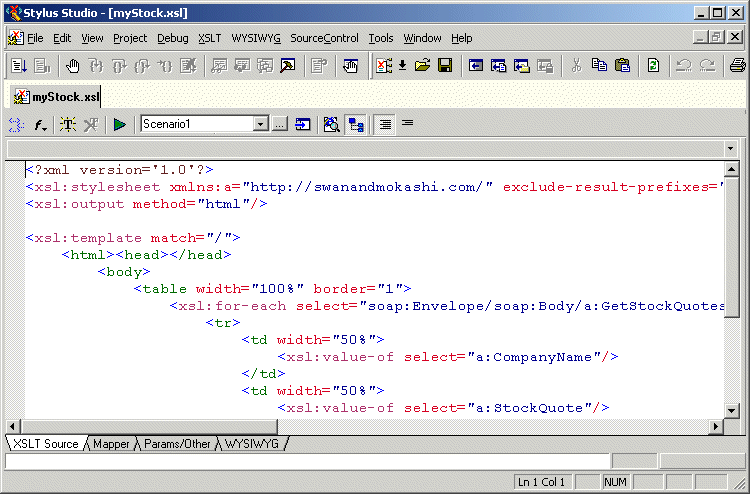
The XSLT stylesheet is displayed in the XSLT editor. After you open a stylesheet, you can edit it. However, to be able to apply the stylesheet to an XML document, you must create a scenario. See Applying Stylesheets. About the XSLT EditorThe XSLT editor, which displays a stylesheet when you open it, has four tabs at the bottom.
The XSLT Source, Mapper, and Params/Other tabs are always available. The WYSIWYG tab is available only when the stylesheet generates HTML.
Editing XSLT as XMLIf you want, you can edit an XSLT file as an XML file. To do this, open the stylesheet in the XML editor instead of in the XSLT editor. In the Open dialog box, click the down arrow in the Open button. Click XML Editor in the drop-down menu. A document can be open in the XML editor and in the XSLT editor at the same time. Creating StylesheetsTo create a stylesheet:
1. From the Stylus Studio menu bar, select
File
>
New
>
XSLT: Text Editor.
Stylus Studio displays the Scenario Properties dialog box. Alternative: Select File > New > XSLT: WYSIWYG. This automatically sets the output method to HTML, and displays the WYSIWYG HTML editor. See Creating Stylesheets That Generate HTML.
Alternative: Select File > New > XSLT: Mapper. See Chapter 5Creating XSLT Using the XSLT Mapper.
2. In the
Scenario Name: field, type a name for the association between the new stylesheet and a particular XML source document. You might want to use the convention of specifying the name you want your result document to have. The result document is the document that will contain the result of applying the stylesheet you are about to create.
3. In the
Source XML URL: field, type the name of an XML document or click
Browse to navigate to a document. Select a document you want to apply the new stylesheet to. You are not limited to applying the new stylesheet to only this XML document. You can create other scenarios later and specify other XML documents to which you want to apply the same stylesheet.
4. Click
OK. Stylus Studio displays an untitled stylesheet window. The default text in the new stylesheet appears in the left pane. The schema for the XML source document you specified in the scenario properties appears in the right pane.
5. To give the stylesheet a name, select
File
>
Save.
6. Navigate to where you want to save the stylesheet.
7. In the URL: field, type the new stylesheet's name.
8. Click
Save.
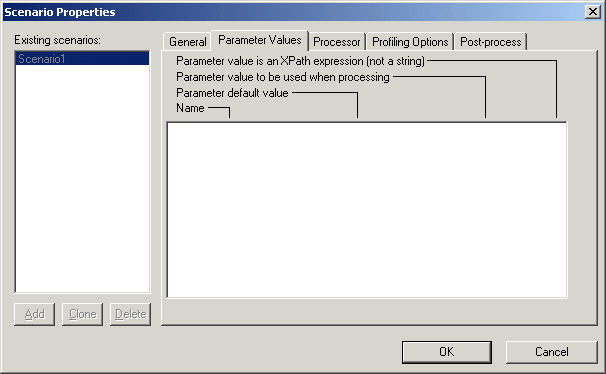
Specifying Stylesheet Parameters and OptionsYou can specify values for stylesheet parameters in the Parameter Values tab of the Scenario Properties dialog box. To specify XSLT stylesheet parameters:
1. Open the stylesheet for which you want to specify parameter values.
2. In the XSLT editor tool bar, click
Browse
 .
.
Stylus Studio displays the Scenario Properties dialog box.
3. Click the
Parameter Values tab.
Stylus Studio displays a list of the parameters defined in your stylesheet, if any, with any default values.
4. Click the third field in the line that displays the parameter for which you want to define a value -
Parameter value to be used when processing.
5. Type the value of the parameter.
6. If you want Stylus Studio to pass this paramater as an XPath expression instead of as a string, click the fourth field, which is a check box.
The default is that Stylus Studio passes a parameter as a string.
7. Click
OK.
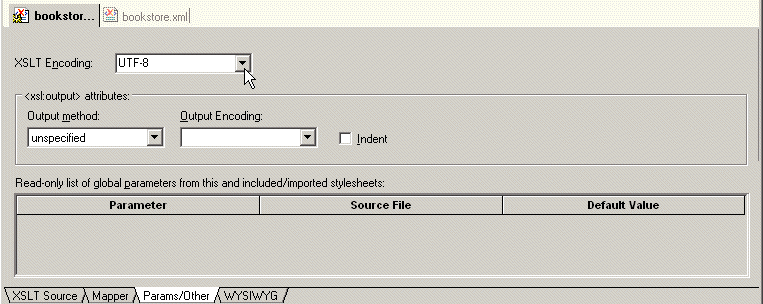
To view stylesheet parameters and and specify stylesheet options, click the Params/Other tab in the stylesheet window.In the XSLT Encoding field, you can specify the encoding you want Stylus Studio to use when you save the stylesheet.
To display a list of the encodings supported by Stylus Studio, click the down arrow in the XSLT Encoding field. In the Output method field, you can specify the type of data you want the stylesheet to generate. Choices include
If you do not specify an
When the result of applying a stylesheet is XHTML, specify
In the Params/Other tab, in the Output Encoding field, you can specify the encoding you want Stylus Studio to use in the document that is the result of applying the stylesheet. When you apply a stylesheet, Stylus Studio uses this encoding for the output document. You can change the encoding by changing the setting in the Params/Other tab or in the initial processing instruction in the stylesheet. When you change the setting in one of these places, Stylus Studio automatically changes it in the other. They are always the same. In the Output Encoding field, click the down arrow to display a list of the supported encodings. If you want Stylus Studio to insert indents in the result document, select Indent. Applying StylesheetsIn order to apply a stylesheet to an XML document, the stylesheet must be associated with a scenario. See If your stylesheet is associated with a scenario, there are two ways to apply it: The following topics provide more information about how to apply stylesheets:
About Applying StylesheetsWhen you apply a stylesheet, Stylus Studio checks both the XML source document and the XSLT stylesheet for correct syntax. If it detects any errors, it displays a message that indicates what the error is. This message appears at the bottom of the XSLT editor. Stylus Studio also displays and flags the line that contains the error. Often, a stylesheet refers to other files, such as CSS stylesheets or images. For Stylus Studio to display the complete result file in the Preview window, you must enter the path for resolving any links. Do this in the Base URL for HTML links resolution field of the Scenario Properties dialog box. Ensure that the correct output type is set. To do this, click the Params/Other tab at the bottom of the stylesheet and check the value of the Output Method field. Multiple scenarios
If your stylesheet is associated with more than one scenario, select the scenario you want to use and then apply the stylesheet. To do this, click the down arrow to the right of the scenario name field to display a list of scenarios. Click the scenario you want to use, and then click
Preview Result
You might want to apply the same stylesheet to two different XML documents and compare the results. To do this, create a scenario for each XML source document. Apply the stylesheet in the context of each scenario. Stylus Studio displays a tab for each scenario at the bottom of the Preview window. Click the tab to display the result document for that scenario.
Stylus Studio does not support scenarios that consecutively apply multiple stylesheets to one source document. However, you can use the
Results of Applying a StylesheetStylus Studio applies the stylesheet to the XML source document specified in the current scenario and refreshes the Preview window with the latest result document. If the Preview window is not visible, select View > Preview from the Stylus Studio menu bar.
To toggle between viewing the text of the result and viewing what the result would look like in a browser, click
Preview in Browser
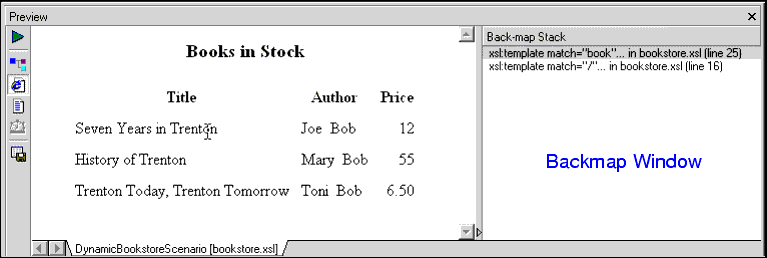
Backmap stack windowIf you click in the result document, Stylus Studio displays the Backmap Stack window, which lists the XSLT instructions that generated the text you clicked.
Stylus Studio also flags the line in the stylesheet that contains the first instruction in the Backmap Stack window. XML Tree view
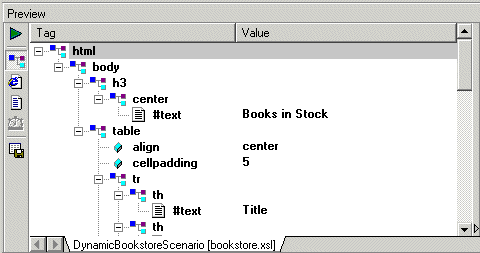
If the result document is XML, in the
Preview window, you can click
Preview in Tree
The tree view provides Savig results
To save the result of applying a stylesheet, click
Save Preview
The result document reflects any changes you made to either the XML source document or the XSLT stylesheet. You do not need to explicitly save either the XML or XSLT file to have changes to those documents appear in the result document. However, when you apply a stylesheet, Stylus Studio does not also save the stylesheet. To save a stylesheet, click
Save
Applying Stylesheets to Large Data SetsWhen you open a stylesheet or assign a source XML document to a scenario, Stylus Studio loads the entire XML source document in memory. Stylus Studio requires the source XML document in order to display If the source XML document is particularly large, loading it can take several minutes. Each time you leave and return to Stylus Studio, Stylus Studio checks whether any open documents have been modified. If the documents reside on remote servers, this can take some time. If you want, you can turn off the check for modified documents. To turn off the check for modified documents:
1. In the Stylus Studio menu bar, select
Tools
>
Options.
Stylus Studio displays the Options dialog box.
2. Click
Application Settings.
3. Click the check box for
Automatically check for externally modified files.
Creating a ScenarioA scenario allows you to preview the results of applying a stylesheet. Each scenario is for a particular group of settings. These settings include the name of an XML source document, the values of any parameters in the stylesheet, and the values of any encoding settings. A scenario can include any setting that you can specify when you apply the stylesheet. A scenario can be associated with only one stylesheet and only one XML source document. However, you can associate any number of scenarios with a stylesheet, and you can associate any number of scenarios with an XML source document.
To create a scenario:
1. In the XSLT editor tool bar, click
Browse
.
Stylus Studio displays the Scenario Properties dialog box.
2. In the
Scenario Name: field, type the name of the new scenario.
3. In the
Source XML URL: field, type the name of the XML file you want to apply the stylesheet to, or click
Browse
to navigate to an XML file and select it.
4. In the
Output URL field, optionally type or select the name of the result document you want the stylesheet to generate. If you specify the name of a file that does not exist, Stylus Studio creates it when you apply the stylesheet.
5. In the
Base URL For HTML Links Resolution field, optionally type the path for resolving any links. For example, your stylesheet might have links to CSS stylesheets or images.
6. If you want Stylus Studio to
Store paths relative to XSLT document path, ensure that this option is checked.
7. If you want to
Preview result in an external application, ensure that this option is checked. When this option is checked, Stylus Studio displays the result in the default application for the output method specified for the scenario. For example, if the output method for the scenario is
HTML and if Internet Explorer is the default application for displaying HTML files, Stylus Studio displays the resulting HTML in Internet Explorer, as well as in the
XSLT Preview window.
8. If you want to specify values for stylesheet parameters, click the
Parameter Values tab. Double-click the
Value field for the parameter you want to specify a value for.
9. If you want to use an XSLT processor other than the Stylus Studio processor, click the
Processor tab and type the required information. See
Using an External XSLT Processor.
10. If you want to specify any post-processing, click the
Post-process tab. See
Postprocessing Result Documents.
11. To define another scenario, click
Add and enter the information for that scenario. You can also copy scenarios. See
Cloning Scenarios.
12. Click
OK.
For more information, see Scenario Properties General Tab (XSLT). Cloning ScenariosWhen you clone a scenario, Stylus Studio creates a copy of the scenario except for the scenario name. This allows you to make changes to one scenario and then run both to compare the results.
To clone a scenario:
1. Display the stylesheet in the scenario you want to clone.
2. In the XSLT editor tool bar, click
Browse
to display the
Scenario Properties dialog box.
3. In the
Scenario Properties dialog box, in the
Existing preview scenarios field, click the name of the scenario you want to clone.
4. Click
Clone.
5. In the
Scenario name field, type the name of the new scenario.
6. Change any other scenario properties you want to change. See
Creating a Scenario.
7. Click
OK.
Saving Scenario Meta-InformationStylus Studio can store scenario meta-information in two places:
When you save a stylesheet, Stylus Studio saves the scenario meta-information in the stylesheet, but not in the project. When you select File > Save All or when you save the project, Stylus Studio saves the scenario meta-information in the stylesheet and in the project. To ensure that scenario meta-information in the project and in the stylesheet is consistent Suppose you modify a scenario and save and close the associated stylesheet. If the stylesheet belongs to the open project, when you save the project, Stylus Studio saves the closed stylesheet's scenario meta-information in the project. Applying a Stylesheet to Multiple DocumentsYou can apply the same stylesheet to multiple documents Applying the Same Stylesheet in Separate OperationsScenarios make it easy to view results and apply the same stylesheet to multiple XML documents. A stylesheet can have any number of scenarios. Each scenario is associated with only one stylesheet. In addition to the stylesheet, a scenario is associated with a source XML file. The same XML file can be associated with any number of scenarios. You create an initial scenario when you create a stylesheet. You can create additional scenarios at any time. See Creating a Scenario. To view results for a particular scenario:
1. Click the down arrow in the scenario field at the top of the stylesheet window.
2. Click the scenario you want to view.
3. Click
Preview Result
 , which is directly to the left of the scenario field. This applies the stylesheet to the XML document specified in the selected scenario.
Each time you generate a different scenario, Stylus Studio displays a tab at the bottom of the Preview window for that scenario. Click the tab for the scenario you want to view. This allows you to compare results. Applying a Stylesheet to Multiple Documents in One Operation
To apply a stylesheet to multiple documents in one operation, call the
For example, you can specify the following:
This selects the
Stylus Studio looks for the document in the directory that contains the stylesheet.
The
About Stylesheet ContentsStylesheets are XML documents. They can contain XSLT instructions and non-XSLT elements and nodes. Stylus Studio automatically inserts some XSLT instructions. You can add additional XSLT instructions, HTML markup, and any other XML data you want. This section describes Contents Provided by Stylus StudioWhen Stylus Studio creates a stylesheet, it has the following contents:
The
Stylus Studio defines one template, which matches the root node. Of course, the two built-in templates are also defined, although they are not explicitly in the stylesheet. For information about these templates, see Using Stylus Studio Default Templates. When Stylus Studio creates a stylesheet from an HTML file, the template that matches the root node contains all HTML markup that was in the imported file. Contents You Can AddYou can add to the stylesheet any XSLT instruction that Stylus Studio supports. See XSLT Instructions Quick Reference. You can also add HTML markup and any other XML-formatted data you require. To obtain the XPath expression that retrieves a particular node in the source document you want to apply the stylesheet to, see Obtaining the XPath for a Node. Updating Stylesheets
You can edit a stylesheet in the
XSLT Source tab in
Full Source
The XSLT editor keeps track of your XSLT context. That is, it keeps track of template match patterns, and any
After you associate the stylesheet with a scenario, you can display the source tree for the XML source document specified in the scenario. Click
Source Tree
Editing toolsThe following sections describe the Stylus Studio editing tools: Dragging and Dropping from Schema Tree into XSLT EditorFrom the source tree of the XSLT editor, you can drag an element or attribute into the XSLT Source pane. If you drop the node in the stylesheet so that it is in a template, Stylus Studio displays the following choices:
Click the instruction you want to create. The XSLT context into which you drop the node determines the value of the
If you drop the node in the stylesheet so that it is not in a template, Stylus Studio creates a new template. In the new template, the value of the
Double-clickingYou can also create a new template by double-clicking a node in the source tree. The difference between double-clicking a node and dragging a node is that when you double-click a node to create a template, Stylus Studio always inserts the template at the end of the stylesheet. When you drag a node to create a template, you determine the location of the template. Using Sense:X Automatic Tag CompletionThe Stylus Studio Sense:X automatic tag completion system helps you edit XSLT, HTML, and FO (formatting objects) instructions. Stylus Studio has built-in knowledge of all XSLT, HTML, and FO tags, as well as their attributes.
As you type in the XSLT edit window, Stylus Studio prompts you with a list of tag or attribute names that match the first few letters you typed. To complete the tag name you are typing, scroll the list if necessary, and double-click the tag you want.
You can customize the Sense:X system. Edit
To set options that specify Sense:X behavior, see Options - Application Settings - Editor General. Using Sense:X to Ensure Well-Formed XMLSense:X also helps you write well-formed XML. There is an option in the Editor General page that is set by default. This is Auto-Close Open Tag When Typing '</'. This means that as soon as you type </, Stylus Studio immediately inserts the only tag that can possibly be closed at that point. If you prefer, you can turn off this option. Then, when you start to type a closing tag, the Sense:X list displays the only valid closing tag. Double-click it to insert it. Using Standard Editing ToolsStandard editing tools are available to you for updating stylesheets. From the Edit menu or tool bar you can cut, copy, paste, replace, undo, redo, select all, and find. The usual keyboard shortcuts work as well: For additional shortcuts, see Keyboard Accelerators. Saving StylesheetsWhen you save a stylesheet, Stylus Studio uses the encoding that is specified in the Params/Other tab of the XSLT editor. You can change the encoding by changing the setting in the Params/Other tab or in the initial processing instruction in the stylesheet. When you change one of these, Stylus Studio automatically changes the other. They are always the same. To save an XSLT stylesheet, do one of the following: To save your stylesheet to another file, select File > Save As. To save multiple files, select File > Save All. This saves all files that are open in Stylus Studio.
Using Updated StylesheetsWithin a scenario, Stylus Studio automatically uses any updated files when you apply a stylesheet. It does not matter whether you have explicitly saved a file in the scenario. If a stylesheet includes or imports other stylesheets, Stylus Studio automatically uses any updated versions of included or imported stylesheets even if you have not explicitly saved them. However, there is one situation in which Stylus Studio does not automatically use updated stylesheets. Suppose that multiple stylesheets are open in Stylus Studio. Each stylesheet generates a Web page, and the Web pages have links to each other. The stylesheets do not include or import each other. You make changes in more than one of these stylesheets and you do not explicitly save any changes. You apply one of the stylesheets, and in the Preview window you click a link to another Web page generated by one of the other stylesheets you updated. In this situation, Stylus Studio does not apply the updated stylesheet. You must explicitly save the stylesheet to be able to use the updated version. |

XML PRODUCTIVITY THROUGH INNOVATION ™

 or
Preview Text
or
Preview Text
 .
.
 to display the result of XSLT processing as an XML tree.
 in the
Preview window. Stylus Studio displays the
Save As dialog box.
in the
Preview window. Stylus Studio displays the
Save As dialog box.
 .
.
 mode or
Template
mode or
Template
 mode. To display a particular template in either mode, click the down arrow in the upper right corner of the editing pane. This displays a drop-down list of template match patterns. Click the template you want to view.
 in the XSLT editor tool bar. This tree provides a description of the structure of the XML source document specified in the scenario. This tree does not include elements and attributes that are not instantiated in the particular source document. However, the tree provides a structure that you can examine to help you understand stylesheet behavior in a given scenario.


