 Cart
Cart
|
Home > Online Product Documentation > Table of Contents > Working with Templates Working with TemplatesTemplates define the actions that you want the XSLT processor to perform. When you apply a stylesheet to an XML source document, the XSLT processor populates the result document by instantiating a sequence of templates. This is illustrated in Understanding How the Default Templates Work. A template can contain elements that specify literal result nodes. It can also contain elements that are XSLT instructions for creating result nodes. In a template, the template rule is the pattern that the XSLT processor matches against (compares with) selected nodes in the source document. This section covers the following topics: Viewing TemplatesStylus Studio provides different ways to display lists of templates, specific templates, as well as ways to see if a given template generates any output. Viewing a List of TemplatesTo view a list of the templates in the stylesheet
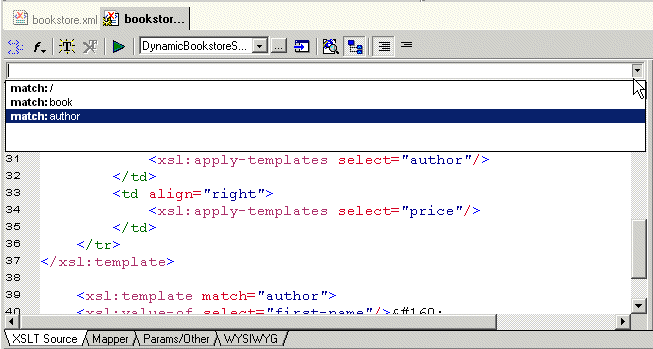
1. Click the down arrow in the upper right corner of the XSLT editing pane.
Stylus Studio displays a drop-down list of the first five match patterns in the stylesheet. To limit the displayed list, type in the combo box to the left of the down arrow. Stylus Studio displays only those patterns that match the character(s) you typed.
2. Click the match pattern for the template you want to view. It does not matter whether the XSLT editor is in
Full Source
 mode or
Template
mode or
Template
 mode.
mode.
Viewing a Specific TemplateTo view a particular template, double-click its matching element in the XML tree view, which is displayed to the right of the editing pane. If the element has more than one template, Stylus Studio displays a list of the templates. Click the one you want. Checking if a Template Generates OutputTo see if a particular template generates any output:
1. Select a template in the XSLT templates pane.
2. Click
Refresh
 to apply the stylesheet.
3. In the
XSLT Preview window, with output text displayed, scroll as necessary to find text highlighted in gray. Text with a gray background was generated by the selected template.
Using Stylus Studio Default TemplatesEvery stylesheet in Stylus Studio can use two built-in templates, even though they are not explicitly defined. This section covers the following topics to help you use these templates: Contents of a New Stylesheet Created by Stylus StudioWhen Stylus Studio creates a new stylesheet, the stylesheet includes the following built-in templates:
Every XSLT stylesheet contains these templates whether or not they are explicitly specified. In other words, the XSLT processor behaves as if they are there even when they are not explicitly specified in the stylesheet. About the Root/Element Built-In Template
The first built-in template matches
This root/element built-in template contains only the
What does the XSLT processor do when it operates on these children nodes? It searches for a template that matches each node. If there is no such template and if the node is an element, the XSLT processor instantiates the root/element built-in template. If the node is a text node and there is no matching template, the XSLT processor instantiates the text/attribute built-in template. If the node for which the root/element built-in template is instantiated has no children, the XSLT processor does no processing for this node and proceeds to the next selected node. The XSLT processor instantiates the root/element built-in template when it cannot find a template that explicitly matches the root node or an element in the source document. As you know, the XSLT processor always begins processing by instantiating the template that matches the root node. If you do not define such a template in your stylesheet, the XSLT processor begins processing by instantiating the root/element built-in template. About the Text/Attribute Built-In Template
The second specified built-in template matches
This template contains only the
This template copies the text contained in the current text node or attribute to the result document. Creating TemplatesTo do anything beyond copying the text from your XML document to the result document, you must create templates. You can create new templates several ways:
Try creating a new template that matches an XML element in your document:
1. Double-click an element in the tree view of your XML document.
2. Enter the following instruction in the new template:
3. In another template, ensure that there is an
xsl:apply-templates instruction that selects the new template's element for processing.
4. Press F5 to apply the stylesheet and refresh the current scenario in the
Preview window.
Notice that the text contents of the element for which you created the template are now displayed in bold - the XSL instruction is formatted with
By creating additional templates to style portions of your XML document, you can completely control how the document appears. Saving a Template
To save a template, save the stylesheet. Click
Save
Applying Templates
The
To apply a template so that you can see the output in the Preview window, you must apply the entire stylesheet. Press F5 to apply the stylesheet and refresh the output. If Stylus Studio detects any errors in the stylesheet or in the XML source document, it displays a message that indicates the cause and location of the error. In the Preview window, in the Text view, the text with a gray background was generated by the template the cursor is in. If the editor is in Template mode, the text with the gray background was generated by the currently visible template. Updating TemplatesWhen you want to update a template, you can use all features that are available when you are updating a stylesheet. See Updating Stylesheets. Deleting TemplatesTo delete a template:
1. Select the text for the template you want to delete.
2. Right-click in the editor to display the shortcut menu.
3. Click
Cut.
|

XML PRODUCTIVITY THROUGH INNOVATION ™
 . Stylus Studio creates an empty template whose match pattern is
NewTemplate. Replace
NewTemplate with a match pattern that has meaning for your stylesheet. The new template appears at the end of the stylesheet.
. Stylus Studio creates an empty template whose match pattern is
NewTemplate. Replace
NewTemplate with a match pattern that has meaning for your stylesheet. The new template appears at the end of the stylesheet.
 in the Stylus Studio tool bar, or select
File
>
Save from the Stylus Studio menu bar.
in the Stylus Studio tool bar, or select
File
>
Save from the Stylus Studio menu bar.


