Cart
Cart
|
Home > Online Product Documentation > Table of Contents > Tutorial: Understanding How Templates Work Tutorial: Understanding How Templates WorkWhen Stylus Studio creates a new stylesheet, it contains one template, which matches the root node. However, this template is empty. If you apply the new stylesheet as is, the result document has no contents. To generate a result document with contents, you need to add instructions to the template that matches the root node. Default TemplatesAll stylesheets have two default templates that do not appear in the stylesheet itself. It is important for you to understand how the default templates work so that you can When you can do this, you can write a stylesheet that generates a dynamic Web page that displays your information. About This TutorialThis tutorial provides step-by-step instructions for defining a stylesheet that generates a dynamic Web page from an XML document. The tutorial shows how the default templates work, and it provides instructions for defining templates that instantiate the default templates. It also provides instructions for adding HTML markup to the stylesheet. The result is a dynamic Web page that displays the particular information you choose. Each of the following topics contains instructions for defining the stylesheet. You should perform the steps in each topic before you move on to the next topic. After the first topic, some steps depend on actions you performed in a previous topic. This section organizes the process as follows: For a simpler tutorial that shows you how to define a stylesheet that generates a dynamic Web page from a static HTML document, see Working with Stylesheets - Getting Started. This tutorial duplicates some of the information in subsequent sections. For complete information, see the following topics: Creating a New Sample StylesheetTo create a stylesheet to use in this tutorial, follow these instructions:
1. From the Stylus Studio menu bar, select
File
>
New
>
XSLT: Text Editor.
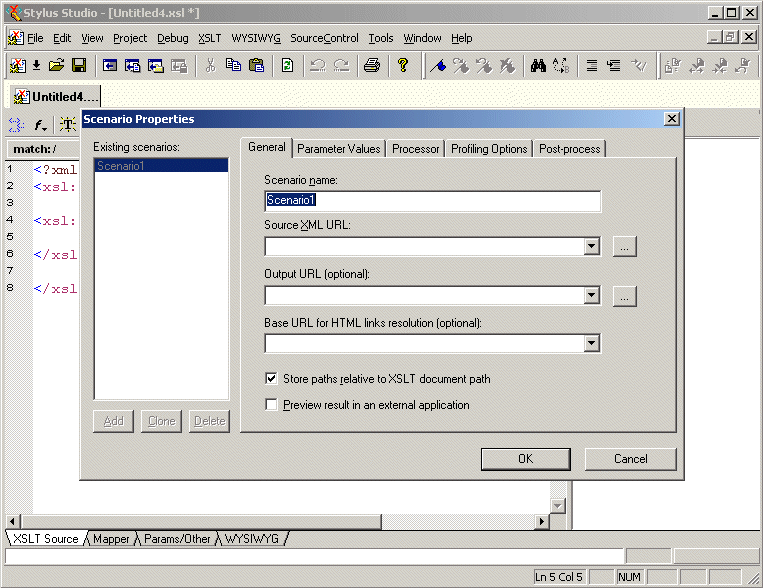
Stylus Studio displays a new untitled stylesheet and the Scenario Properties dialog box, and selects the text in the Scenario Name field.
2. In the
Scenario Properties dialog box, in the
Scenario Name field, type DynamicBookstoreScenario.
3. Click
Browse
 to the right of the
Source XML URL: field.
to the right of the
Source XML URL: field.
Stylus Studio displays the Open dialog box.
4. Navigate to the Stylus Studio
examples\query directory.
5. Double-click
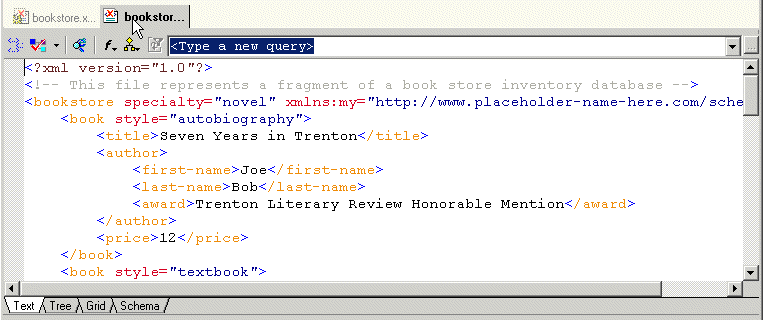
bookstore.xml. This is the XML document that the new stylesheet will operate on.
6. In the
Scenario Properties dialog box, click
OK.
This creates a scenario with the name
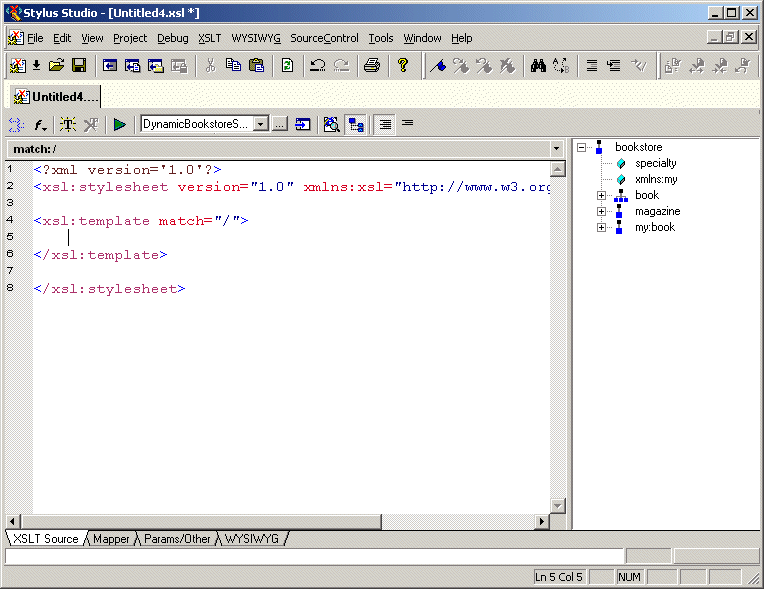
Stylus Studio displays the new stylesheet in the XSLT editor. A tree representation of the
The default stylesheet that Stylus Studio creates contains one template, which matches the root node.
7. In the XSLT editor tool bar, click
Preview Result
 .
.
Stylus Studio displays the Save As dialog box so you can save the XSLT you are composing.
8. In the
URL: field, type bookstore.xsl and click
Save.
Stylus Studio applies the new stylesheet to
9. In the XSLT editor pane, click in the empty line that follows
<xsl:template match="/"> .
10. Type <x, which displays the Sense:X completion list.
11. In the completion list, scroll down and double-click
xsl:apply-templates.
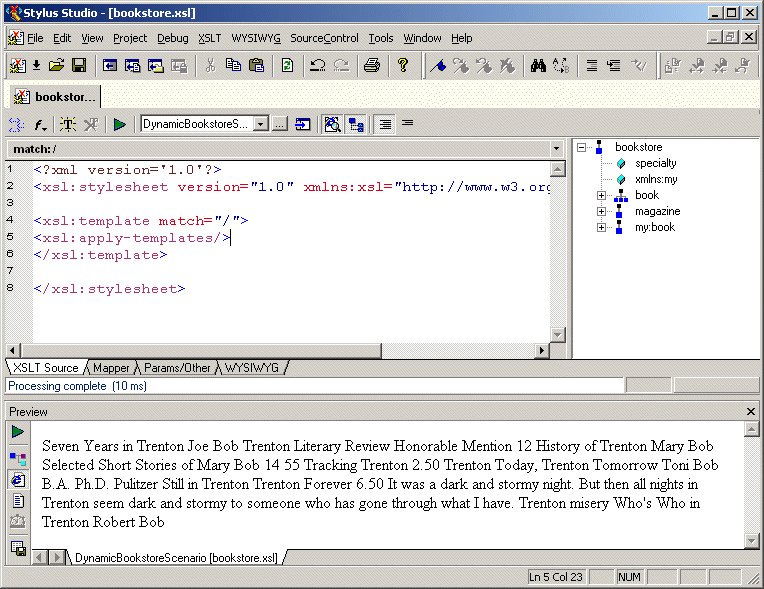
12. Type />.
13. In the XSLT editor tool bar, click
Preview Result
. This time, the
Preview window contains all text in
bookstore.xml and none of the markup. This is because the
xsl:apply-templates instruction instantiates the default templates.
14. In the Stylus Studio tool bar, click
Save
 .
.
To create a Web page, you need to add HTML markup that displays the information the way you want. To make it easier to do that, you need to understand how the text is already being copied to the result document. Understanding How the Default Templates WorkThis topic is part of a sequence that starts with Creating a New Sample Stylesheet.
After you complete the steps in the previous section, you can see the
The stylesheet explicitly contains one template, which matches the root node. When the XSLT processor applies a stylesheet, the first thing it does is search for a template that matches the root node. If there is no template that explicitly matches the root node, the XSLT processor uses a built-in template. There are two built-in templates, also called default templates. Every XSLT stylesheet contains these templates whether or not they are explicitly specified. This is part of the W3C XSLT Recommendation. This section discusses the following topics: Instantiating the Template That Matches the Root Node
The XSLT processor instantiates the template that matches the root node. The template that matches the root node contains only the
Unless you specify otherwise, the XSLT processor operates on the children in document order. The first child is a processing instruction (the XML declaration). The XSLT processor ignores processing instructions. The second child is the comment node, and the XSLT processor also ignores comment nodes.
The third child is the
Instantiating the Root/Element Default Template
One default template matches
The root/element default template contains only the
In this case, the root/element default template was instantiated for the
The XSLT processor operates on these children in document order. First, it searches for a template that matches
Again, by default, the
In the first
At this point, the XSLT processor has initiated instantiation of the root template once, and the root/element default template several times:
It is important to understand that these instantiations are not yet complete. Each subsequent instantiation of the root/element default template is inside the previous instantiations. Instantiating the Text/Attribute Default Template
When the XSLT processor instantiates the root/element default template for the
The XSLT processor instantiates the text/attribute default template for the
Now the result document contains the following text:
The XSLT processor is finished with the
The XSLT processor is finished with the
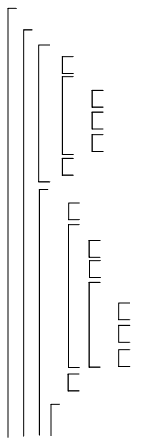
Illustration of Template Instantiations
As you can see from the description in the previous section, the XSLT processor iterates through the process of searching for a matching template, instantiating one of the default templates, and operating on the children of the node for which the template was instantiated. The following figure shows the template instantiations through the second
Editing the Template That Matches the Root NodeThis topic is part of a sequence that starts with Creating a New Sample Stylesheet. Begin writing your stylesheet by adding instructions to the template that explicitly matches the root node in your source document: In the XSLT editor, edit the contents of the root template so that it contains only the following contents. As you type, Stylus Studio displays a pop-up menu that lists possible instructions. You can scroll the list and double-click the entry you want, or you can continue typing. If you want, you can copy the text from here and paste it into the Templates view.
Ensure that you do one of the following: Creating a Template That Matches the book ElementThis topic is part of a sequence that starts with Creating a New Sample Stylesheet.
The template that matches the root node includes an
To define the template that matches the book element:
1. In the XSLT editor source document tree pane, expand the
bookstore element.
2. Double-click the
book element.
Stylus Studio creates a template that matches the
3. In the XSLT editor pane, add the following instructions to the new template's body:
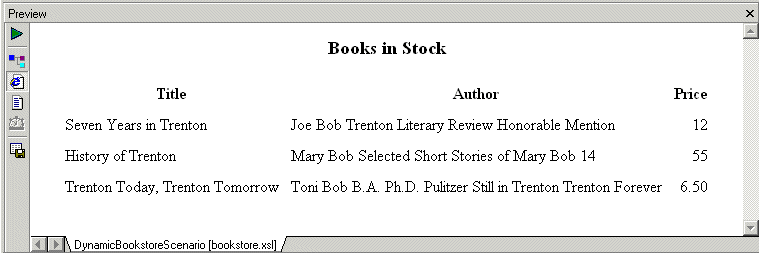
Press F5 to see the results. The result document looks like that shown in Figure 198:
In the
Creating a Template That Matches the author ElementThis topic is part of a sequence that starts with Creating a New Sample Stylesheet. To define a template that matches the author element:
1. In the XSLT editor source document tree pane, expand the
book element.
2. Double-click the
author element.
Stylus Studio creates a template that matches the
3. In the XSLT editor pane view, edit the template body so that it contains only the following contents.
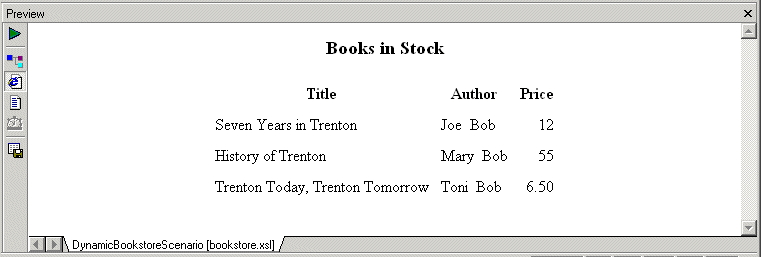
If you do not include the nonbreaking space entity, the first name and the last name have no space between them. Press F5 to see the results of this change, as shown in Figure 199.
4. Save the stylesheet by clicking
Save
.
5. Close the stylesheet by clicking
File > Close on the Stylus Studio menu bar.
|

XML PRODUCTIVITY THROUGH INNOVATION ™