Cart
Cart
|
Home > Online Product Documentation > Table of Contents > ConvertToXML and ConvertFromXML Nodes ConvertToXML and ConvertFromXML NodesConvertToXML nodes convert non-XML input (like a CSV file or an EDI message type) to XML; ConvertFromXML nodes convert XML input to a non-XML format. Both nodes use built-in DataDirect XML Converters or user-defined custom XML conversions to convert input.
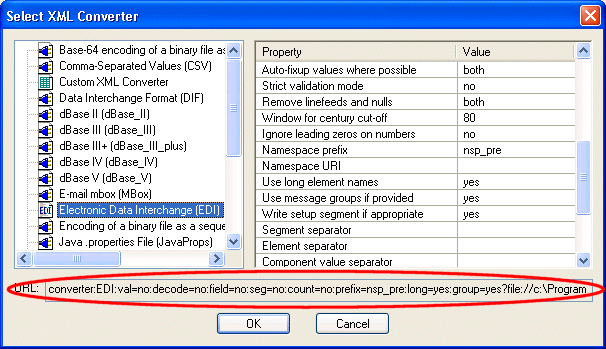
Specifying an XML Converter URLBoth ConvertToXML and ConvertFromXML nodes are defined by specifying an XML Converter URL that evaluates to either a You can manually type a URL in the node's XML Converter URL property, but the XML converter URL syntax can be complex, and it is easy to make errors or to leave settings that you might wish to use unspecified. For example, a completely specified XML Converter URL for the CSV XML Converter might look like this:
The recommended way to specify an XML Converter URL is to select the built-in XML Converter or user-defined custom XML conversion from the
Select XML Converter dialog box, which you display by clicking the
XML Converter URL field, and then clicking the more button (
The value in the
URL field changes when you select an XML Converter. Properties and their settings (like
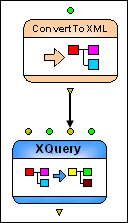
Creating a ConvertToXML NodeYou can create a ConvertToXML node manually, by dragging the ConvertToXML icon from the Toolbox pane and dropping it on the XML pipeline canvas. See Create a ConvertToXML Node for order.edi for a description of this procedure.
ConvertToXML nodes are created automatically if an XML Converter URL has been used as a data source for another document represented in the XML pipeline, or if you drag a converted document from the
Project window and drop it on the canvas. The
Input PortConvertToXML and ConvertFromXML nodes have a single input port that you use to specify the file to be converted to XML (or vice versa). You can specify a default value, or the value can be dynamic (the output from another node in the XML pipeline, for example). Output PortsConvertToXML and ConvertFromXML nodes have a single output port, used to specify what to do with the result of the transformation. You can For More InformationTo learn more about built-in DataDirect XML Converters and converter technology, see Chapter 3Converting Non-XML Files to XML. |

XML PRODUCTIVITY THROUGH INNOVATION ™
 ) when it appears.: