Cart
Cart
|
Home > Online Product Documentation > Table of Contents > Saving the Stylesheet and Previewing the Result Saving the Stylesheet and Previewing the ResultThis topic is part of a sequence that starts with Opening the XSLT Mapper. To save the stylesheet and preview the result:
1. Click
Save
 . Stylus Studio displays the
Save As dialog box.
. Stylus Studio displays the
Save As dialog box.
2. In the
URL: field, type
BooksToCatalog.xsl.
3. Click the
Save button.
This saves the stylesheet that Stylus Studio has generated. It does not matter that you have not finished mapping all nodes.
4. In the upper left corner of the XSLT Mapper, click
Preview Result
 .
.
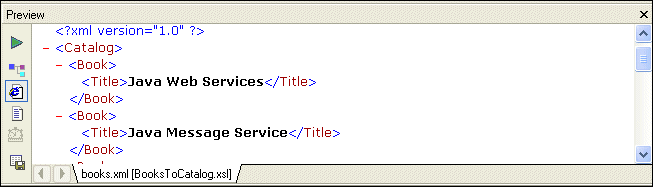
Stylus Studio displays the result of processing
The result document uses the same schema as the target document,
5. You can confirm that the result document is incomplete by viewing
books.xml. Click
Open XML From Scenario
 , which is at the top of the
Mapper tab.
, which is at the top of the
Mapper tab.
Stylus Studio displays the
6. Review the XML document, and then click the document tab for the
BooksToCatalog.xsl stylesheet to re-display the XSLT Editor.
|

XML PRODUCTIVITY THROUGH INNOVATION ™