Cart
Cart
|
Home > Online Product Documentation > Table of Contents > Choose Nodes Choose NodesA Choose node uses XPath expressions to evaluate one or more conditions based on its input to direct the flow of XML pipeline processing. The Choose node uses XPath 2.0 to evaulate the XPath expressions defined for it.
Input Ports
The Choose node can have one or more input ports; by default, it has a single input port, named
Input #0. You use the
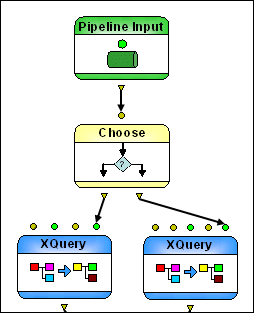
XPath # property to express a "true" condition - that is, a condition that must be met in order for processing to continue. The Choose node in
The initial context node for each
XPath # expression is the data input from
Input #0. For additional input ports (
Input #1,
Input #2, and so on), data is available to the XPath expression as
The Choose node evaulates XPath#0. If XPath#0 is true, it sends data from Input #0 to Output #0. If XPath#0 is false, it evaluates XPath#1. If XPath#1 is true, it sends data from Input #0 to Output #1, and so on. If none of the XPath # expressions is true, the data from Input #0 is sent to Output `no match' port. Adding Input PortsTo add an input port to a Choose node:
1. Display the Properties window if it is not already open (
View > Properties).
2. Click the Choose node in the XML pipeline diagram.
3. Change the value for the
Number of inputs property.
A new input port is added, named Input #1.
4. Optionally, add an output port for the new input port.
Output PortsBy default, a Choose node has two output ports: You can add additional output ports, which you might want to do if you have added an input port. The output port that corresponds to the "true" condition always makes the first input available to its connecting pipe. Each output port must have a value specified for it. You can Adding Output PortsTo add an output port to a Choose node:
1. Display the Properties window if it is not already open (
View > Properties).
2. Click the Choose node in the XML pipeline diagram.
3. Change the value for the
Number of choices property.
A new output port is added, named Output #1. |

XML PRODUCTIVITY THROUGH INNOVATION ™