 Cart
Cart|
Home > Learn XML > XML Tutorials > XML Editor Tutorials > Configure ODBC Data Source with SequelLink
XML Editor Tutorials
Configuring An ODBC Data Source Using DataDirect Sequelink ServerThis page describes how to create and configure an ODBC system data source for use with Stylus Studio®. This process consists of three main procedures:
Each of these procedures is detailed below. Before You BeginBefore starting this process, you must have installed DataDirect SequeLink SocketServer on the machine you wish to use as your data source. The DataDirect SequeLink Socket Server installation package. Step 1: Create an ODBC System Data SourceThe first step is to create an ODBC system data source. (This example uses a Microsoft Access database as the data source. The ODBC database you use for your data source might differ.) To create a new data source:
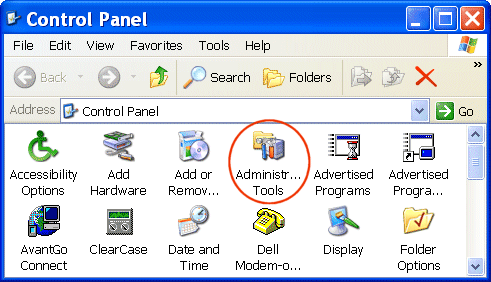
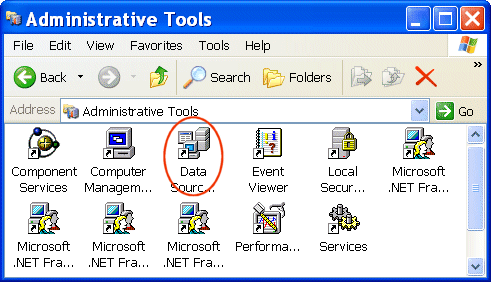
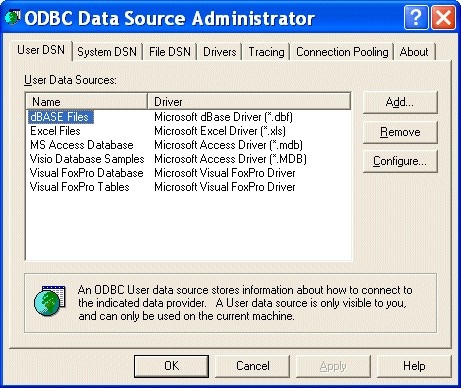
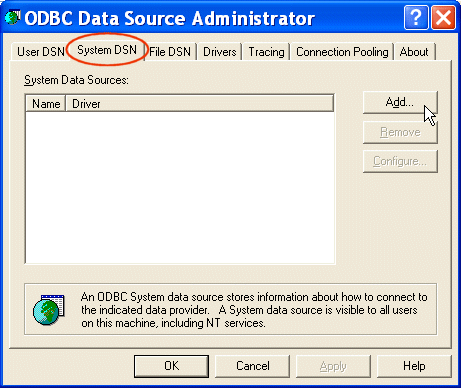
The Create New Data Source window appears. 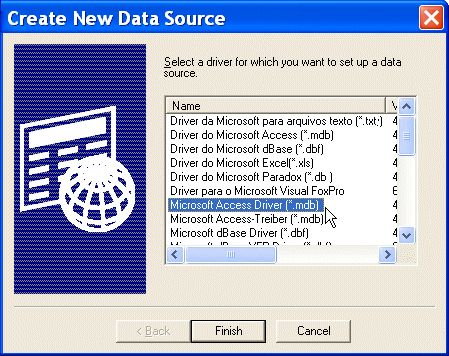
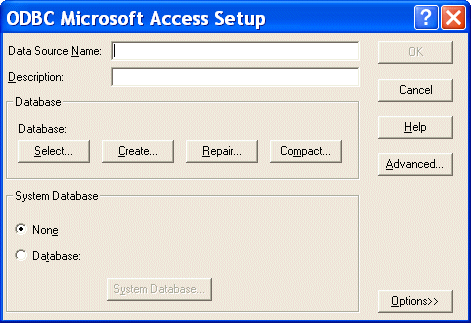
Note that the information on this dialog box, including the dialog box title, varies based on the database driver you selected in the previous step. Here, we selected a Microsoft Access database driver, so the information displayed in the dialog box is specific to that database. 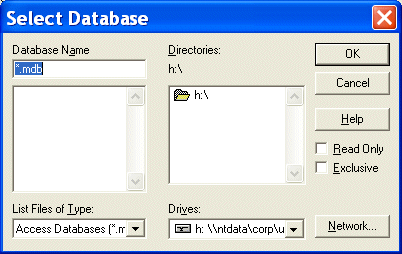
Step 2: Configure the Data Source in the DataDirect SequeLink Server ManagerOnce you have created a data source, you need to configure it using DataDirect SequeLink Manager, as described in this section.
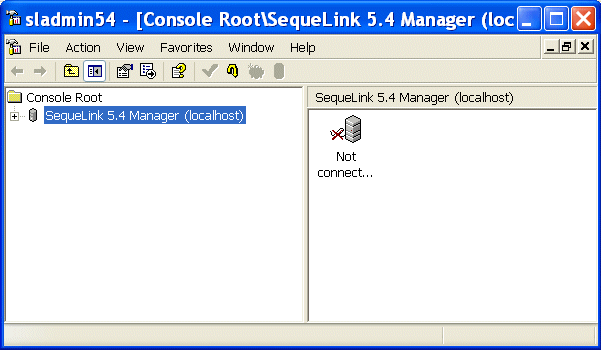
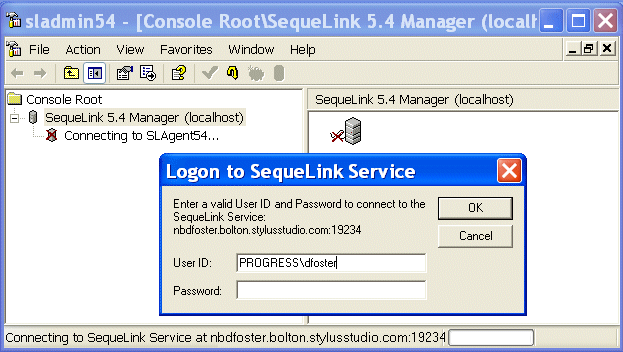
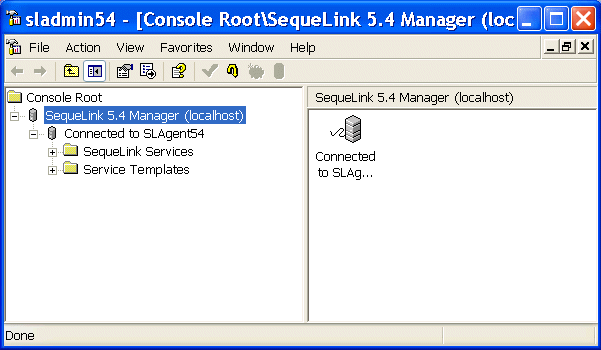
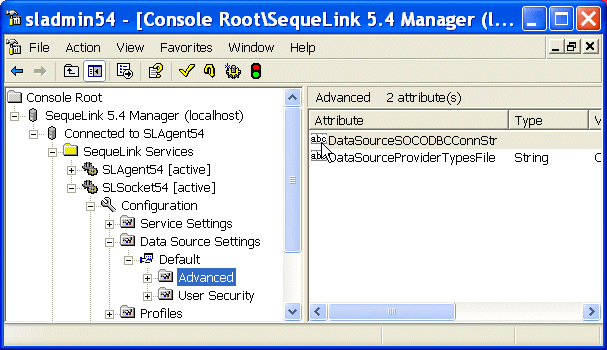
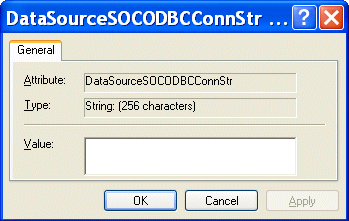
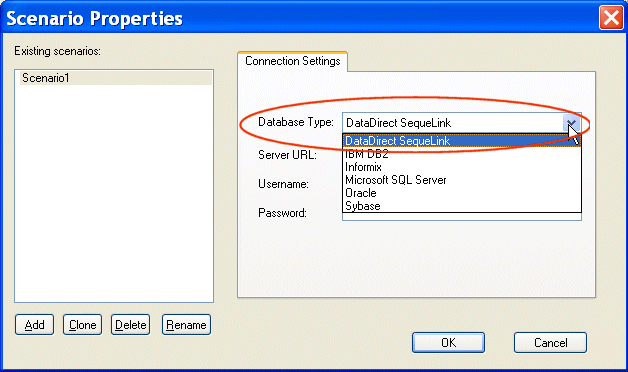
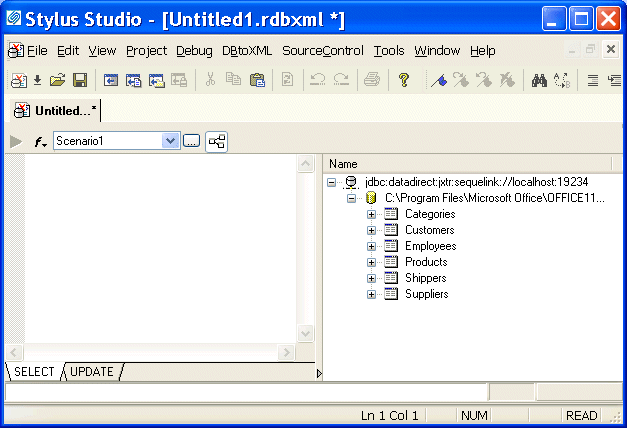
Step 3: Connect Stylus Studio® to SequeLink ServerAfter the data source has been configured using DataDirect SequeLink, it's ready for use in Stylus Studio®, as described in the following procedure.
|
PURCHASE STYLUS STUDIO ONLINE TODAY!!Purchasing Stylus Studio from our online shop is Easy, Secure and Value Priced! 
Learn XQuery in 10 Minutes!Say goodbye to 10-minute abs, and say Hello to "Learn XQuery in Ten Minutes!", the world's fastest and easiest XQuery primer, now available for free! Why Pay More for XML Tools?With Stylus Studio® X16 XML Enterprise Suite, you get the most comprehensive XML tool suite at one incredibly low price. Value: it's just one of many reasons why smart XML developers are choosing Stylus Studio! |

XML PRODUCTIVITY THROUGH INNOVATION ™


 Next: "Configuring the Java Runtime Engine or JDK"