Cart
Cart|
|
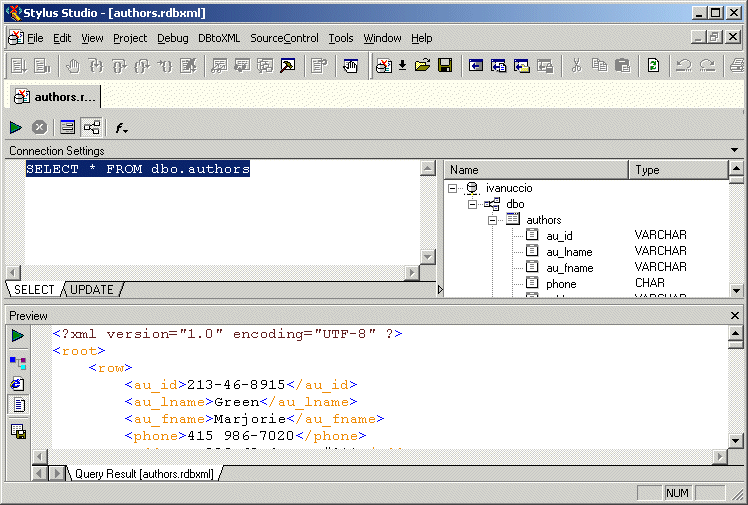
Home > Online Product Documentation > Table of Contents > Working with Relational Data as XML Working with Relational Data as XMLAs shown in the example in the preceding section, an SQL/XML query is returned as XML. The XML is displayed in the Preview window in the DB-to-XML data source editor, as shown in Figure 318.
You can work with an SQL/XML query result as XML and, optionally, update the relational database using changes to the XML file and the SQL/XML statements defined on the UPDATE tab of the DB-to-XML data source editor. Understanding SELECT and UPDATEAs described previously, you define SQL/XML SELECT statements on the SELECT tab; you define INSERT and UPDATE statements on the UPDATE tab. The DB-to-XML data source simply presents the SQL/XML to the database. The database executes the SQL/XML to the best of its ability, based on the statements you have defined and the permissions of the user associated with the DB-to-XML data source. If the user has read-only permissions, for example, any INSERT or UPDATE statement will fail.
When Statements are Executed
Statements on the
SELECT tab are executed when you click the
Execute Query button (
ExampleThis example shows how to define a DB-to-XML data source, and how DB-to-XML data sources interact with a relational database. Consider a DB-to-XML data source that performs a simple SELECT and INSERT. The SELECT StatementThe SELECT statement is defined on the SELECT tab of the DB-to-XML editor:
This SELECT statement returns every author record from the
The INSERT StatementThe INSERT statement is defined on the UPDATE tab of the DB-to-XML data source editor:
This INSERT statement attempts to insert the entire XML document content into table
Saving the FileAfter executing the query from the DB-to-XML data source editor, we examine the query results, which are rendered as XML in the Preview window. (See Figure 318 , for an example of how SQL/XML query results are displayed in Stylus Studio.) Checking the results allows us to verify that the table we are querying is providing us with the data we expect.
Once we have verified the query result, we save the
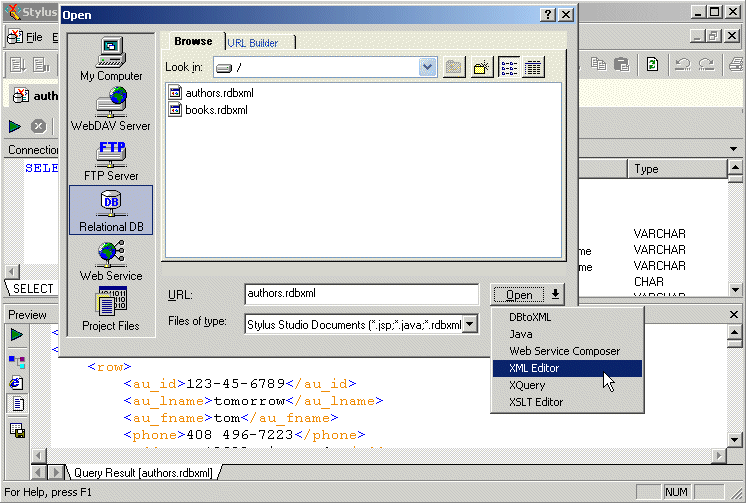
Opening the .rdbxml as XML
Next, we open the
When the DB-to-XML data source is opened in the XML editor, it looks just like any other XML document - it displays the XML returned when we executed the SQL/XML query. Other data source attributes (connection settings and the SQL/XML statements themselves) are not accessible or visible when a data source is opened as XML, but they are present as metadata. Updating the Data in the Database
To update the data from the
The document now contains a total of 26
Similarly, if we deleted all existing
|

XML PRODUCTIVITY THROUGH INNOVATION ™
 )
)
 ). Statements on the
UPDATE tab, on the other hand, are executed only when an XML version of the DB-to-XML data source document is saved. (The
Execute Query button is disabled when the
UPDATE tab is active.)
). Statements on the
UPDATE tab, on the other hand, are executed only when an XML version of the DB-to-XML data source document is saved. (The
Execute Query button is disabled when the
UPDATE tab is active.)