Cart
Cart|
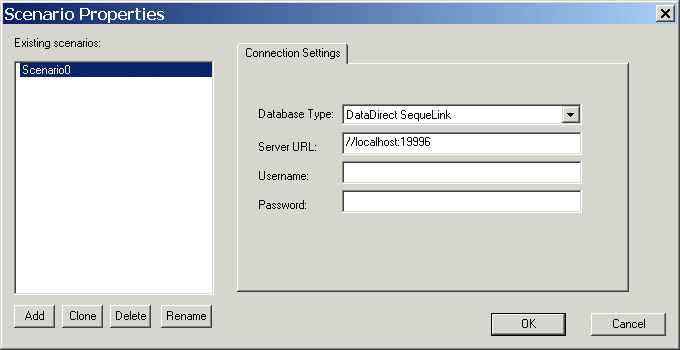
Home > Online Product Documentation > Table of Contents > Specifying Connection Settings Specifying Connection SettingsYou specify the information needed to connect to a server and log in to a relational database on the Connection Settings tab of the Scenario Properties dialog box. Stylus Studio displays this dialog box automatically when you open a new DB-to-XML data source. (You can also display the Scenario Properties dialog box manually. See Opening the Scenario Properties Dialog Box.)
The connection settings you specify on the Connection Settings tab of the Scenario Properties dialog box are saved with the DB-to-XML data source. This section covers the following topics: Connection Settings VaryConnection settings vary from database to database, but they typically include the following:
Choosing a DatabaseStylus Studio allows you to connect to If you want to connect to one of the relational databases supported by Stylus Studio, simply select the database from the Database Type drop-down list. If you want to use a database that is not natively supported, select DataDirect SequeLink. Using SequeLinkYou can use DataDirect SequeLink to connect to any database that complies with the Microsoft Open Database Connectivity (ODBC) specification. This process involves:
1. Installing DataDirect SequeLink Server. (Stylus Studio is automatically configured as a SequeLink client when you install it.)
2. Selecting
DataDirect SequeLink as the Database Type for your DB-to-XML data source.
SequeLink product software and documentation are in the
Using the Server URL FieldYou use the Server URL field to identify the server hosting the database to which you want to connect, the port to use, and any other required or optional parameters. For example, the string used to connect to a Microsoft SQL Server database might look like this:
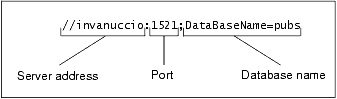
The specific syntax of the string you enter in the Server URL field varies based on database type. Consult your database documentation for information regarding connectivity syntax and optional parameters.
Username and PasswordYou use the Username and Password fields to specify the database user you want to associate with this DB-to-XML data source.
|

XML PRODUCTIVITY THROUGH INNOVATION ™