Home >
Online Product Documentation >
Table of Contents >
Composing SQL/XML in Stylus Studio
Composing SQL/XML in Stylus Studio
There are two ways to compose SQL/XML in Stylus Studio:
- Manually, typing SQL/XML on the
SELECT and
UPDATE tabs
- Automatically, using drag-and-drop to help you compose some or all of the SQL/XML
You can enter any valid SQL/XML statements in the SQL/XML editor's
SELECT and
UPDATE tabs, though only those statements for which you have permissions will be executed.
Manually Entering SQL/XML
When you type a qualified name in the
SELECT or
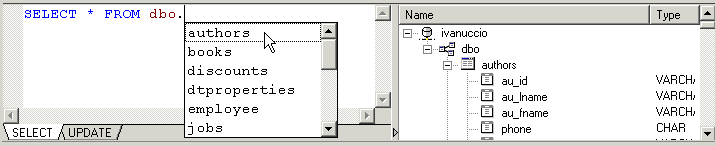
UPDATE tabs of the editor, Stylus Studio's auto-completion feature displays a list of valid names. For example, when you type the period in this statement,
SELECT * FROM dbo., Stylus Studio displays the following:
|
|
Figure 317. Example of Stylus Studio's Auto-Completion
To finish the statement, select the object name from the drop-down list and press Enter (or just double-click).
Using Drag-and-Drop
When you use drag-and-drop to compose SQL/XML, you start by selecting an object (a table or a column, for example) from the database schema tree and dragging it to the SQL/XML editor. When you drop the object (by releasing the mouse button) on the editor, Stylus Studio displays a shortcut menu of choices for that object. These include
- The object name, in both unqualified and qualified formats (
authors and
dbo.authors, for example). The format you choose depends on the database you are using - some databases require qualified names, for example. You might want to use this feature to add object names to an SQL/XML statement without typing them.
- A complete SELECT statement (if you are on the editor's
SELECT tab); Stylus Studio uses the object name you selected to complete the statement.
- A complete INSERT, UPDATE, or SELECT statement (if you are on the editor's
UPDATE tab); Stylus Studio uses the object name you selected to complete the statement.
Example
Following is an example of the INSERT statement Stylus Studio creates using the
publishers table:
How Relational Data is Translated to XML
Consider the following illustration of an excerpt from the
authors table in the Microsoft SQL Server
pubs database. This illustration shows only the first six columns of the table (and only the first few records); the
state,
zip, and
contract columns have been omitted for clarity:
|
au_id
|
au_lname
|
au_fname
|
phone
|
address
|
city
|
|
213-46-8915
|
Green
|
Marjorie
|
415 986-7020
|
309 63rd St. #411
|
Oakland
|
|
238-95-7766
|
Carson
|
Cheryl
|
415 548-7723
|
589 Darwin Ln.
|
Berkeley
|
|
267-41-2394
|
O'Leary
|
Michael
|
408 286-2428
|
22 Cleveland Av. #14
|
San Jose
|
As you can see, the
authors table has columns for author ID (
au_id), author's last name (
au_lname), author's first name (
au_fname), and so on.
If we write a SELECT statement (
SELECT * FROM dbo.authors), Stylus Studio returns the following XML document:
Notice that each record in the table (that is, each author) is rendered as a separate
<row> element. Similarly, each column is rendered as a subelement of
<row>, taking the column name (au_id, au_lname, and so on) as its own (
<au_id>,
<au_lname>, and so on). The document's root element is given the name
<root>.
 Cart
Cart