FLWOR Blocks

This section describes how to work with FLWOR blocks in the XQuery Mapper tab. It covers the following topics:

Parts of a FLWOR Block

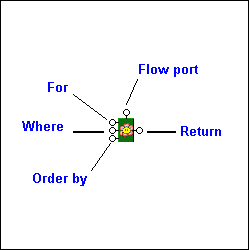
FLWOR blocks are drawn as a green block with an illustration of a flower at its center, and five connectors, called ports, placed along the block's border:

Figure 311. FLWOR Block

For, Order by, and Return ports

You define a FLWOR statement's For and Order by clauses by mapping source document elements and attributes to them, as appropriate. For example, if you wanted your XQuery to return a list of books ordered by publication date, you would map the book repeating element in books.xml to the FLWOR block's For port, and the Return port to the Book repeating element in catalog.xml. (As an alternative, you could map the two repeating elements directly, and Stylus Studio would create the FLWOR block and this mapping for you automatically, as described in Creating a FLWOR Block). Next, you would map the source document pubdate attribute to the Order by port. For a FLWOR block defined in this way, Stylus Studio generates the following XQuery:


              <Catalog>
               

              	{
               

              		for $book in /books/book
               

              		order by $book/@pubdate
               

              		return
               

              		<Book/>
               

              	}
               

              </Catalog>


Where port

The input for the Where port must be the output port of another block, such as a condition, IF, or function block. Imagine you have two source documents - you can create an Equal condition block, and specify that the content of an element in one source document must match the content of an element in the other source document, and map the return value of this condition to the Where port on the FLWOR block. Creating an Equal condition that specifies that the bookid attribute must be equal to the title element results in Stylus Studio generating the following XQuery code, for example:


              <Catalog>
               

              	{
               

              		for $book in /books/book
               

              		where $book/@bookid = $book/title
               

              		order by $book/@pubdate
               

              		return
               

              		<Book/>
               

              	}
               

              </Catalog>


See IF Blocks and Function Blocks for information on using other types of blocks in XQuery mapper.

Flow port

The Flow port, which is also present on IF and function blocks, allows you to link the result from other FLWOR, IF, and function blocks to define a conditional execution order for your XQuery expressions. You might decide you want a particular For each statement executed only after performing a certain function, for example. Inputs for the Flow port include the Return port of IF, function, and other FLWOR blocks.

Creating a FLWOR Block

You can create FLWOR blocks in the XQuery Mapper tab in one of two ways:

  • Right-click on the mapper canvas and select New | FLWOR Block from the shortcut menu.
  • Map one repeating element to another - Stylus Studio automatically creates a FLWOR block, mapping the source document node to the For port, and the Return port to the target structure node. Consider this code, which Stylus Studio generated after mapping the book repeating element in books.xml to the Book repeating element in catalog.xml:
    
                          <Catalog>
                           
    
                          	{
                           
    
                          		for $book in /books/book
                           
    
                          		return
                           
    
                          		<Book/>
                           
    
                          	}
                           
    
                          </Catalog>


Translating EDIFACT Documents to XML

The EDIFACT to XML Converter is a primary component of the adapter library. The XML that is generated is well commented and indented, and can be used anywhere XML is normally used — with XML Schemas, XQuery, XSLT, and so on.

SQL Server Tools

SQL Server Tools in Stylus Studio simplify working with relational and XML data including exporting data from a SQL Server database into XML and importing XML data back into SQL Server. Supports Microsoft SQL Server 2000 and Microsoft SQL Server 2005

Multi Channel Publishing

Multi channel publishing lets you go beyond single-source publishing of HTML and PDF to also generate simultaneously for non-document forms, such as to communicate with partners or drive spreadsheets.

Introduction to Convert to XML

Convert to XML is Stylus Studio's all-purpose utility for getting legacy data integration of all sorts into a custom XML format. This video provides an overview of the tool and walks you through a sample CSV to XML data transformation project.

Stylus Most Wanted

Site Map | Privacy Policy | Terms of Use | Trademarks
Free Stylus Studio XML Training:
W3C Member
Stylus Studio® and DataDirect XQuery™are products from DataDirect Technologies, is a registered trademark of Progress Software Corporation, in the U.S. and other countries. © 2004-2007 All Rights Reserved.