Cart
Cart|
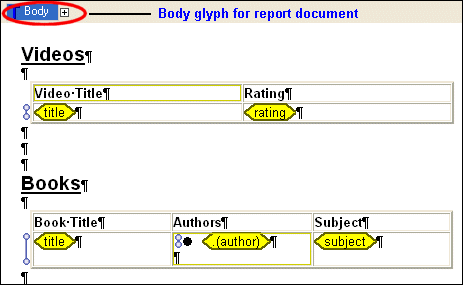
Home > Online Product Documentation > Table of Contents > More About the Navigation Bar More About the Navigation BarAs you add components to your report, Stylus Studio adds glyphs that represent them to the canvas navigation bar. You can click these glyphs to place the editor's focus on a specific component; similarly, when you select a component from the canvas, the glyphs in the navigation bar change to reflect the editor's current focus. Consider the following report - it contains two tables, each with a number of columns, and some text headings.
The Body glyph in the navigation bar represents the report's body. The dark blue means that the report body - the table headings and empty paragraph markers - has the editor's focus. In other words, any editing performed now - changing the text to italic, or making the background a different color, for example - would affect every object in the report body.
The plus sign next to the
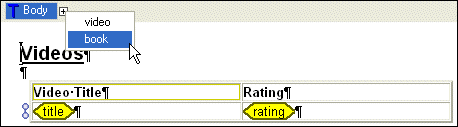
Body glyph indicates that the report body has at least one child. Our report has two children - the table containing video data, and the table containing book data. If we click the plus sign, Stylus Studio displays a drop-down menu that lists the children of the report body, and we see the entries for the
Click the Glyph to Navigate
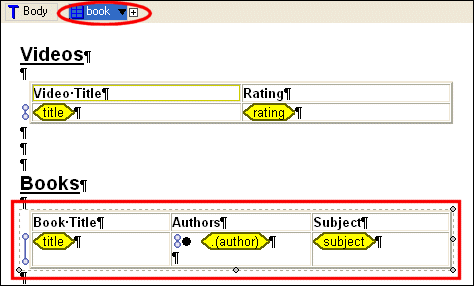
You can use the glyphs in the navigation bar to quickly change the editor's focus to the component you select. If we select
Notice that the
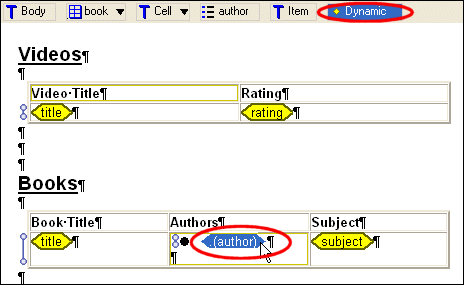
If we now click a cell directly, say, the cell containing
In this fashion, the navigation bar operates a tree, always showing you the report component that currently has focus. Components are displayed from the most general to the most specific. Look at the navigation bar in
Figure 462. When the
Notice the
|

XML PRODUCTIVITY THROUGH INNOVATION ™