Cart
Cart
|
Home > Online Product Documentation > Table of Contents > Adding an XQuery Node Adding an XQuery Node
Now that we understand how the XQuery code in
To add an XQuery node to an XML pipeline:
1. Drag the XQuery icon from the
Toolbox pane and drop it on the XML pipeline canvas.
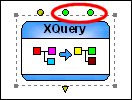
Stylus Studio creates an XQuery node and displays it in the XML pipeline diagram.
2. Display the
Properties window (
View > Properties) if it is not already open.
3. Display the
Project window (
View > Project) if it is not already open.
4. Drag
createFullOrder.xquery and drop it on either
The XQuery node now has two additional input ports, one named
These input ports are colored green, indicating that each has a default value specified for it. These default values correspond to the two data sources we specified as source documents in the XQuery Mapper.
5. Change the XQuery node's default name,
XQuery operator, to
Extract full order information. (See
Renaming Nodes if you need help with this step.)
Changes to Source Documents
XML pipelines reference external documents, like the
|

XML PRODUCTIVITY THROUGH INNOVATION ™