Cart
Cart|
|
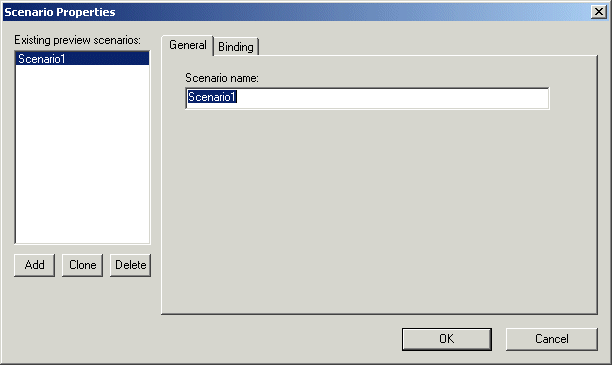
Home > Online Product Documentation > Table of Contents > Creating a Web Service Call Scenario Creating a Web Service Call ScenarioA Web service call scenario is a group of customizable settings associated with a Web service call composition. Stylus Studio uses these settings when you test a Web service using a scenario. If you don't define a scenario, or don't test the Web service call using a scenario, Stylus Studio uses the settings described in the WSDL. Examples of Web service call scenario settings include the client used to perform the Web service call; a username and password for Web services requiring authentication; and the length of time Stylus Studio will try to access the Web service before timing out. When to create a scenarioYou should consider creating a Web service call scenario only after you have defined the Web service call itself. This allows Stylus Studio to inherit values for the scenario from the WSDL you select for your Web service call. You can create multiple scenarios that use the same Web service call, and define different settings for each. This flexibility can aid the Web service call development process as it enables you to easily test different Web service parameters before making the Web service call available in your XML applications. A scenario can be associated with only one Web service call. This section covers the following topics: Overview of Scenario FeaturesThis section describes the main features of Web service call scenarios. It covers the following topics: Scenario NamesYou specify a name for a Web service call scenario on the General tab of the Scenario Properties dialog box.
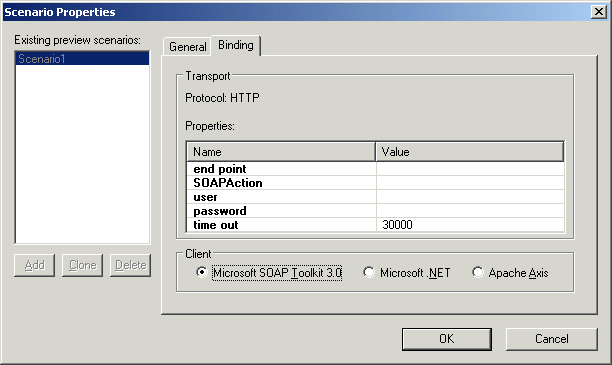
When you create a Web service call scenario, specify a name that makes it easy to distinguish one scenario from another. Transport Protocol and Client SettingsYou specify the transport protocol you want to use when testing the Web service on the Binding tab of the Scenario Properties dialog box.
When you use HTTP as the transport protocol, the Web service call client can be any one of the following: Other Transport SetttingsOnce you specify the client, Stylus Studio displays a list of additional settings that you can use to define properties for the scenario. Some values, such as the time out, are system defaults. Others, such as the SOAP action, are taken directly from the WSDL specified in the Web Service Call Composer.
HTTP SettingsThe following table describes the scenario settings associated with the HTTP transport protocol.
How to Create a ScenarioTo create a scenario:
1. Create a Web service call if you haven't already. See
How to Compose a Web Service Call if you need help with this step.
2. Display the
Scenario Properties dialog box by clicking
 in the Web service editor tool bar.
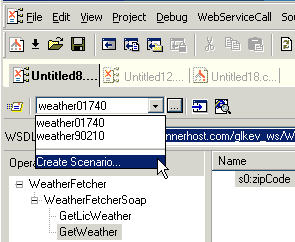
Alternative: Select Create Scenario from the scenario drop-down list at the top of the editor window:
3. On the
General tab, specify a name for the Web service call scenario.
4. Click the
Binding tab.
5. Select the appropriate transport protocol from the
Transport drop-down list.
6. Specify the binding properties you want to associate with this Web service call scenario.
7. Click
OK.
The Web service call scenario is saved with the name and settings you specified. How to Run a ScenarioTo run a scenario:
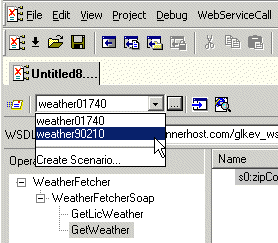
1. Select a scenario from the scenario drop-down list at the top of the editor window:
Alternative:
a. In the Web Service Call Composer tool bar, click
.
Stylus Studio displays the Scenario Properties dialog box.
b. On the
General tab, select the scenario you want to run from the
Existing preview scenarios list.
c. Click
OK.
2. Click the
Send Request button (
 )
.
)
.
How to Clone a ScenarioWhen you clone a scenario, Stylus Studio creates a copy of the scenario except for the scenario name. This allows you to make changes to one scenario and then run both to compare the results. To clone a scenario:
1. Display the
Scenario Properties dialog box by clicking
in the Web Service Call Composer tool bar.
2. In the
Existing preview scenarios field, click the name of the scenario you want to clone.
3. Click
Clone.
4. In the
Scenario name field, type the name of the new scenario.
5. Change any other scenario properties you want to change. See
Overview of Scenario Features.
6. Click
OK.
If you change your mind and do not want to create the clone, click Delete and then OK. |

XML PRODUCTIVITY THROUGH INNOVATION ™