Cart
Cart|
|
Home > Online Product Documentation > Table of Contents > Overview OverviewThe process of composing a Web service call in Stylus Studio involves the following steps:
1. Specify the Web Services Description Language (WSDL) URL associated with the Web service you want to use. See
Obtaining WSDL URLs.
2. Compose the Simple Object Access Protocol (SOAP) request.
a. Select the operation described by the WSDL for which you want Stylus Studio to compose a SOAP request.
b. Provide values for the SOAP request parameters.
3. Test the Web service. You can test a Web service call as you composed it, or you can create a scenario to test the Web service call using parameters of your choosing. See
Testing a Web Service.
4. Optionally, save the Web service call for later use. See
Saving a Web Service Call.
5. Optionally, create a Web service scenario. See
Creating a Web Service Call Scenario.
How to Compose a Web Service CallTo compose a Web Service call:
1. From the Stylus Studio menu bar, select
File > New > Web Service Call.
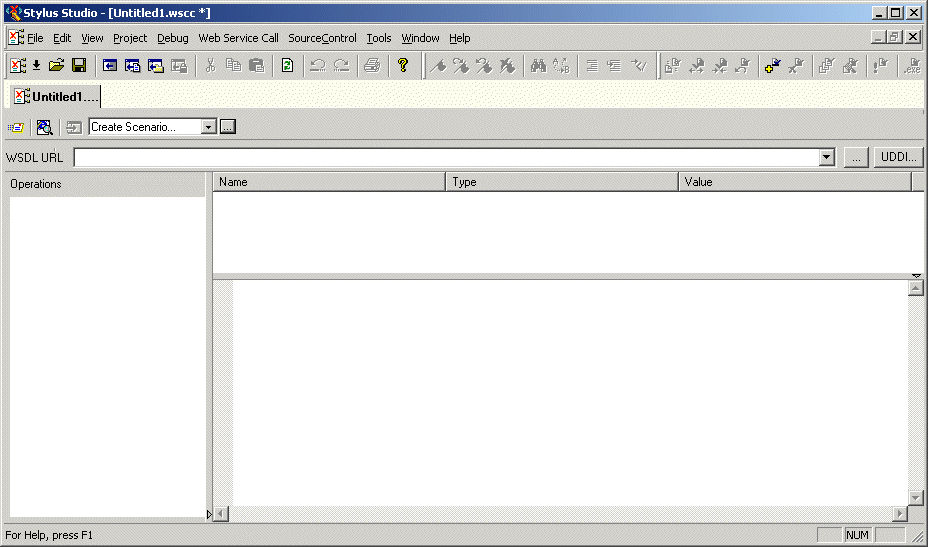
Stylus Studio opens a new document in the Web Service Call Composer.
2. Type a WSDL address in the
WSDL URL field, or use the
UDDI button to browse UDDI registries for published Web services. See
Obtaining WSDL URLs for help with this step. (Any WSDL URLs that you have used previously are displayed in the
WSDL URL drop-down list.)
Web service operations for the WSDL you select are displayed in the Operations field.
3. Select the Web service operation for which you want to create a SOAP request from the
Operations field.
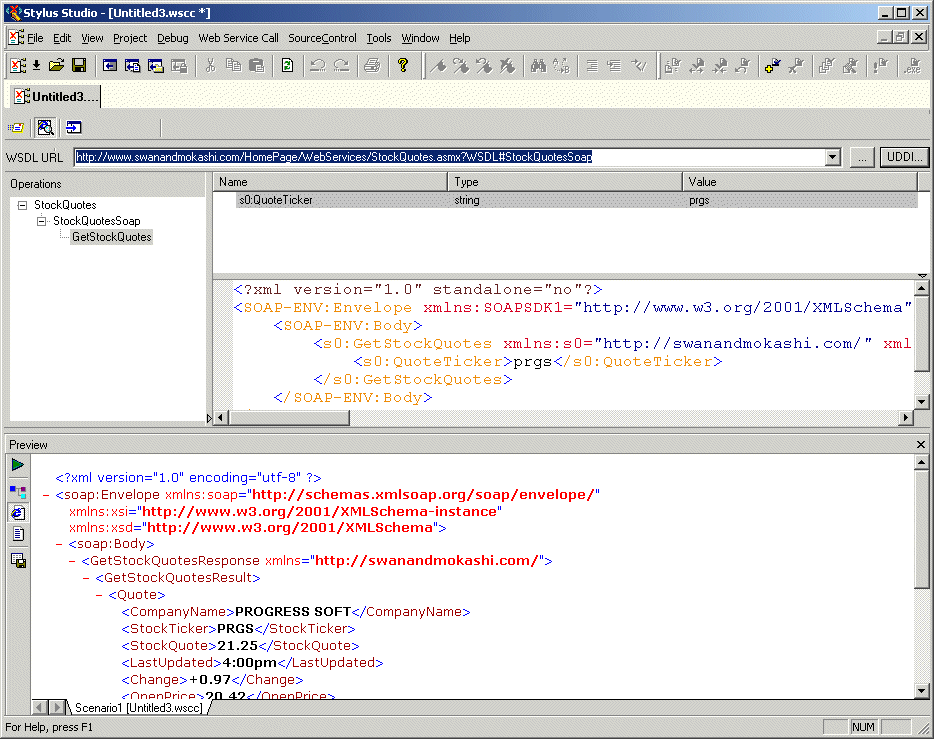
Parameters for the operation you select are displayed in the Name field; the datatype for each parameter is displayed in the Type field. The SOAP request is displayed beneath the fields you use to define the operation's parameters.
4. Set values for the parameters:
a. Click the parameter name.
b. Type a value in the
Value field.
Stylus Studio updates the SOAP request to reflect the parameter values you enter. Alternative : You can manually edit the XML in the SOAP request. If you do, the Value field is updated automatically. See Modifying a SOAP Request for help with this step.
5. When you have provided values for all of the parameters, click the
Send Request button (
 ) to test the Web service.
If it is not already open, Stylus Studio opens the Preview window and displays the SOAP response returned by the Web service, as shown in Figure 299:
6. Optionally, save the Web service call. See
Saving a Web Service Call for help with this step.
|

XML PRODUCTIVITY THROUGH INNOVATION ™