Saving a Web Service Call

You can save the Web service call composed by Stylus Studio. The file created when you save a Web service call includes the WSDL URL and the last Web service operation that you configured (including parameter values) prior to saving the file. For example, if you are using a Web service that provides separate operations for temperature conversions (one for Celsius to Fahrenheit and one for Fahrenheit to Celsius, for example), only the last one you test is saved.

Saving a Web service call gives you the ability to easily recall a preconfigured SOAP request for additional testing - allowing you to modify the SOAP request and test it without having to locate the WSDL.

Using Web Service Calls as XML

In addition to opening a Web service call in the Web Service Call Composer for testing purposes, you can open a Web service call as an XML document anywhere in Stylus Studio - in the XML editor, or as a source document in the XQuery mapper for example. When you open a Web service call as an XML document, Stylus Studio automatically executes the SOAP request and displays the SOAP response.

Consider the following Web service call, stock.wsc. The Web service operation used in this example returns current stock quote and other information based on the ticker symbols provided as parameters. Here is the SOAP request composed by Stylus Studio:

<?xml version="1.0" standalone="no"?>
               
<SOAP-ENV:Envelope xmlns:SOAPSDK1="http://www.w3.org/2001/XMLSchema" 
xmlns:SOAPSDK2="http://www.w3.org/2001/XMLSchema-instance" 
xmlns:SOAPSDK3="http://schemas.xmlsoap.org/soap/encoding/" xmlns:SOAP-
ENV="http://schemas.xmlsoap.org/soap/envelope/">
               
	SOAP-ENV:Body>
               
		<s0:GetStockQuotes xmlns:s0="http://swanandmokashi.com/">
               
			<s0:QuoteTicker>prgs</s0:QuoteTicker>
               
		</s0:GetStockQuotes>
               
	</SOAP-ENV:Body>
               
</SOAP-ENV:Envelope>


	<soap:Body>
               
		<GetStockQuotesResponse xmlns="http://swanandmokashi.com/">
               
			<GetStockQuotesResult>
               
				<Quote>
               
					<CompanyName>PROGRESS SOFT</CompanyName>
               
					<StockTicker>PRGS</StockTicker>
               
					<StockQuote>20.10</StockQuote>
               
					<LastUpdated>10:17am</LastUpdated>
               
					<Change>+0.03</Change>
               
					<OpenPrice>20.05</OpenPrice>
               
					<DayHighPrice>20.40</DayHighPrice>
               
					<DayLowPrice>20.00</DayLowPrice>
               
					<Volume>13200</Volume>
               
					<MarketCap>695.1M</MarketCap>
               
					<YearRange>11.50 - 24.06</YearRange>
               
				</Quote>
               
			</GetStockQuotesResult>
               
		</GetStockQuotesResponse>
               
	</soap:Body>
               
</soap:Envelope>


And here is the SOAP response returned by the Web service:

<?xml version="1.0" encoding="utf-8"?>
               
<soap:Envelope xmlns:soap="http://schemas.xmlsoap.org/soap/envelope/" 
xmlns:xsi="http://www.w3.org/2001/XMLSchema-instance" 
xmlns:xsd="http://www.w3.org/2001/XMLSchema">


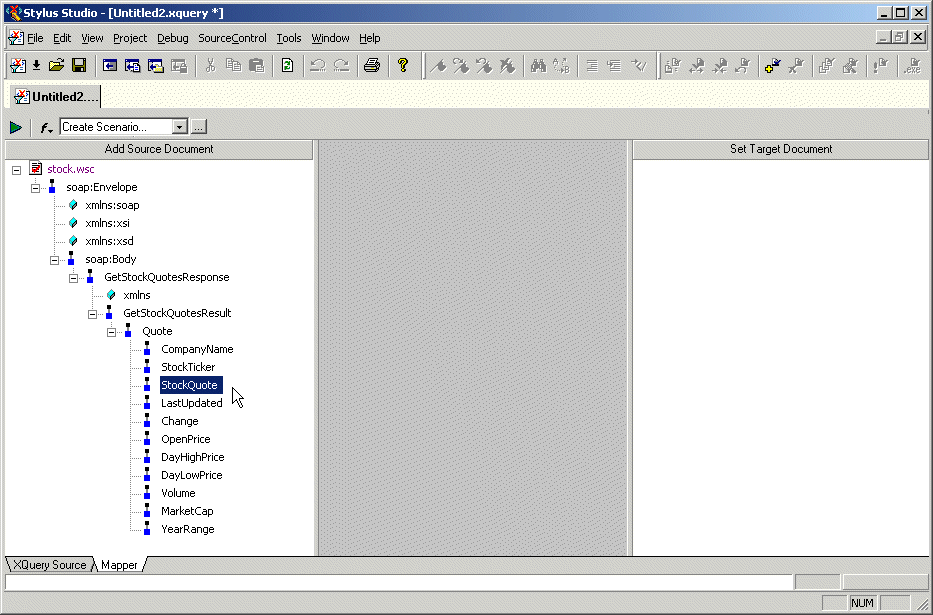
The saved Web service call can be used as the source document for an XQuery in the XQuery mapper, as shown in Figure 305:

Figure 305. Using a Web Service Call to Compose an XQuery

XQueries composed using a Web service call as a source document return real-time data from the Web service as a result.

Where Web Service Calls are Saved

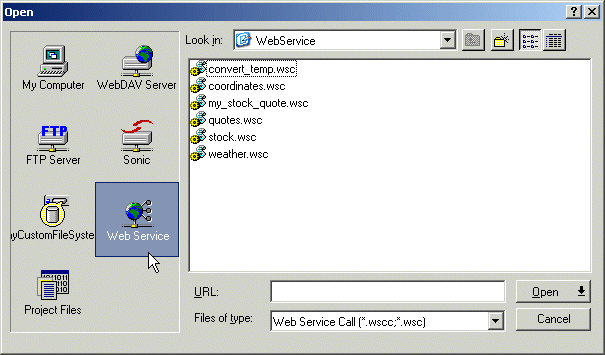
Stylus Studio saves Web service calls to the Web Services file system. By default, Web service calls are saved with a .wscc extension. When you open a saved Web service call, you must look in the Web Services file system, as shown in Figure 306:

Figure 306. Open Dialog Box

How to Save a Web Service Call

To save a Web service call:
1. Select File > Save from the Stylus Studio menu bar.

The first time you save a Web service call, the Save As dialog box appears; for subsequent save operations, Stylus Studio displays the Save dialog box.

2. Change the default name ( Untitled.wscc, for example), and click Save.
 
Free Stylus Studio XML Training: