|
Home >Online Product Documentation >Table of Contents >How to Create a Named or Matched Template How to Create a Named or Matched TemplateTo create a named or matched template:
1. Right-click the XSLT mapper canvas.
2. Select Create Template > Named Template or > Matched Template from the shortcut menu.
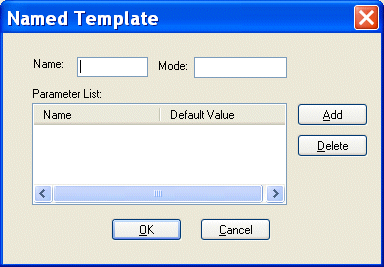
Stylus Studio displays the Named Template (or Matched Template) dialog box. (The Named Template dialog box is shown in Figure 272.)
3. Enter a name and, optionally, a mode.
4. Optionally, create one or more parameters:
a. Click the Add button.
The Name column becomes editable.
b. Type a parameter name and press Enter.
The Default Value field becomes editable.
c. Type a default value.
d. If you want to define another parameter, click ADD; otherwise, go to step 5.
5. Click OK to finish creating the template.
|

Introduction to Convert to XML
Convert to XML is Stylus Studio's all-purpose utility for getting legacy data integration of all sorts into a custom XML format. This video provides an overview of the tool and walks you through a sample CSV to XML data transformation project.
Learn Convert to XML
Convert to XML lets you convert .txt, binary, and EDI files to XML documents. Convert to XML works on a single document, or to build reusable converters that let you open flat files as XML documents. Free online demonstration!
XML to PDF
Convert XML to PDF using Stylus Studio's XML publishing tools - the easiest way to design beautiful document layouts for use in XSL:FO based multi-channel publishing and single source publishing applications.
HTML Tidy
HTML Tidy is a program for turning HTML into something that can be parsed as XML, unlocking their data for use in XSLT and XQuery programs. Learn how to use HTML Tidy in Stylus Studio now.