Cart
Cart
|
Home > Online Product Documentation > Table of Contents > Example: Querying a Web Service Example: Querying a Web Service
In this example, we'll use the
To query the Swanand Mokashi Web Service:
1. Get started by creating a wscall/2 function as described in
Creating a ddtek:wscall Function. As in that procedure, we
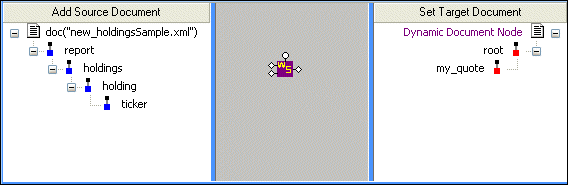
2. For our source document, we'll use a simple XML document that contains only a ticker value - PRGS.
For the target, we'll create a root node (right-click the
Set Target Document pane and choose
Create Root Element), and a child element,
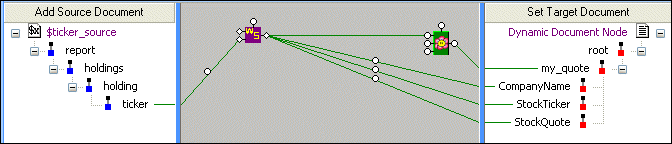
When we're done, our Mapper canvas looks like this:
3. Before continuing, let's make a quick change to the source document - because we'd like to use this XQuery with other sources, we can define the source as a global variable:
a. Right-click the source document URL, and choose
Associate with >
Global
b. In the
Associate Schema with Variable dialog box, we enter
ticker_source and click OK.
Now the document URL appears as
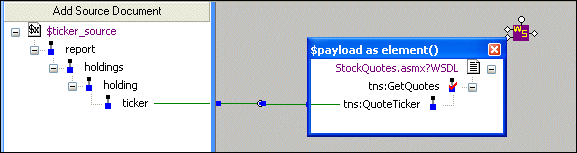
Stylus Studio specified location, payload, and output ports based on the Web service we used to create the
4. Double-click the payload port, and map the
ticker node from the source document to the
tns:QuoteTicker node in the payload port information box.
The Web service will be given the value of the
5. Close the payload information box.
Next, let's specify the information we want from the Swanad Mokashi Web service.
6. Since we'll want multiple pieces of information from the Web service (we want to see the company name, ticker value, and current stock price in our output), we define a FLWOR block so that we make one call to the Web service.
Right-click the Mapper canvas and choose FLWOR Block. Stylus Studio adds a FLWOR block to the XQuery Mapper.
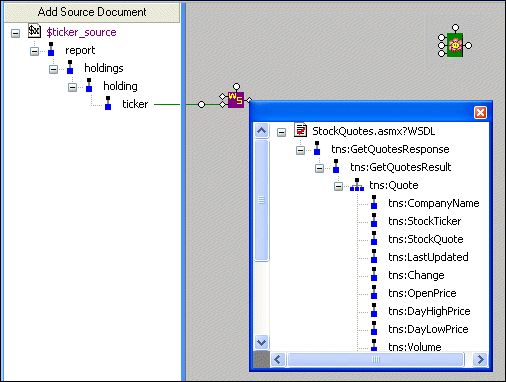
7. Double-click the output port and fully expand the output port information box.
8. Map the repeating
tns:Quote element to the
for port on the FLWOR block.
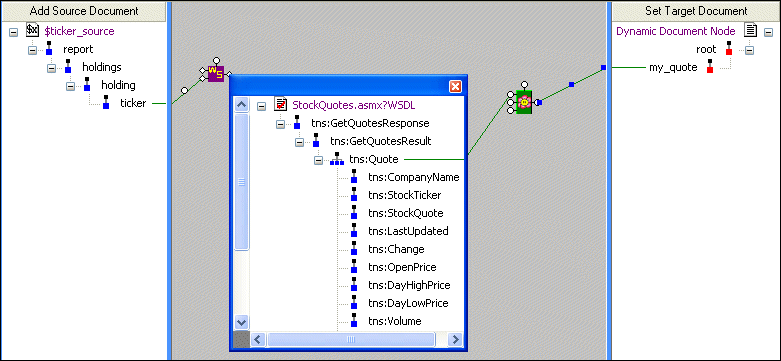
9. Next, map the FLWOR block's output port to the my_quote node we created in the target document.
10. Now we can choose the output provided by the Web service we want to include in our XQuery. For the
tns:CompanyName,
tns:StockTicker, and
tns:StockQuote Web service nodes, we do this drag-and-drop operation:
a. Using the right mouse button (mouse button 2), drag the node to the
my_quote node in the target document.
b. When we release the mouse button to drop the Web service node, we choose
Add Child Element and Map It.
c. We rename the target node, dropping the
tns: prefix, in the
Name dialog box when the target document element is created.
d. When finished, close the output port information box.
When we're done with this step, our output mappings look like this:
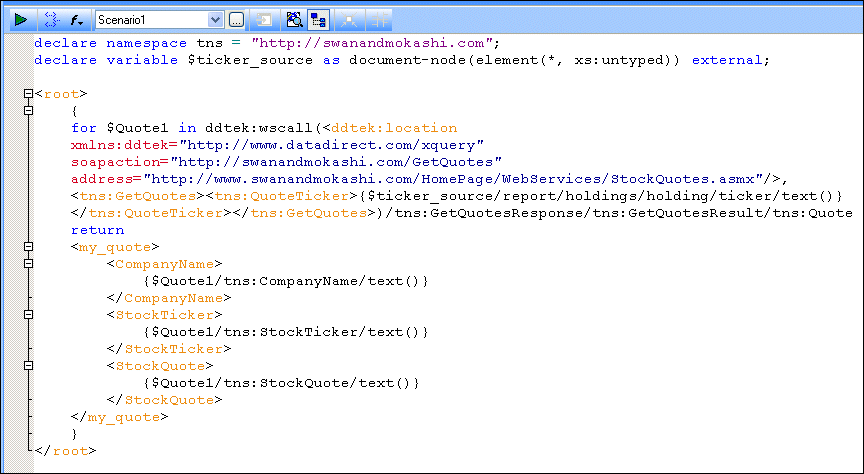
Sample XQuery CodeHere's the XQuery code that Stylus Studio created for us, based on the XQuery mapping:
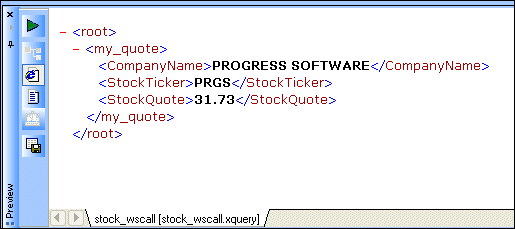
And when we preview the code, this is our result:
|

XML PRODUCTIVITY THROUGH INNOVATION ™