Cart
Cart|
Home > Online Product Documentation > Table of Contents > Ifs IfsAn if is a component that represents a condition (if... then... else...). You can use if components to control report content. You can insert if components within other components (within a table cell, for example). Creating an IfThe easiest way to create an if component in XML Publisher is to select Report > Insert > If from the Stylus Studio menu, or select Insert If from the canvas short-cut menu. The if component's context is established automatically only if you insert within another component - such as a table or list - whose context is already set. The if component does not inherit its context from the body component. Graphical RepresentationIn the XML Publisher canvas, an if component is represented as two tabs, true and false, within a bounding box drawn with a dashed line. Figure 474 shows an empty if component.
Example
We need to create a report that contains a simple table that lists the title and rating for all movies in the
To create this report in XML Publisher, we would:
1. Create a table by dragging the
video repeating element and dropping it on the canvas. This establishes the context for the cells in the table.
2. Drag and drop the
title element in the table's first cell (as a value).
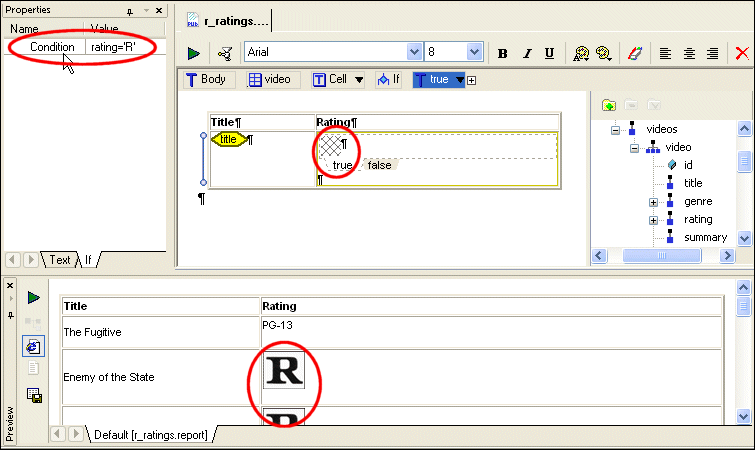
3. Right-click and insert an if component in the table's second cell.
4. Select the if component and click the
If tab in the
Properties window.
5. Set the Condition property to
rating='R'.
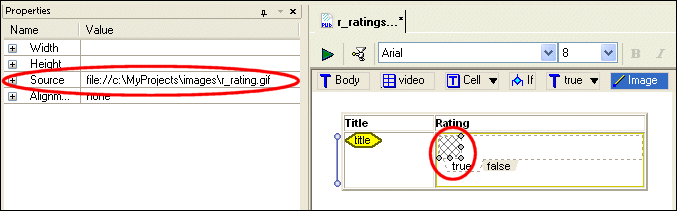
6. Specify the true condition:
a. Select the
true tab.
b. Right-click and select
Insert Image.
c. Set the image component's Source property to the location of the image we want to display for R-rated movies (
c:\MyProjects\images\r_rating.gif, for example).
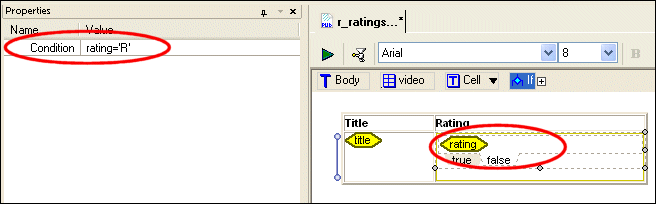
7. Specify the false condition:
a. Select the
false tab.
b. Drag the
rating node from the data sources panel and insert it as a value.
|

XML PRODUCTIVITY THROUGH INNOVATION ™

 ) for emphasis. A sample of the report is