 Cart
Cart|
Home > Online Product Documentation > Table of Contents > Lists Lists
A
list is visual component that iterates over the data it contains and contains one or more items. You typically create a list when you want your report to display a list of dynamic values - all the books, by title, in the
Lists are formatted using bullets, but you can choose numeric, alphabetic, and other symbols like squares and circles. Depending on your needs, you might prefer to use the repeater or table components for dynamic data. See Repeaters and Tables for more information. Creating a ListThe easiest way to create a list in XML Publisher is to drag and drop a repeating element. When you drop the repeating element on the canvas, Stylus Studio displays a short-cut menu with an Insert List choice. The list's context and XPath are set based on the repeating element used to create it. You specify the data you want the list to contain by dragging the appropriate node from the data sources panel and dropping it in the list as Value. You can also create a list manually ( Report > Insert > List, or select Insert List from the canvas short-cut menu). When you create a list like this, however, the context and XPath are not set for you, and it will iterate over the data you specify only if you also define the Loop context and Xpath properties for an item. Graphical Representation
As shown in
Figure 467, a list is represented as a bounding box drawn with a dashed line containing a bullet symbol and, usually, a loop symbol (
SortingBy default, data for dynamic lists is displayed in document order. You can use an XPath expression in the Loop property's Sort sub-property to specify a different sort order. Adding ItemsTo add items to a list:
1. Select the item before or after which you wish to add a new item.
2. Right-click.
Stylus Studio displays a short-cut menu. Alternative: Click the Report > List menu.
3. Select the appropriate choice from the menu.
Deleting an Item or a ListTo delete an item or a list:
1. Select the item or list you want to delete.
2. Click the
Delete button in the toolbar (
 ).
).
Stylus Studio displays a drop-down menu. Alternative: Right-click. Alternative: Click the Report > List menu.
3. Select the appropriate choice from the menu.
|

XML PRODUCTIVITY THROUGH INNOVATION ™
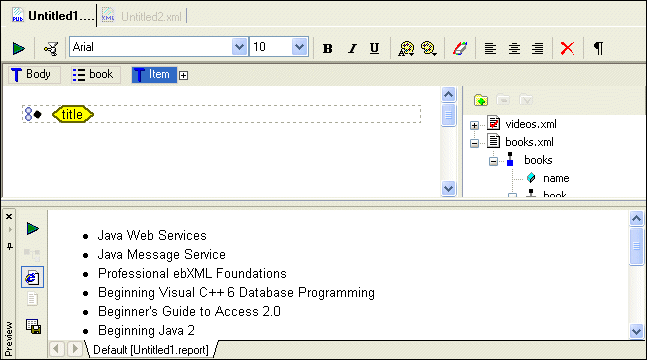
 ). If you created the list manually, the loop symbol appears only if you specify the Loop property's Context and XPath sub-properties for an item.


