Cart
Cart
|
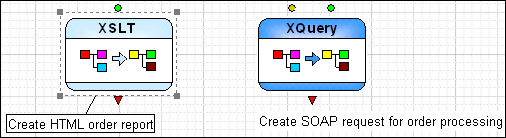
Home > Online Product Documentation > Table of Contents > Labeling XML Pipeline Diagrams Labeling XML Pipeline DiagramsA label is a block of text that you can associate with a node, or with the XML pipeline diagram itself. Labeling can be useful for printed XML pipelines, or any time you need to provide additional documentation about the XML pipeline. Label text is not available in the generated code. Labels appear as plain text on the canvas until you select one. When you select a label or the node with which it is associated, Stylus Studio displays a line that shows you the node with which the label is associated.
You can create as many labels for a pipeline as you like. Each node, however, can be associated with only one label. You cannot format label text.
To create a label:
1. Select the operation you want to label. If you want to label the entire XML pipeline, click the canvas.
2. Select
XML Pipeline > Add Label from the menu.
Alternative: Right-click and select Add Label from the shortcut menu. A label block appears in the XML pipeline diagram.
3. Type the text for your label.
4. Press Enter.
|

XML PRODUCTIVITY THROUGH INNOVATION ™