Cart
Cart|
Home > Online Product Documentation > Table of Contents > Creating a Scenario Creating a ScenarioThis section describes how to create a DB-to-XML scenario. Naming Scenarios
Stylus Studio supplies a default name, like
How to Create a ScenarioTo create a scenario:
1. Open the DB-to-XML data source editor if it is not already open.
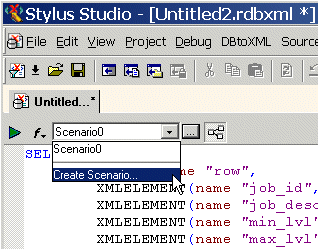
2. Select
Create Scenario from the scenario drop-down list at the top of the editor window:
Stylus Studio displays the
Scenario Properties dialog box. The name field displays a default scenario name (
3. Change the default scenario name.
4. Specify the connection settings. See
Specifying Connection Settings if you need help with this step.
5. Click
OK to save the scenario with the new settings.
Stylus Studio connects to the server specified in the scenario. AlternativeUse this procedure if the Scenario Properties dialog box is already open. To create a scenario when the Scenario Properties dialog box is already open:
1. Click
New on the
Scenario Properties dialog box.
The name field displays a default scenario name (
2. Change the default scenario name.
3. Specify the connection settings. See
Specifying Connection Settings if you need help with this step.
4. Click
OK to save the scenario with the new settings.
Stylus Studio connects to the server specified in the scenario. |

XML PRODUCTIVITY THROUGH INNOVATION ™