 Cart
Cart|
|
Home > Online Product Documentation > Table of Contents > Debugging XQuery Documents Debugging XQuery DocumentsComplex XQuery documents require robust debugging features.
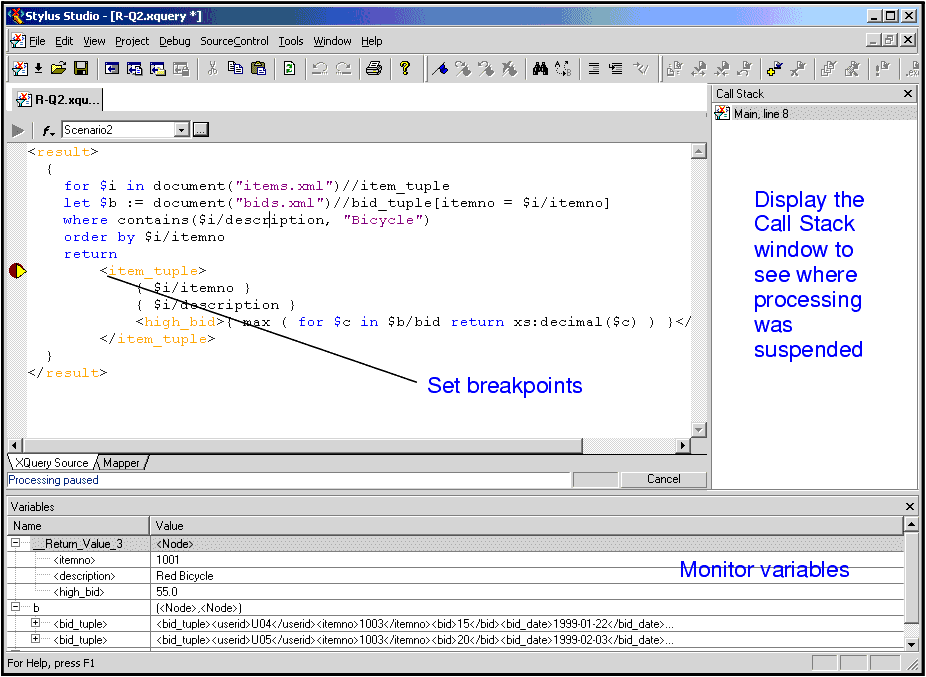
With Stylus Studio, you can In this sectionThis section covers the following topics: Using BreakpointsThe Stylus Studio debugger allows you to interrupt XQuery processing to gather information about variables and XQuery expression execution at particular points. Inserting BreakpointsTo insert a breakpoint:
1. In the XQuery document in which you want to set a breakpoint, place your cursor where you want the breakpoint to be.
2. Click
Toggle Breakpoint
 or press F9. Stylus Studio inserts a blank stop sign
 to the left of the line with the breakpoint.
Removing BreakpointsTo remove a breakpoint:
1. Click in the line that has the breakpoint.
2. Press F9 or click
Toggle Breakpoint.
Alternative: In the Stylus Studio toolbar, click
Start Debugging
When your XQuery has one or more breakpoints set, start processing by clicking
Start Debugging
Viewing Processing InformationStylus Studio provides several tools for viewing processing information. The tools become active when processing reaches a breakpoint. This section discusses the following topics: Watching Particular Variables
Use the
Watch window to monitor particular variables. To display the
Watch window, click
Watch
Enter the names of the variables you want to watch. You can enter as many as you like. When Stylus Studio suspends processing, it displays the current values for any variables listed in the Watch window. You can expand and collapse complex structures as needed.
During XQuery debugging, you can enter XPath expressions in the
Watch window fields. Stylus Studio uses the current context to evaluate these expressions, and displays the results with the same kind of interface Stylus Studio uses for
Evaluating XPath Expressions in the Current Processor Context
When you suspend processing, you can evaluate an XPath expression in the context of the suspended process. You do this in the
Watch window. Click
Obtaining Information About Local Variables
Display the
Variables window to obtain information about local variables. To display the
Variables window, click
Variables
Information displayed in the Variables window includes: Also, you can navigate the structure associated with a variable, a parameter, or the current context if it is a node list or a node. Displaying a List of Process Suspension PointsDisplay the Call Stack window to view a list of the locations at which processing was suspended. For XQuery documents, Stylus Studio displays the XQuery document name and line number.
To display the
Call Stack window, click
Call Stack
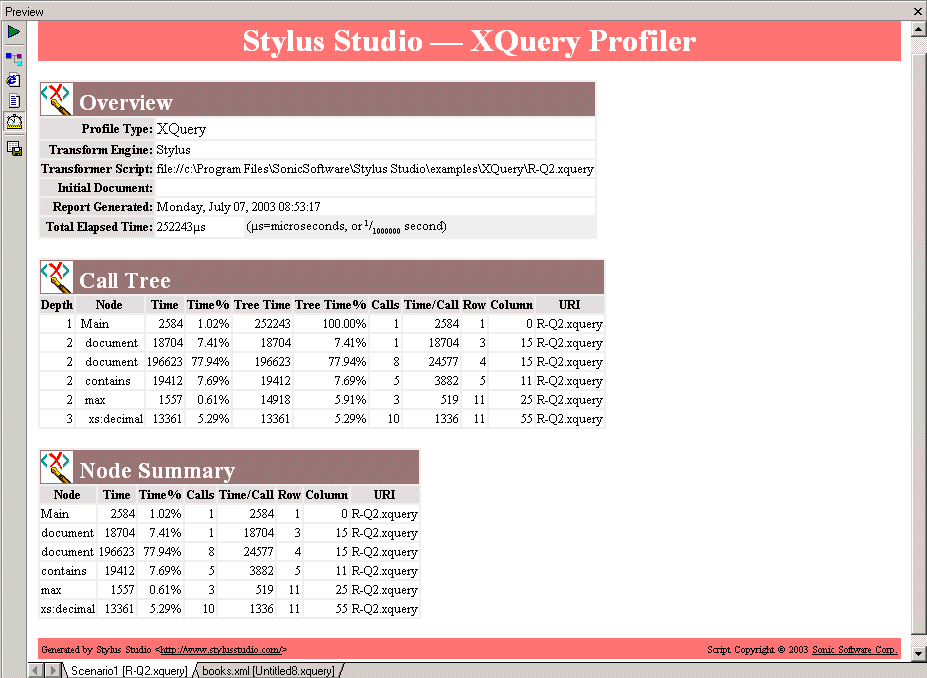
When processing is complete, the call stack is empty. When execution is suspended you can use the Call Stack window to jump directly to the XQuery source. Double-click on a stack line to go to that location. A green triangle appears to indicate this location in the source file. Displaying XQuery Expressions for Particular OutputAfter you create an XQuery, or during XQuery debugging, Stylus Studio can display the XQuery expression that generated a particular part of a result document. This can be particularly helpful when the result is not quite what you want. In the Preview window, click on the output for which you want to display the XQuery expression. You can do this while either the text view or the browser view is active. Stylus Studio flags the line in the XQuery source that contains the expression that generated the output you selected. Using BookmarksWhen you are editing or debugging a long file, you might want to repeatedly check certain lines in the file. To quickly focus on a particular line, insert a bookmark for that line. You can insert any number of bookmarks. You can insert bookmarks in any document that you can open in Stylus Studio. InsertingTo insert a bookmark:
1. Click in the line that you want to have a bookmark.
2. Click
Toggle Bookmark
 in the Stylus Studio toolbar. Stylus Studio inserts a turquoise box with rounded corners to the left of the line that has the bookmark.
RemovingTo remove a bookmark:
1. Click in the line that has the bookmark you want to remove.
2. Click
Toggle Bookmark in the Stylus Studio toolbar. Stylus Studio removes the turquoise box.
To remove all bookmarks in a file, click Clear All Bookmarks
|

XML PRODUCTIVITY THROUGH INNOVATION ™
 Breakpoints to display a list of breakpoints in all open files. You can selectively remove one or more, remove them all, or jump to one of them.
 or pressing F5. When Stylus Studio reaches the first breakpoint, it suspends processing and activates the debugging tools. After you examine the information associated with that breakpoint (see
 or press F11.
 or press F10.
 or press Shift+F11.
 .
.
 in the Stylus Studio toolbar, or click
Cancel in the lower right corner of the XQuery editor, or press Shift+F5.
in the Stylus Studio toolbar, or click
Cancel in the lower right corner of the XQuery editor, or press Shift+F5.
 to suspend XQuery processing. Stylus Studio flags the line it was processing when you clicked
Pause.
to suspend XQuery processing. Stylus Studio flags the line it was processing when you clicked
Pause.
 in the Stylus Studio toolbar. This button is active when Stylus Studio suspends processing because it reached a breakpoint. Stylus Studio displays the
Watch window only when processing is suspended.
in the Stylus Studio toolbar. This button is active when Stylus Studio suspends processing because it reached a breakpoint. Stylus Studio displays the
Watch window only when processing is suspended.
 in the Stylus Studio toolbar. This button is active when Stylus Studio suspends processing because it reached a breakpoint. Stylus Studio displays the
Variables window only when processing is suspended.
in the Stylus Studio toolbar. This button is active when Stylus Studio suspends processing because it reached a breakpoint. Stylus Studio displays the
Variables window only when processing is suspended.
 in the Stylus Studio toolbar. This button is active when Stylus Studio suspends processing because it reached a breakpoint. Stylus Studio displays the
Call Stack window only when processing is suspended.
in the Stylus Studio toolbar. This button is active when Stylus Studio suspends processing because it reached a breakpoint. Stylus Studio displays the
Call Stack window only when processing is suspended.
 .
.
 or Previous Bookmark
 .
.
 at the top of the XQuery editor window.)
 ).
).
 ).
).


