Cart
Cart|
|
Home > Online Product Documentation > Table of Contents > Getting Started with XQuery in Stylus Studio Getting Started with XQuery in Stylus StudioThis section describes working with XQuery in Stylus Studio. It covers the following topics: What is XQuery?XML Query (XQuery) is the World Wide Web Consortium (W3C) language for querying XML. XQuery is a language developed by the W3C XML Query working group. Example
The XQuery grammar allows you to define expressions like those shown in the following sample query,
This and other XQuery examples are provided in the Stylus Studio
Sources for Additional XQuery InformationFor more information about XQuery, visit http://www.w3.org/XML/Query (the W3C page for XML Query). What is an XQuery?
In Stylus Studio, an XQuery is a document with a
The Stylus Studio XQuery EditorIn Stylus Studio, you use the XQuery editor's textual editor and graphical interfaces to work with XQuery. The XQuery editor, which consists of two tabs, XQuery Source and Mapper, is displayed any time the active document within Stylus Studio is an XQuery document. You can use either or both tabs to compose an XQuery.
By default, Stylus Studio gives new XQuery files a
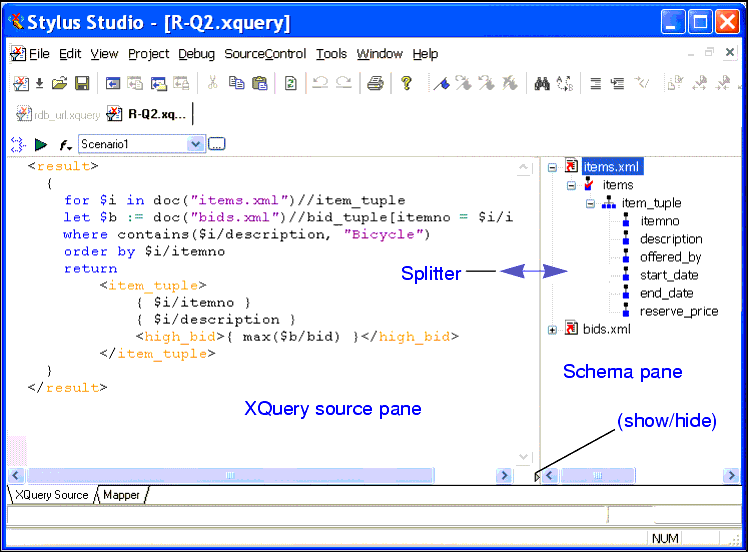
XQuery Source TabYou can use the XQuery Source tab to view, compose, preview, and debug your XQuery. For example, you can edit query text directly, set breakpoints, and debug your XQuery on this tab. The tab is divided into two panes:
Stylus Studio's Sense:X automatic completion feature is supported for XQuery - Sense:X simplifies editing and helps ensure well-formed XML for queries you compose manually. You can define other XQuery editor settings on the Editor General and Editor Format pages of the Options dialog box. (Click Tools | Options, and expand Application Settings to make these pages available.)
You can preview the XQuery result by clicking the
Preview Result button (
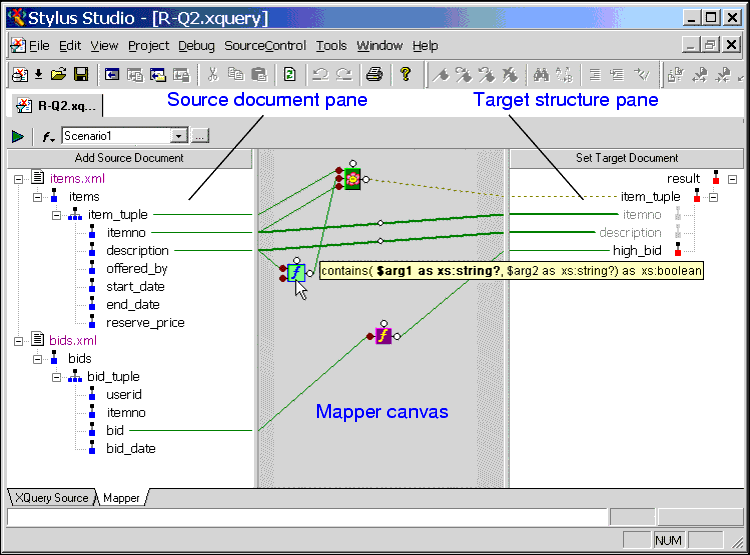
Mapper TabThe Mapper tab provides an interface that allows you to compose and view your XQuery graphically.
The Mapper tab consists of these areas:
As with the
XQuery Source tab, you can preview XQuery results from the
Mapper tab by clicking the
Preview Result button (
For more informationSee Building an XQuery Using the Mapper to learn more about the features of the XQuery editor Mapper tab. XQuery Source and Mapper Tab InteractionChanges made to an XQuery on the Mapper tab are reflected on the XQuery Source tab, and vice versa. For example, if you start writing your XQuery on the XQuery Source tab and then click the Mapper tab, Stylus Studio displays a graphic representation of your XQuery code. If you next edit the XQuery graphically (adding a function or a FLWOR block and mapping the return value to a node in the target structure, for example) and then return to the XQuery Source tab, you will see that Stylus Studio has updated the XQuery code based on your edits on the Mapper tab. Viewing the code on the XQuery Source tab that Stylus Studio creates based on actions performed on the Mapper tab can be a useful aid to learning XQuery syntax.
|

XML PRODUCTIVITY THROUGH INNOVATION ™
 ). Results are displayed in the
Preview window at the bottom of the XQuery editor.
). Results are displayed in the
Preview window at the bottom of the XQuery editor.