Cart
Cart|
|
Home > Online Product Documentation > Table of Contents > Function Blocks Function BlocksStylus Studio supports standard functions defined by the W3C and any user-defined functions you might have created. This section describes how to work with function blocks in Stylus Studio and covers the following topics: Standard Function Block TypesStylus Studio provides graphic support for the following types of XQuery functions: If a standard function does not provide the functionality you need, create a user-defined function. See User-Defined Functions. Creating a Function BlockThe procedure for creating standard and user-defined function blocks varies slightly: To create a standard function block:
1. Right-click on the mapper canvas.
2. Select
New > Function Block from the shortcut menu. Available functions are displayed in submenu categories.
To create a user-defined function block:
1. Right-click on the mapper canvas.
2. Select
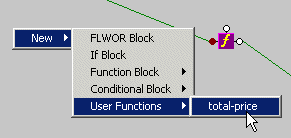
New > User Functions from the shortcut menu.
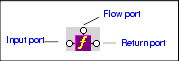
Any user-defined functions defined in the XQuery source are displayed in a sublist. See User-Defined Functions to learn more about creating user-defined functions in Stylus Studio. Parts of a Function BlockFunction blocks are drawn as a purple block with an italic "f" at its center, and connectors, called ports, placed along the block's border. Input ports (none or more based on the function), the Flow port at the top, and the Return port on the right:
Input portsInput ports are on the left side of the function block. The number and definition of input ports varies from function to function. To specify a value for an input port, drag a source document element or attribute to the port and release it. Flow portFlow ports, on the top of function blocks, are the same for FLWOR, function, and IF blocks. See Flow port. Return portThe Return port is on the right side of the function block. You use the Return port to map the function result directly to a target structure element or attribute, or to a FLWOR, IF, condition, or another function block. User-Defined FunctionsYou can define your own functions in XQuery, such as the following:
This particular user-defined function, which takes an element as its argument and returns a sum of the prices, might be used as follows (shown in italics):
When you create a user-defined function, Stylus Studio adds it to the New > User Functions shortcut menu available when you right-click the mapper canvas.
This makes it easy to reuse a user-defined function on the Mapper tab once it has been defined in the XQuery source. concat Function Blocks
There are three types of concatenation (
Note that only the first two input ports are associated with variables (
|

XML PRODUCTIVITY THROUGH INNOVATION ™