 Cart
Cart
|
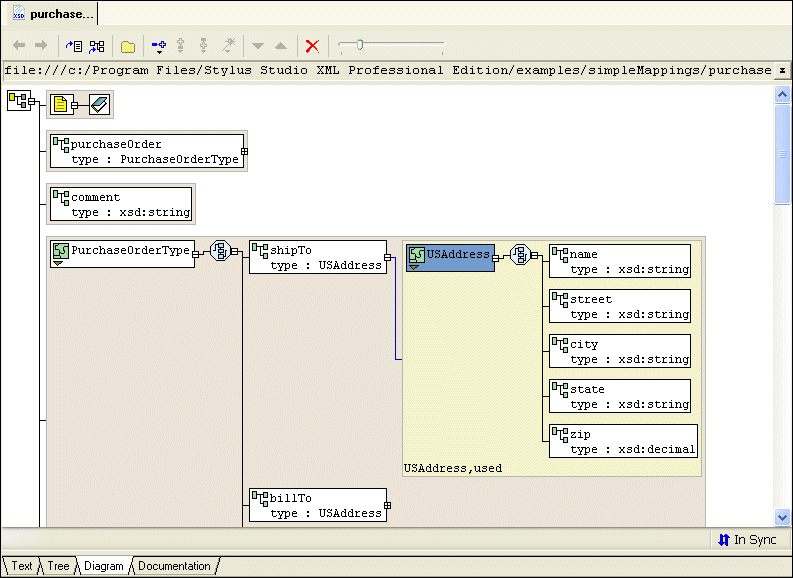
Home > Online Product Documentation > Table of Contents > Parts of the Diagram Tab Parts of the Diagram TabThe Diagram tab, shown in Figure 68, consists of four main areas. This section describes the areas of the Diagram tab and how to work with them. XML Schema Diagram CanvasThe XML Schema diagram canvas is the area on the right side of the Diagram tab. It contains graphical representations of the elements, attributes, and other nodes and instructions that make up your XML Schema.
Each node and instruction displayed in the XML Schema diagram canvas is represented by its own symbol; tool tips, which are displayed when you hover over a node in the diagram, identify the node's type (element, attribute, sequence, and so on). The symbols used in the diagram are summarized in Table 1, Symbols Used in the XML Schema Diagram.
Background color is used as another visual cue for information about the XML Schema:
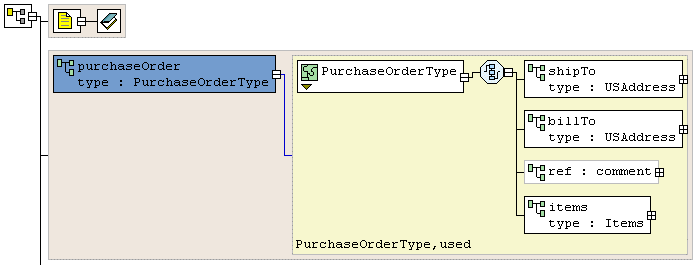
Nodes can be expanded and collapsed using the plus and minus symbols, respectively, that appear on the right side of the node. In
Figure 70 for example, the
You can use the scroll bars to explore the diagram, and the zoom slider lets you change the magnification.
Text PaneThe text pane appears directly beneath the XML schema diagram canvas. It displays the XML Schema code represented by the nodes you create in the diagram. Stylus Studio synchronizes these two views of the XML Schema - any changes you make in the diagram are reflected in the text pane, and vice versa. You can use the splitter to resize the text pane to view more or less text, or you can hide it entirely by clicking the small triangle on the splitter's right side. (You can display a full view of the XML Schema syntax by clicking the Text tab.) Stylus Studio supports backmapping between the text pane and the XML Schema diagram canvas - if you click a node in the diagram, Stylus Studio scrolls the text pane to display the line of XML Schema that defines the node you clicked. A blue triangle identifies the exact line of code. Properties WindowYou use the Properties window to enter values for the properties associated with the node you select. You can select nodes from either the XML Schema diagram or text pane.
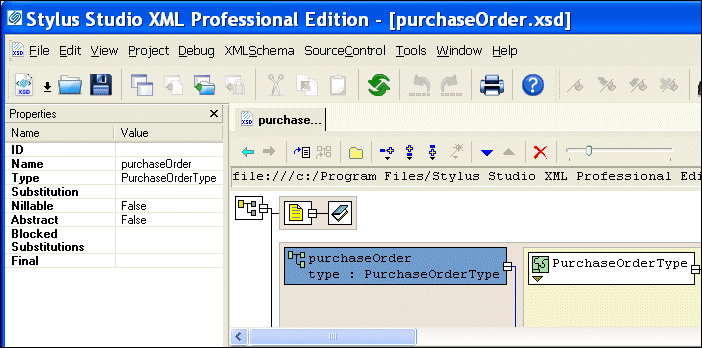
Figure 71 shows the properties of the
To define or edit a property value, just click the Value field associated with that property. If you can provide a user-defined value, a text cursor appears in the field; otherwise, Stylus Studio displays the symbol for a drop-down menu, from which you can select a system-defined value. Definition Browser
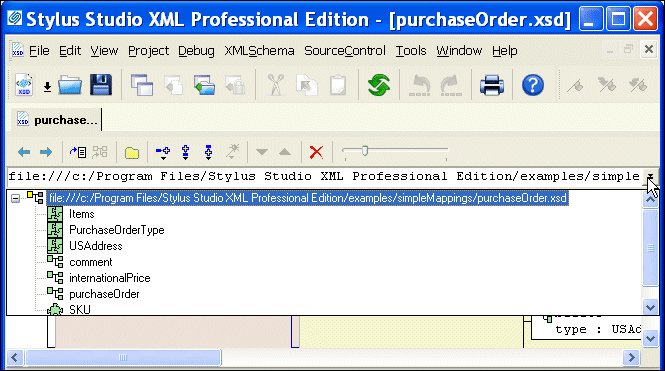
The definition browser is a drop-down list that displays all the child nodes of the
When you select a node from the definition browser, Stylus Studio a new page in the XML Schema diagram canvas that shows the definition of the node you select. To return to the page you were viewing previously, press the back (
|

XML PRODUCTIVITY THROUGH INNOVATION ™


 ) on the shortcut menu to display a new page that shows just the type definition. Click
Display Definition (
) on the shortcut menu to display a new page that shows just the type definition. Click
Display Definition (
 ) on the shortcut menu to jump to the place in the XML Schema where the type is defined.
 ) button.


